Why connect an agent to Git
Lyzr natively provides version control for every agent, but native versioning is linear: once an agent is live, your API key points to its latest version, so any change you save lands directly on the version production consumes. Linear versioning records history, but it cannot isolate experimentation from production. With Git connected, production keeps running on one branch while you rewrite instructions, swap models, and test new prompts on another, with zero impact on live traffic. When you are confident in the changes, you promote them. See Branching and Promotion for that workflow.Prerequisites
You need a GitHub account and a personal access token (PAT) with repo permissions. If your organization uses GitHub Enterprise Server, you also need your GitHub Enterprise domain URL.Connecting a repository
Git can be connected to any agent, single or manager.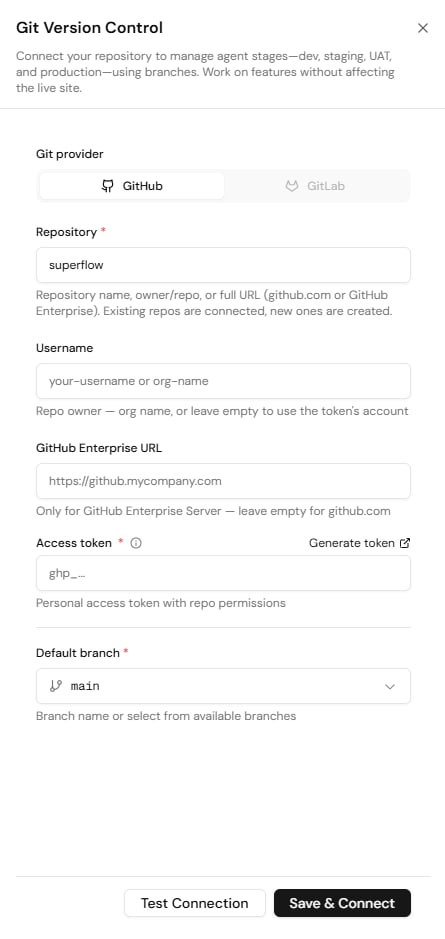
- Open the agent in Agent Studio and select the Git Connect icon at the top right of the agent view.
- Enter a Repository name, owner/repo, or full URL. If a repository with that name already exists it is connected; if not, Lyzr creates one for you.
- Optionally enter a Username (an org or repo owner name). Leave it empty to use the token’s account.
- If your company uses GitHub Enterprise Server, enter your GitHub Enterprise URL so the token request resolves to the correct domain. Leave it empty for github.com.
- Paste your Access token. Select Generate token to open GitHub and create a PAT if you do not have one.
- Choose the Default branch to connect to.
- Select Test Connection to verify the details, then select Save & Connect.
main branch.
The Git menu
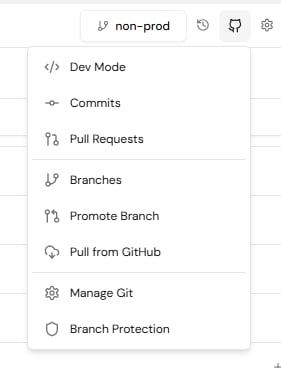
Once Git is enabled, a new icon with your GitHub URL appears at the top of the agent view. It opens the full set of Git options: Commits, Pull Requests, Branches, Promote Branch, Pull from GitHub, Manage Git, and Branch Protection. The current branch is shown next to the icon.