The Playground is where you test an agent before you deploy it. You can send messages, upload files, and iterate on instructions, as described in Test your agent in the Playground. The Playground can also send one message to two or three models at once and show their responses next to each other, so you can choose a model based on how each one handles your own prompts.

Compare models side by side

You can compare two or three models in one comparison. Each model answers with the same instructions, knowledge, and context, so the only difference between the responses is the model. To compare models:
  1. Open your agent in the Playground.
  2. In the chat, select Compare models.
  3. Pick two or three models. Use Select model to add a model, and the × next to a model to remove it.
  4. Send a message, or select one of the suggested prompts under Try asking. The Playground sends the same message to every selected model and shows the responses next to each other.
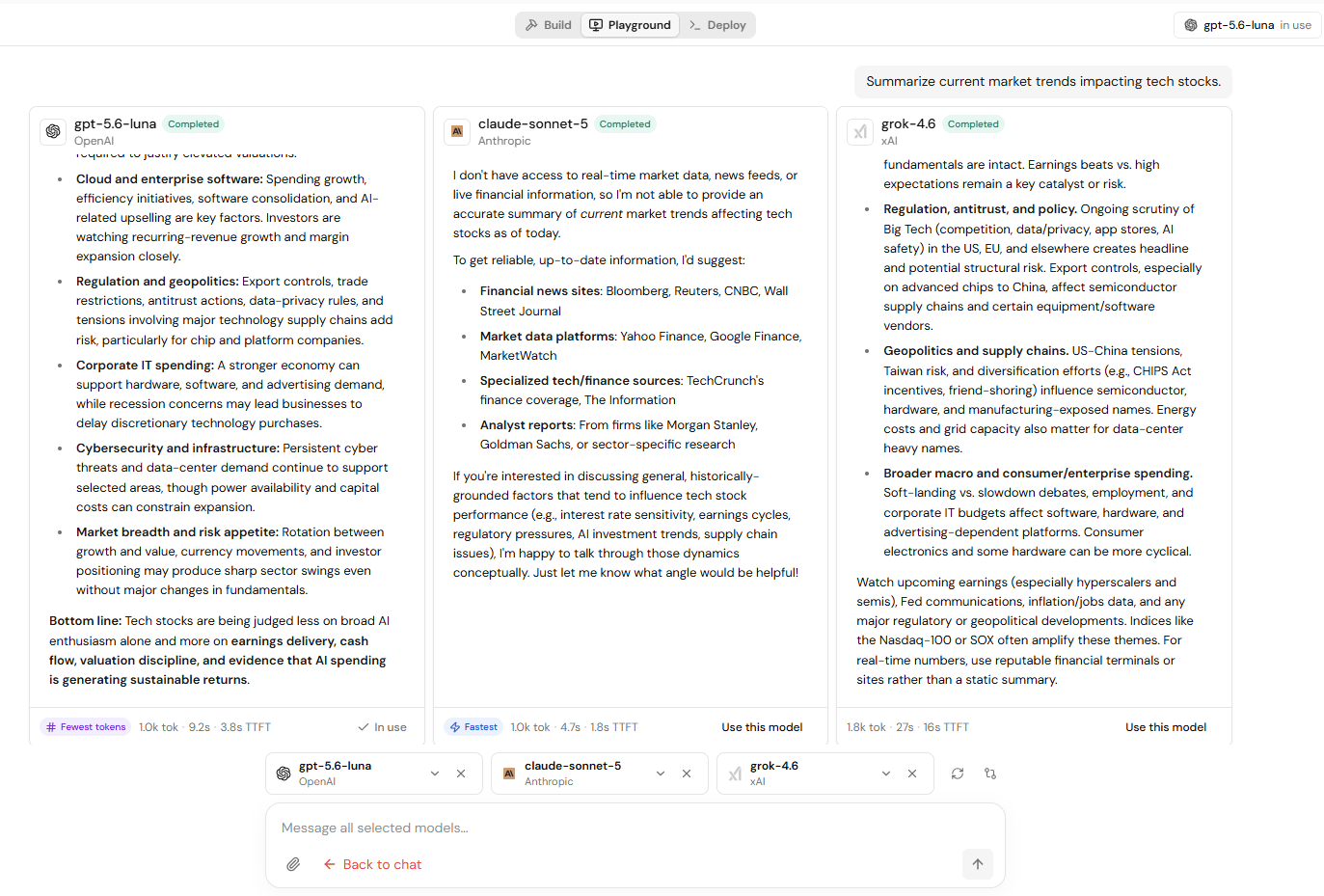
The Agent Studio Playground comparing three models (gpt-5.6-luna, claude-sonnet-5, and grok-4.6) on the same prompt in side-by-side columns. Under each response, a row shows the token count, total time, and time to first token. The first response is labeled Fewest tokens and marked In use, the second is labeled Fastest, and the other two have a Use this model button.

Read the comparison

Each response in a comparison shows three measurements:
  • The token count for the response.
  • The total time the model took to return the full response.
  • The time to first token (TTFT), which is how long the model took to start responding.
The response that used the fewest tokens is labeled Fewest tokens, and the response that arrived first is labeled Fastest. The model the agent currently uses is marked In use.

Switch the agent to a compared model

When one model stands out, select Use this model under its response to switch the agent to that model. To leave the comparison and return to the normal chat, select Back to chat.

Next steps