

How Global Context works
A Global Context document is a named text block stored in your workspace. When you attach a context document to an agent, its contents are injected into the agent’s system prompt at inference time. Every agent that shares the same context document automatically receives any updates you make to that document, without requiring per-agent edits.Create a context document
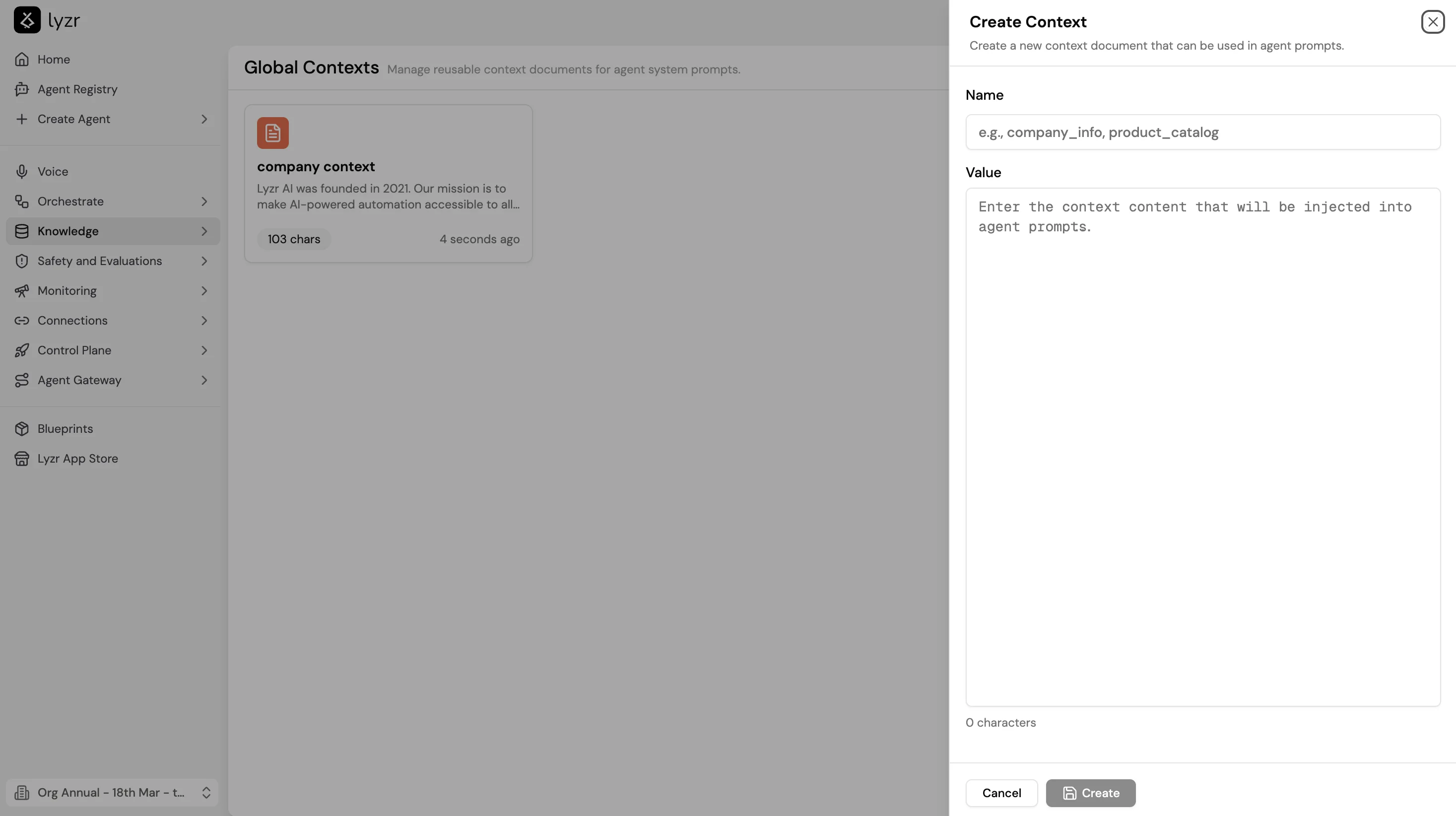
- Select Knowledge in the Studio sidebar, then open Global Contexts to see the list of context documents in your workspace.
- Select Create Context. A panel opens on the right side of the screen.
-
Enter a Name: a short, descriptive identifier that makes the document easy to find and reuse across agents. Examples:
company_info,product_catalog,support_guidelines. -
Enter the Value: the text to inject into agent prompts. Example:
- Select Create to save the context document.
Attach a context document to an agent
- Open the agent in the Studio Builder, or create a new agent.
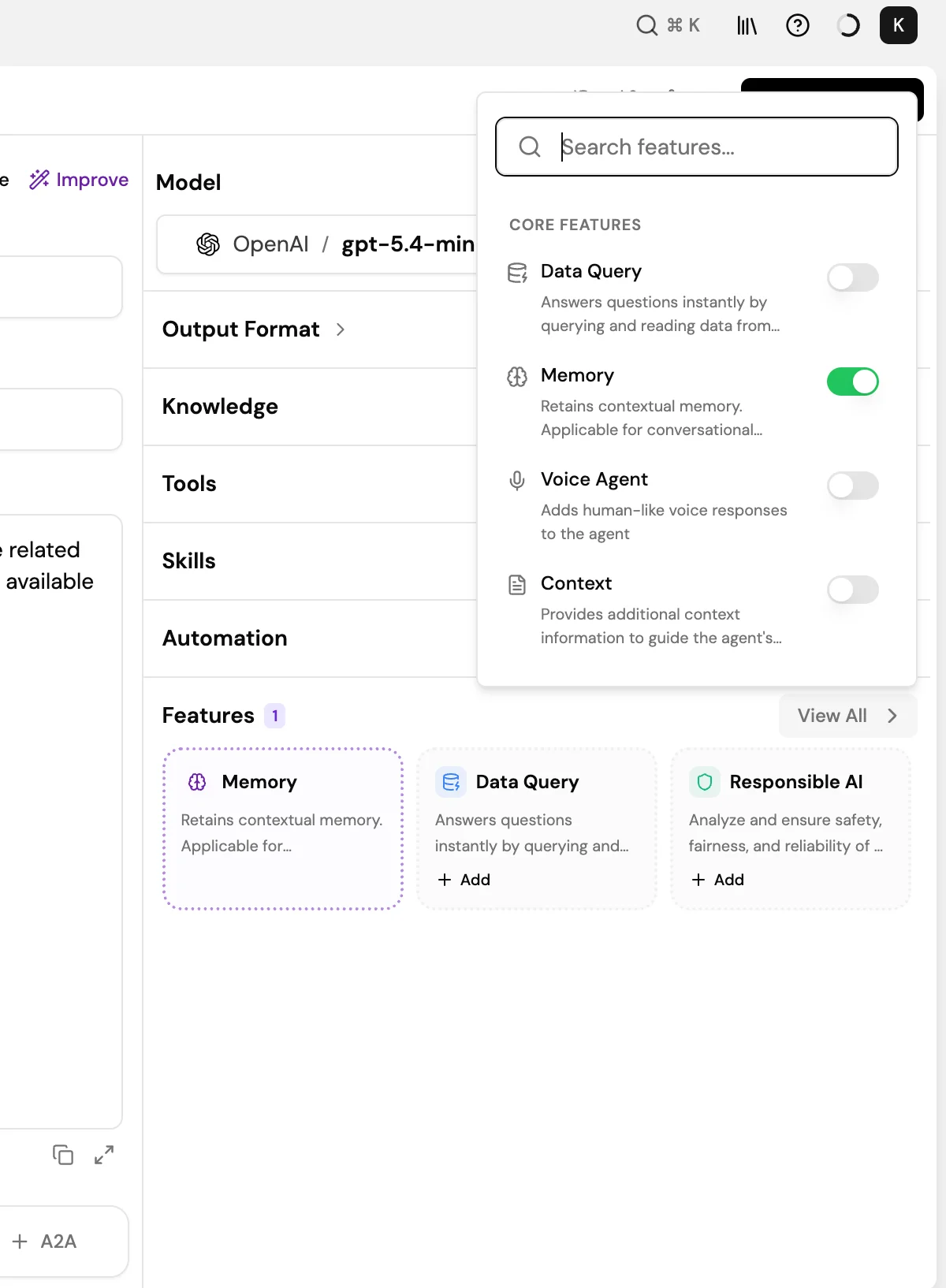
- Scroll to the Features section and select View All, or select the + icon next to Features to open the feature picker. You can also search for “Context” in the search bar.
- Toggle on Context under Core Features.
- Select the context document from the dropdown. The context is injected into the agent’s system prompt from the next inference onwards.
When to use Global Context
Global Context is most useful when the same information must stay consistent across agents in your workspace. Common use cases include:- Org-wide brand voice and tone guidelines that all customer-facing agents must follow
- Product descriptions referenced by both support and sales agents
- Compliance rules or legal disclaimers that apply across the entire workspace