

⚙️ Advanced Integration: Custom MCP Server Tool Deep Dive
The (MCP) integration feature in Lyzr Studio is critical for extending Agent capabilities beyond native tools. It allows you to transform a private application or proprietary system (like a specific Notion workspace) into a robust, high-performance tool that Agents can use for complex, stateful operations. This integration process ensures the Manager Agent can reliably access and execute specialized actions, such as fetching, creating, or updating data within your connected workspace.🧭 Phase 1: Configuring the MCP Server Tool
This initial phase registers the external server endpoint and defines its access method within the Lyzr environment. This is performed in the Tools section of the Studio.1. Registering the MCP Server Endpoint
This step establishes the connection parameters necessary for Lyzr to communicate with your external tool’s infrastructure.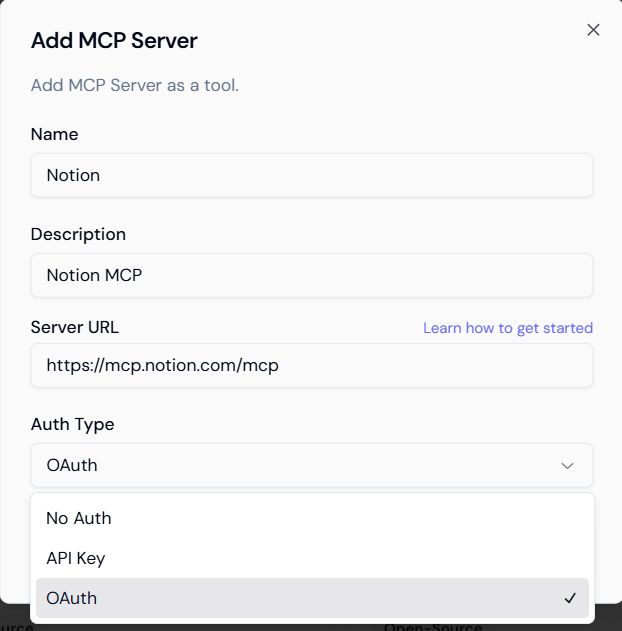
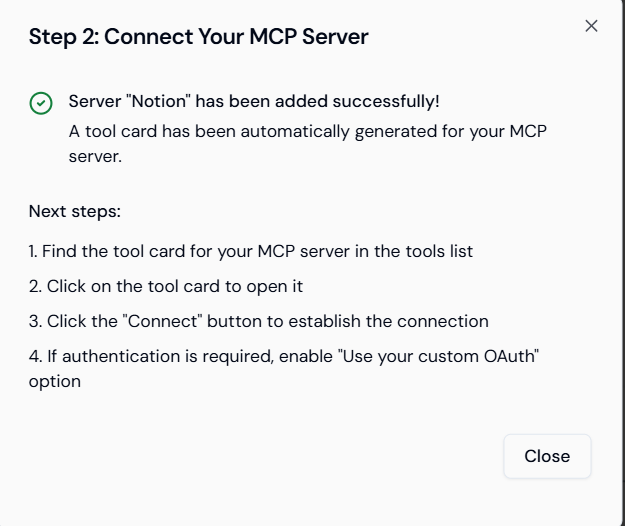
2. Connection Confirmation and Next Steps
After successfully submitting the server details, Lyzr confirms the registration. A dedicated tool card is automatically generated, signaling that the system is ready for the critical authentication step. Next Steps to Finalize Connection:- Locate the generated tool card for the MCP server in the Tools list.
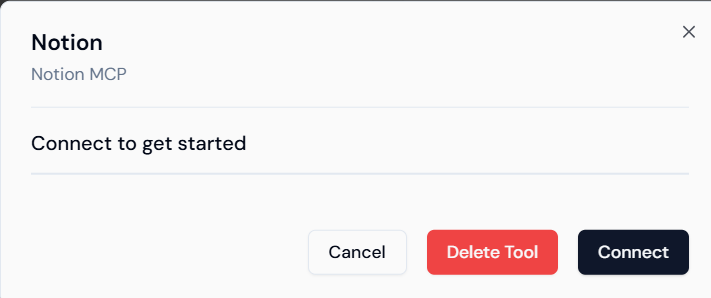
- Click the Connect button to begin authentication.
- If a standard connection fails, enable the “Use your custom OAuth” option for manual credential configuration.
3. Establishing Authentication (The Connect Action)
Clicking Connect opens the specific authentication window for the external service (e.g., the Notion OAuth consent screen).- Secure Handshake: This process involves an OAuth handshake, where you authorize Lyzr to act on your behalf within the external system.
- Token Generation: Upon successful authorization, the system generates and securely stores an access token, which the Agent will use for all future interactions with the MCP server.
🤝 Phase 2: Linking and Configuring the Tool within an Agent
Once the MCP Server is live and authenticated, you must explicitly grant an Agent permission to use it. This is performed in the Agents management tab.4. Selecting the Target Agent
Navigate to the Agents management page. You can configure this tool for any Agent type: Agent, Managerial Agent, or Workflow.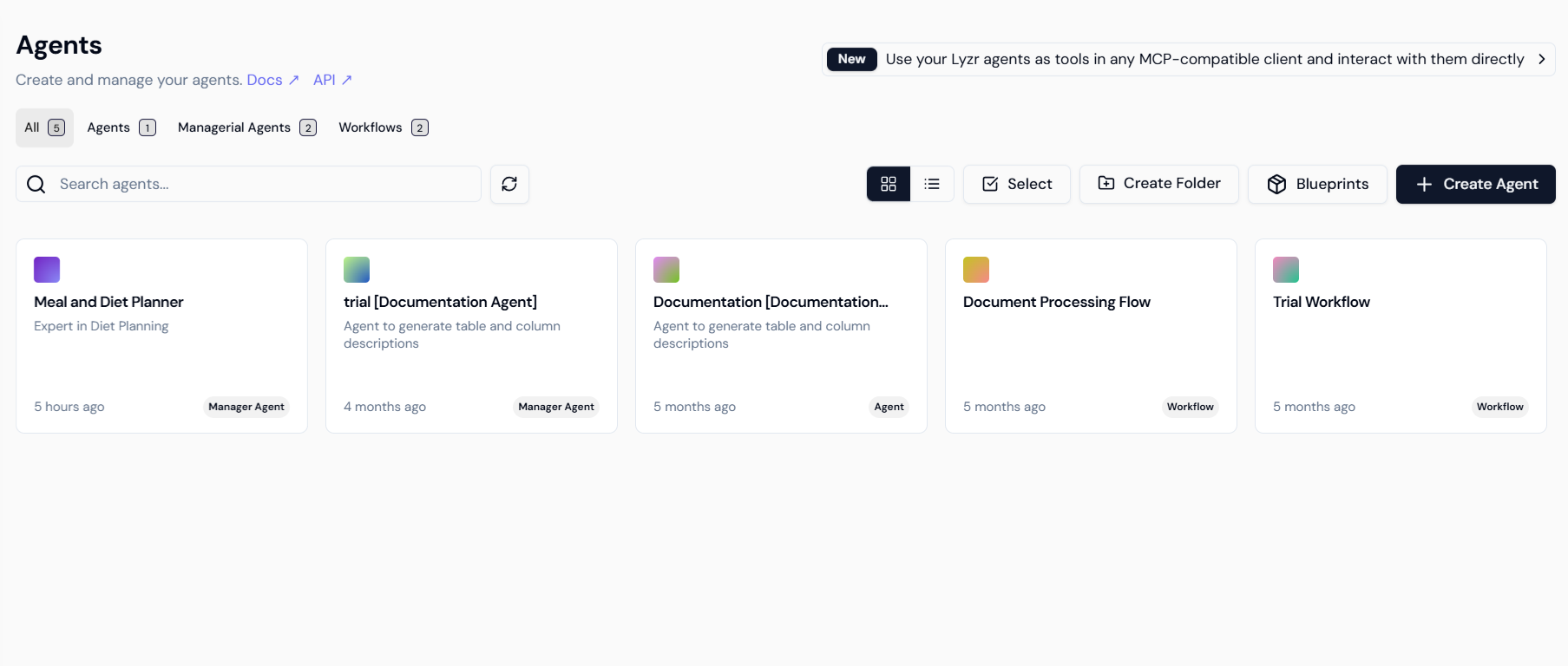
5. Adding the Custom Tool to the Agent
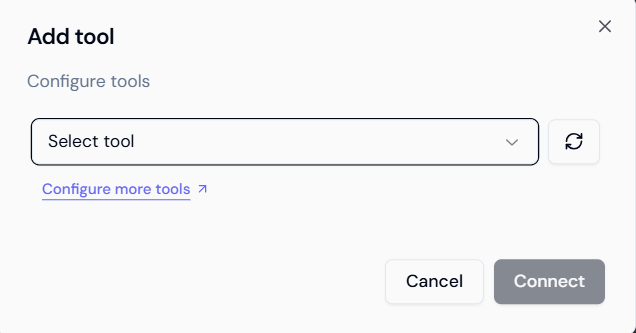
Within the Agent’s editing interface (usually under a “Tools” or “Capabilities” tab):- Click the Add tool button.
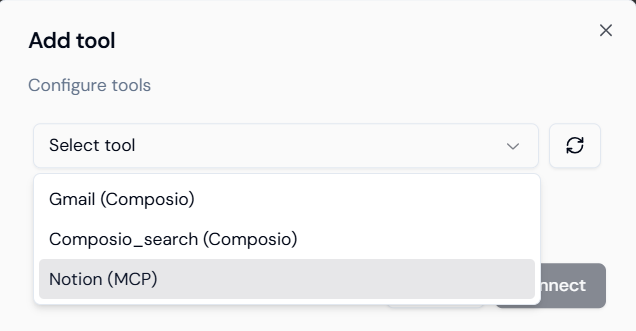
- Select the registered MCP server (
Notion (MCP)) from the list of available tools. This action makes the server’s capabilities discoverable by the Agent’s reasoning model.
6. Defining Specific Agent Actions (Granularity)
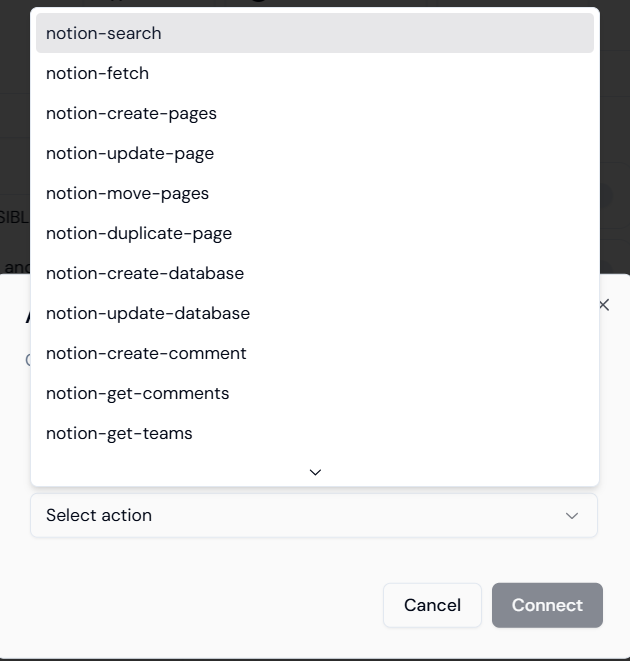
This is the most crucial step for performance and security. You must restrict the Agent to only the necessary actions provided by the MCP server.- The MCP server exposes a list of specialized functions (e.g.,
notion-search,notion-create-pages,notion-update-database). - Selecting only the required functions ensures that the Agent’s context window is not overloaded, which improves reasoning speed and accuracy. It also limits the Agent’s permissions, adhering to the principle of least privilege.
7. Configuring Action-Specific Parameters
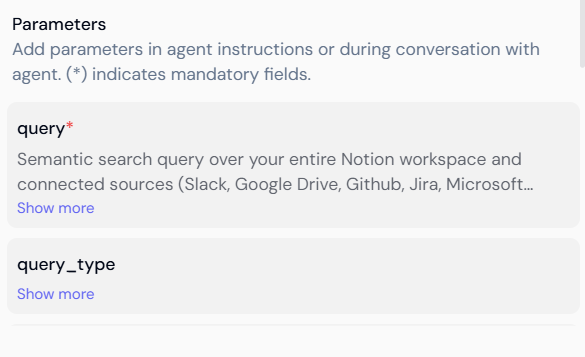
This step is dynamic. The required input fields (Parameters) depend entirely on the specific Action chosen in Step 6.- Mandatory Fields: For a Read action like
notion-search, thequeryfield is mandatory. For a Write action likenotion-create-pages, mandatory fields might includepage_titleandpage_content. - Optional Fields: These allow for deeper customization (e.g.,
query_typefor search, ordatabase_idfor creation).
🎉 Final Outcome
By completing these steps, you have successfully transformed a complex external system into a native Agent tool. The Agent can now leverage the MCP server to:- Perform Semantic Search: Access and analyze information within your Notion workspace based on natural language intent.
- Execute CRUD Operations: Create, Read, Update, and Delete information in the external system, enabling full automation of managerial and data-heavy tasks.