

Connecting SingleStore Vector Store
Lyzr supports integration with SingleStore, a high-performance, distributed SQL database. By leveraging SingleStore’s vector functions and MySQL-wire compatibility, you can store and query high-dimensional embeddings alongside relational data at scale.Configuration & Connection
To link your SingleStore workspace, you will need the following parameters from your Cloud portal:- Unique Name: A label to identify this store within Lyzr (e.g., “S2_Vector_Prod”).
- Vector Store User: The database username (e.g.,
adminor your custom user). - Vector Store Host: The specific endpoint address for your workspace.
- Vector Store Password: The secret password associated with your database user.
- Vector Store Port: The connection port (standard is
3306or3333). - Vector Store Database: The name of the specific database housing your vector tables.
Retrieving Your Credentials
Follow these steps in the SingleStore Helios (Cloud) portal to find your connection details:1. Accessing the Portal
Log in to your SingleStore account. New users can start with a free trial or a starter workspace.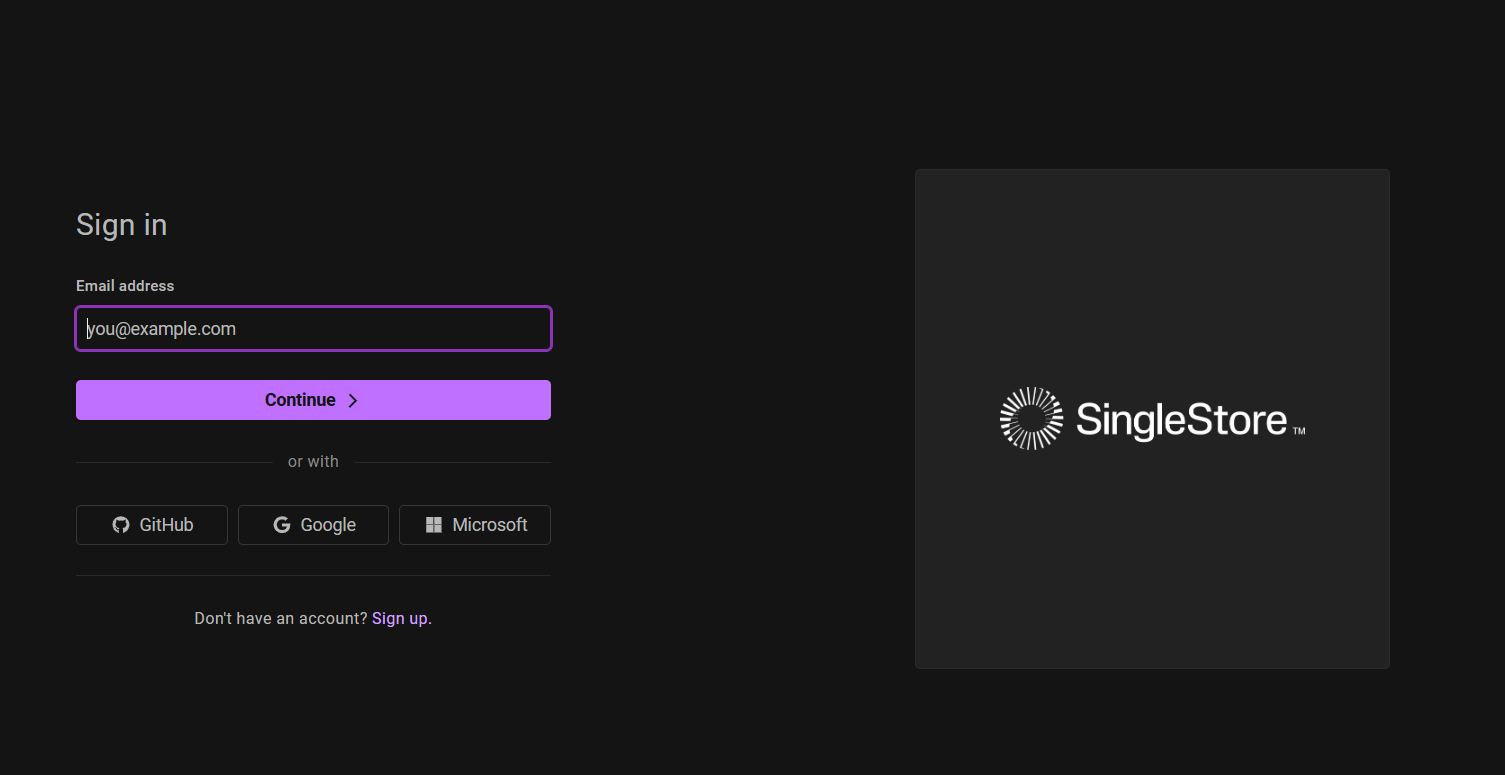 Figure 1: SingleStore Cloud login page.
2. Navigating to Deployments
From your main dashboard, select the Deployments icon in the left-hand sidebar to view your active workspaces.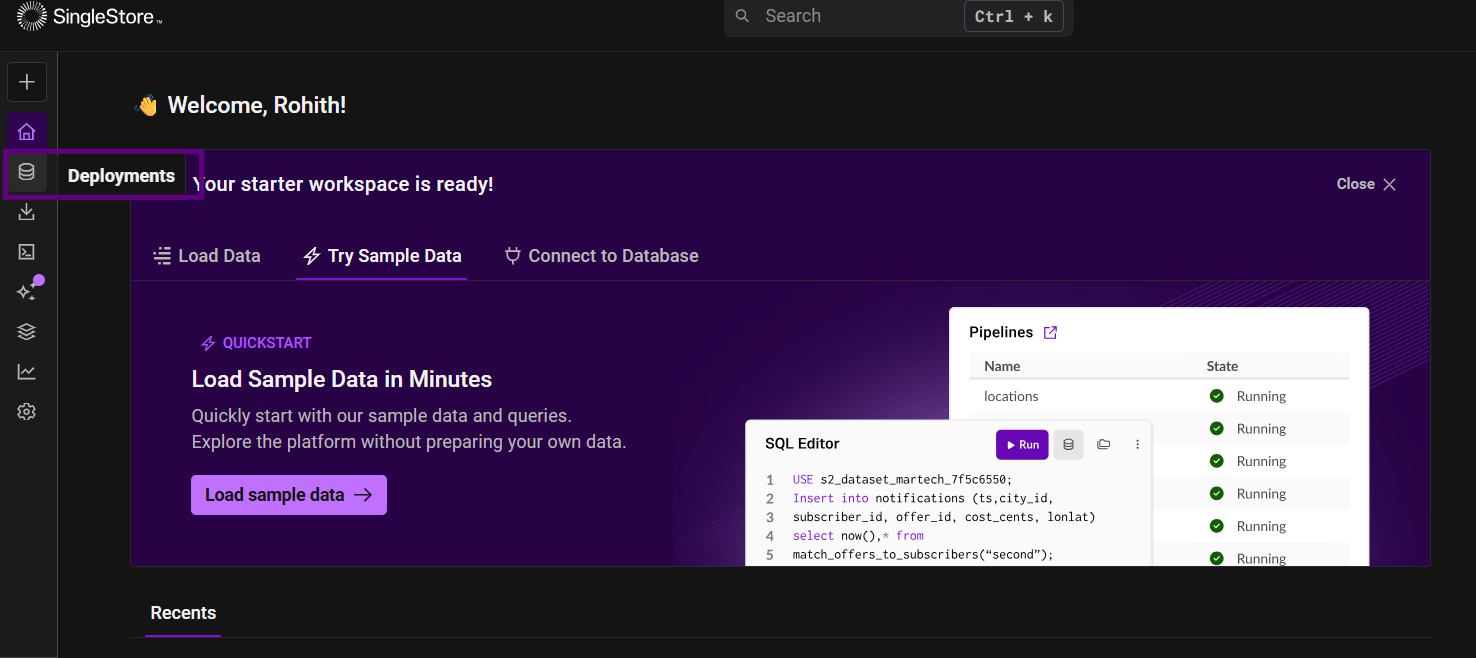 Figure 2: Accessing the Deployments menu.
3. Selecting Workspace and Database
Select your workspace (e.g., “starter-workspace”). You will see your active compute nodes and associated databases. Ensure you have created a database (e.g.,db_rohith_d2a75) before proceeding.
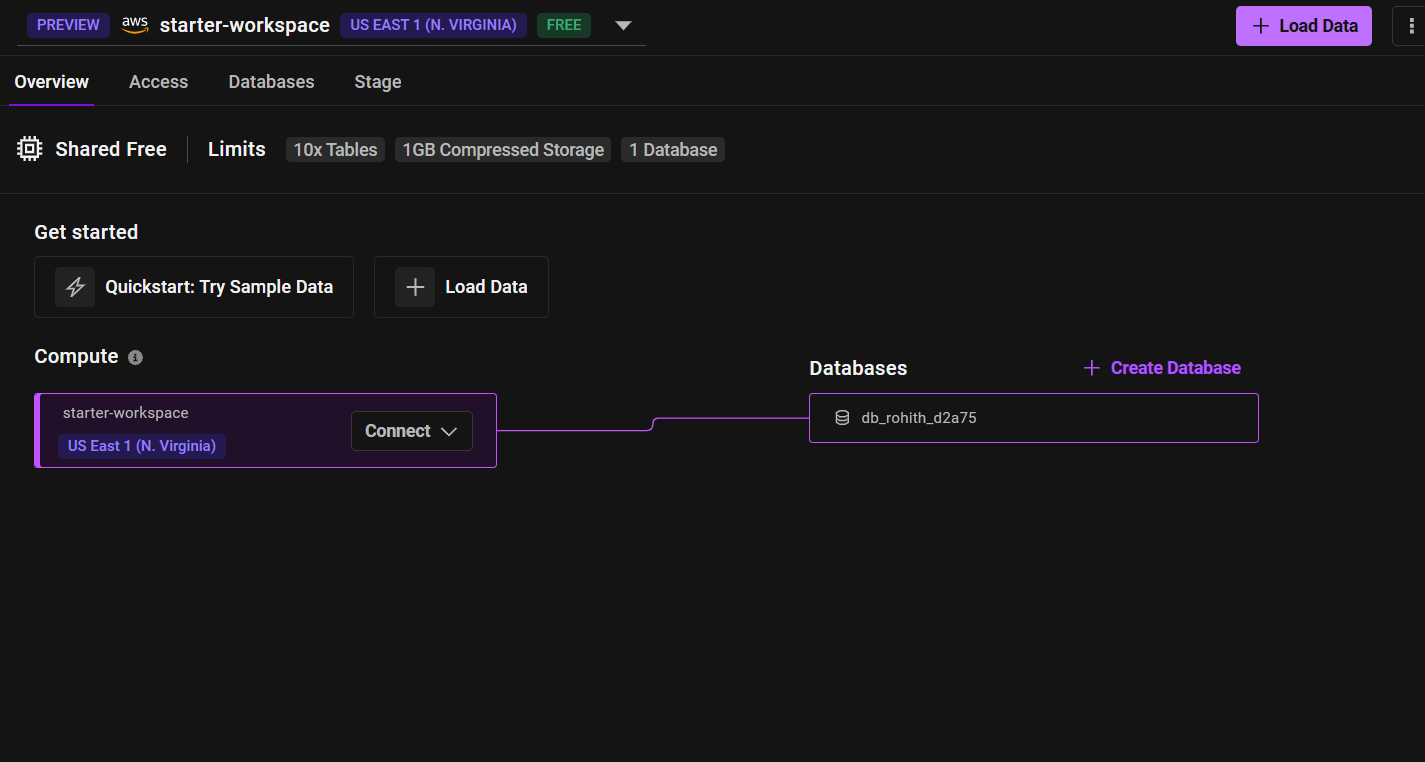 Figure 3: Viewing workspace and database details.
4. Generating Connection Strings
Click on the Connect button within your workspace. Under the SQL IDE or Your App tab, SingleStore will display your Host, Port, and Username.Note: If you have forgotten your password, use the Reset Password link in this modal to generate a new one.
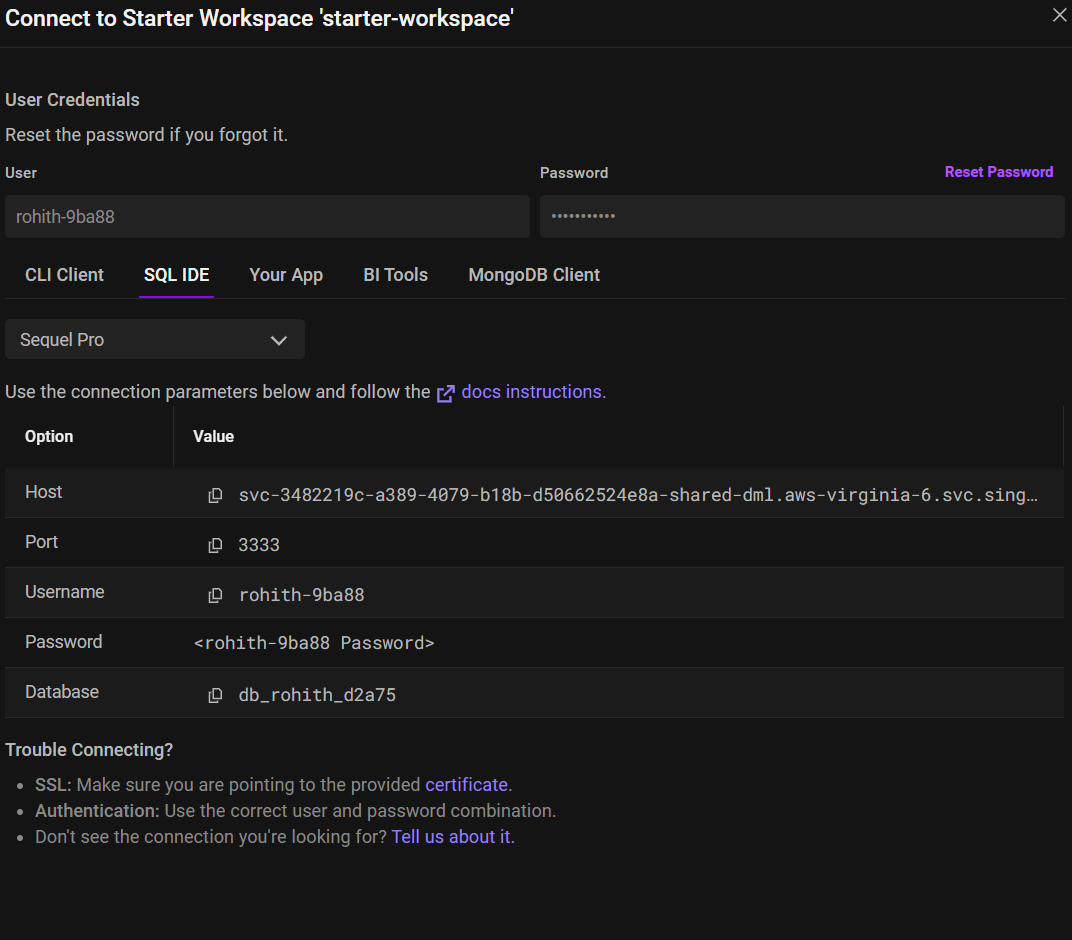 Figure 4: Locating Host, Port, and User credentials.
Finalizing the Connection
Enter the gathered credentials into the Lyzr connection modal to authorize the link.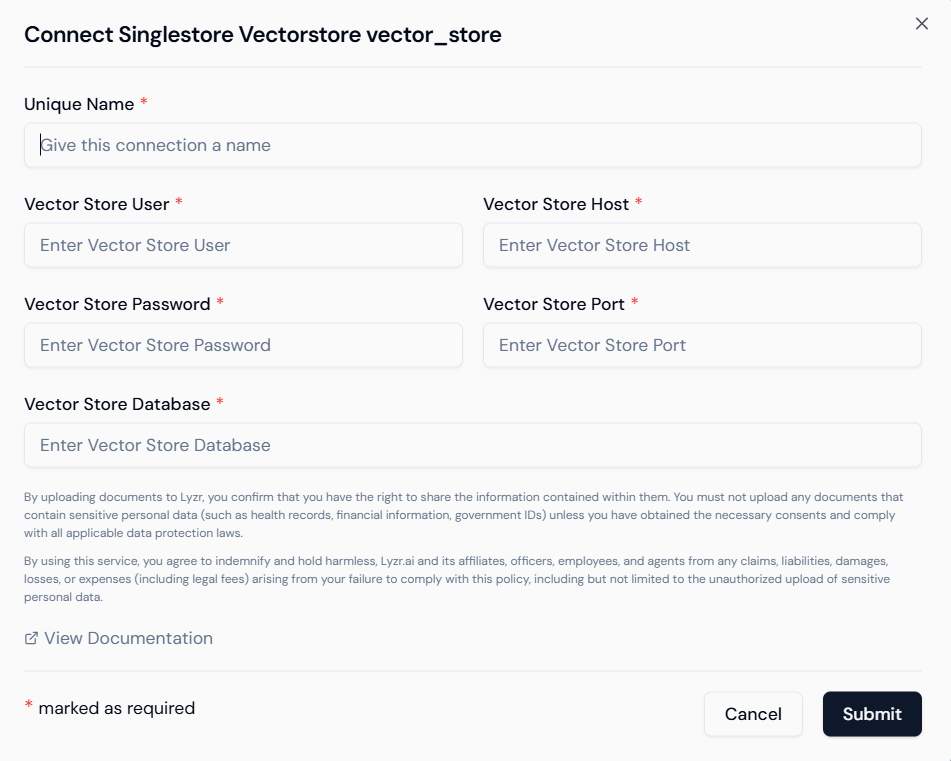 Figure 5: Entering SingleStore credentials into Lyzr.
- Validation: Click Submit. Lyzr will test the connection to ensure the user has the correct permissions to read and write to the specified database.
- Compatibility: Ensure your SingleStore version supports vector data types (v8.1 or later recommended).