

Connecting Neo4j GraphDB
Lyzr integrates with Neo4j, the leading graph database, to enable advanced knowledge graph capabilities. By connecting your Neo4j instance, your agents can traverse complex relationships and perform sophisticated graph-based retrieval to provide deeper context in AI workflows.Configuration & Connection
To establish a connection, you will need to provide the following details from your Neo4j Aura console:- Unique Name: A label for this connection (e.g., “Knowledge_Graph_Prod”).
- Neo4j URI: The connection endpoint for your instance (starts with
neo4j+s://). - Neo4j User: The database-level username (default is usually
neo4j). - Neo4j Password: The secret generated during instance creation.
- Neo4j Database: The name of the specific database (default is
neo4j).
Retrieving Your Credentials
Follow these steps within the Neo4j Aura console to find your connection details:1. Accessing the Console
Log in to your Neo4j Aura account. You can continue using Google, GitHub, or your email credentials.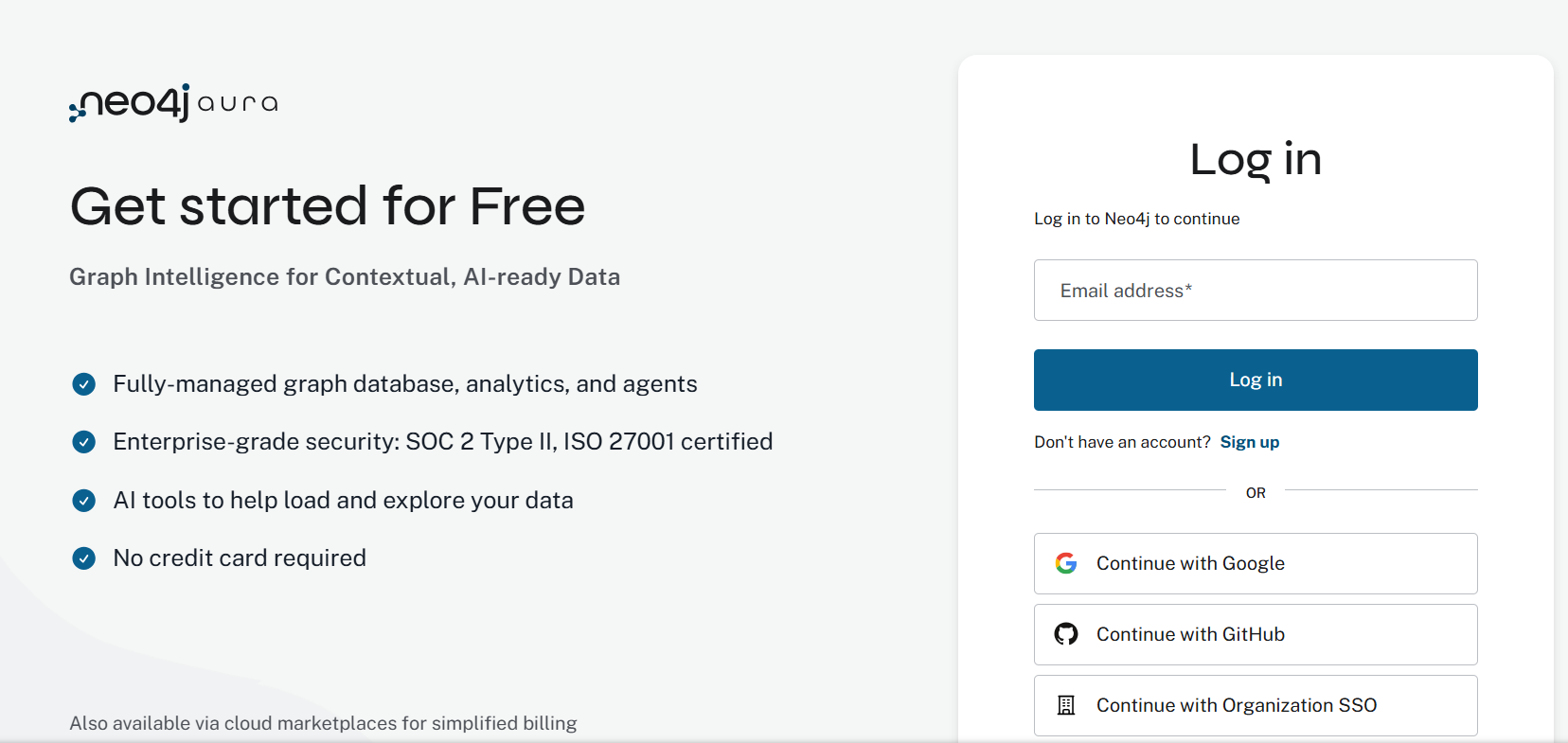 Figure 1: Neo4j Aura login interface.
2. Creating an Instance
If you don’t have an active instance, click Create Instance. You can select the Free tier for exploration or a Professional/Business Critical tier for production needs. Give your instance a name like “Instance01”.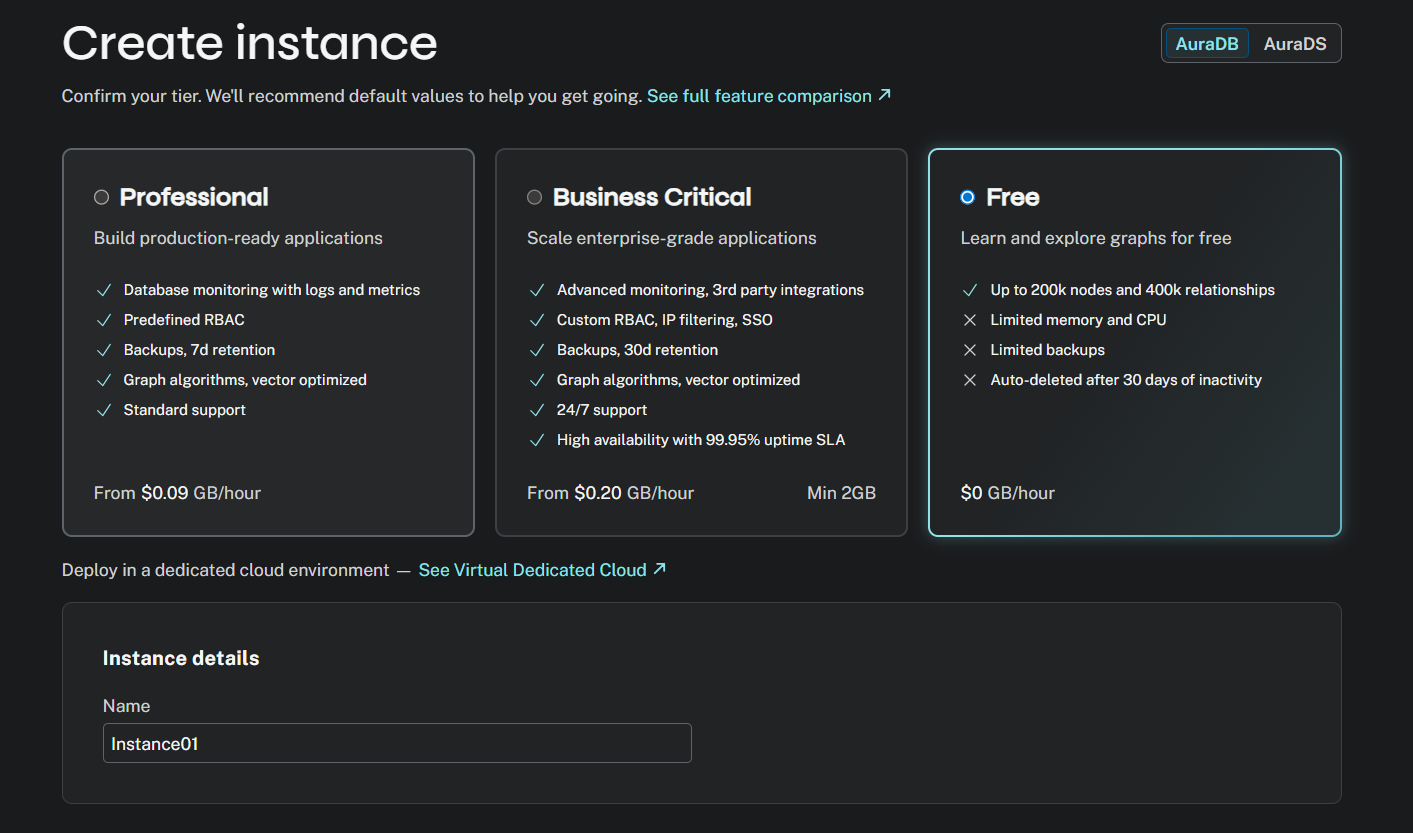 Figure 2: Selecting an instance tier and naming the database.
3. Saving Credentials
Upon creation, Neo4j will generate a Username and Password.Important: This is the only time the password is shown. You must click Download and continue to save these credentials locally.
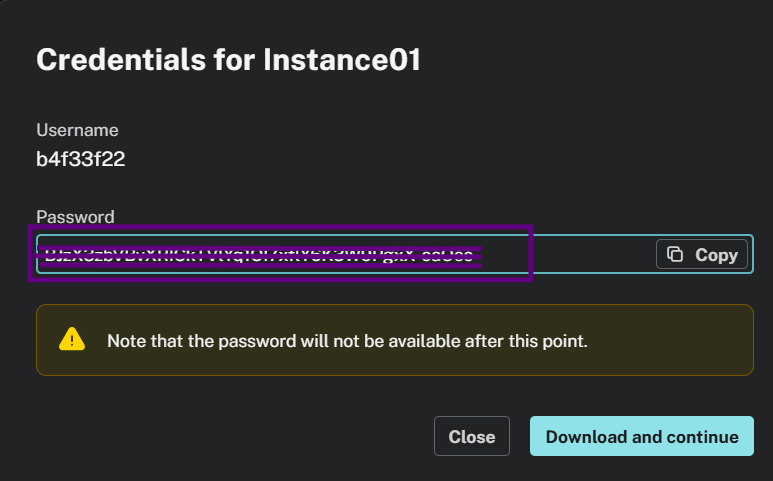 Figure 3: Capturing the generated database credentials.
4. Finding the URI
Once the instance is running, look at the instance tile on your dashboard. The Connection URI (e.g.,neo4j+s://8b4f33f2.databases.neo4j.io) is listed clearly. This is what you will use as the Neo4j URI in Lyzr.
Finalizing the Connection
Input the gathered credentials into the Lyzr connection modal.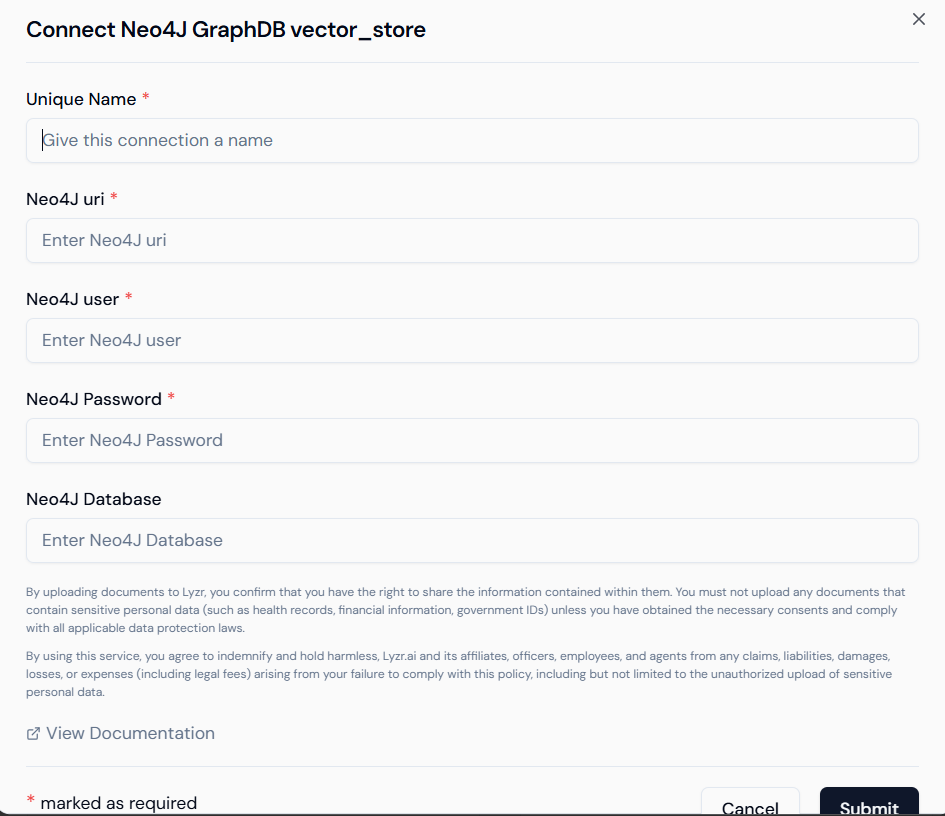 Figure 4: Entering Neo4j credentials into the Lyzr interface.
- Database Name: For almost all Aura instances, the default database name is
neo4j. - Verification: Click Submit. Lyzr will verify the bolt connection and the provided credentials.