

Introducing Milvus Integration
Lyzr supports integration with Milvus through Zilliz Cloud, providing a highly scalable and performant vector database environment. By connecting your Milvus cluster, you enable your agents to handle massive vector datasets with sub-millisecond latency and high concurrency.Configuration & Connection
To connect Lyzr to your Milvus instance, you will need the following credentials from your Zilliz Cloud console:- Unique Name: A descriptive name for this connection (e.g., “Milvus_Production_Cluster”).
- Vector Store Token: The API Key or token used for cluster authentication.
- Vector Store URI: The Public Endpoint address of your Milvus cluster.
Retrieving Your Credentials
Follow these steps within the Zilliz Cloud console to obtain your connection details:1. Accessing the Dashboard
Log in to your Zilliz Cloud account. You can authenticate using your work email or via SSO with GitHub and Google.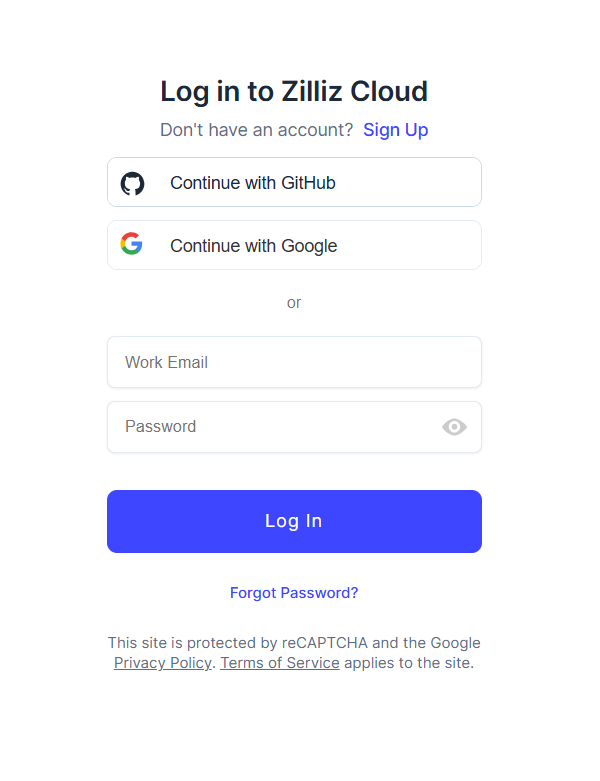 Figure 1: The Zilliz Cloud login interface.
2. Creating a Cluster
If you do not have an active cluster, navigate to the Clusters tab and click Create Cluster. For testing and development, you can select the Free deployment option, which provides 5 GB of storage and up to 5 collections.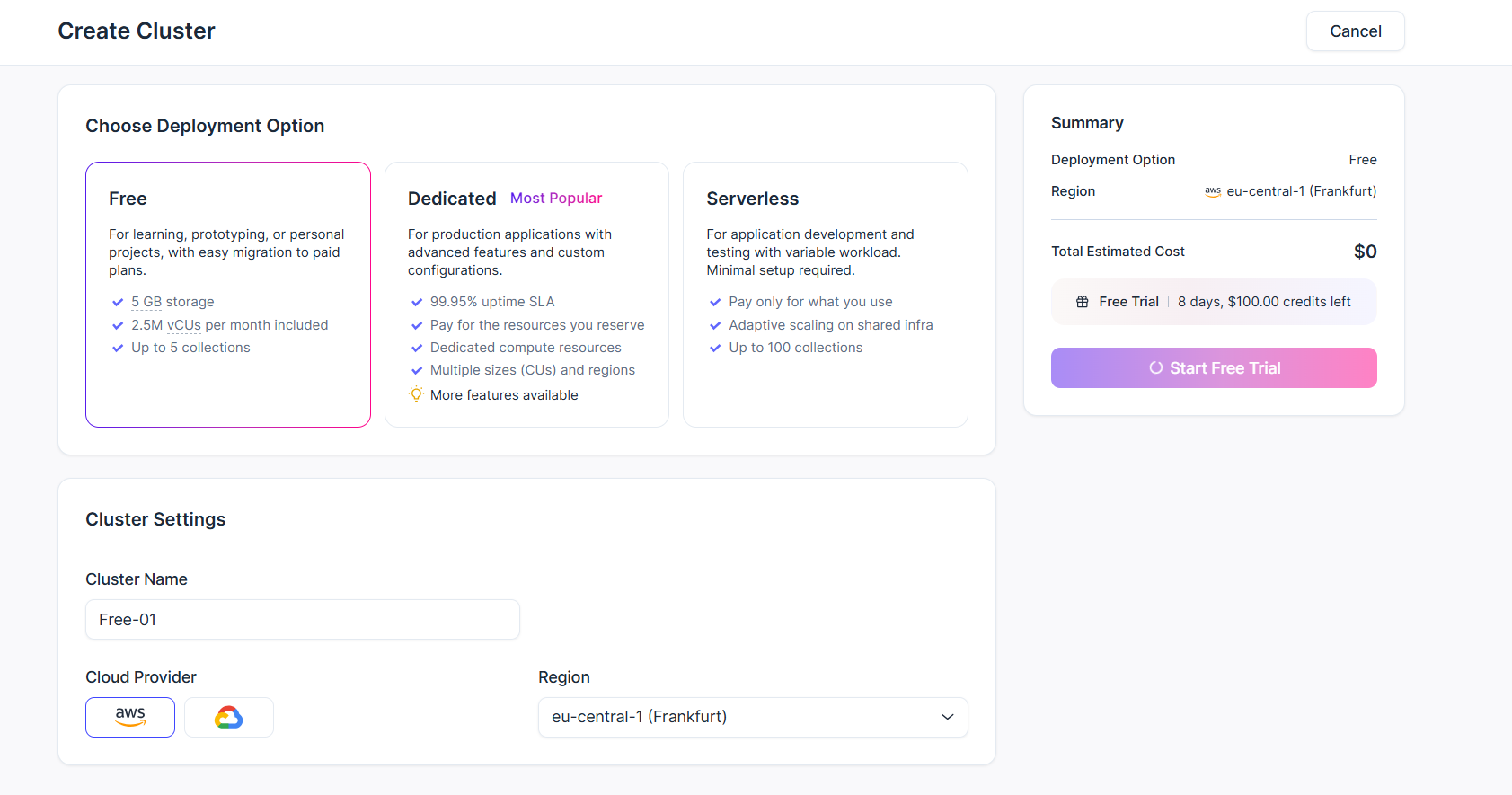 Figure 2: Configuring a new Milvus cluster in Zilliz Cloud.
3. Locating the Public Endpoint
Once your cluster is active, navigate to the cluster’s Connect tab. Under the connection details, copy the Public Endpoint. This address serves as your Vector Store URI.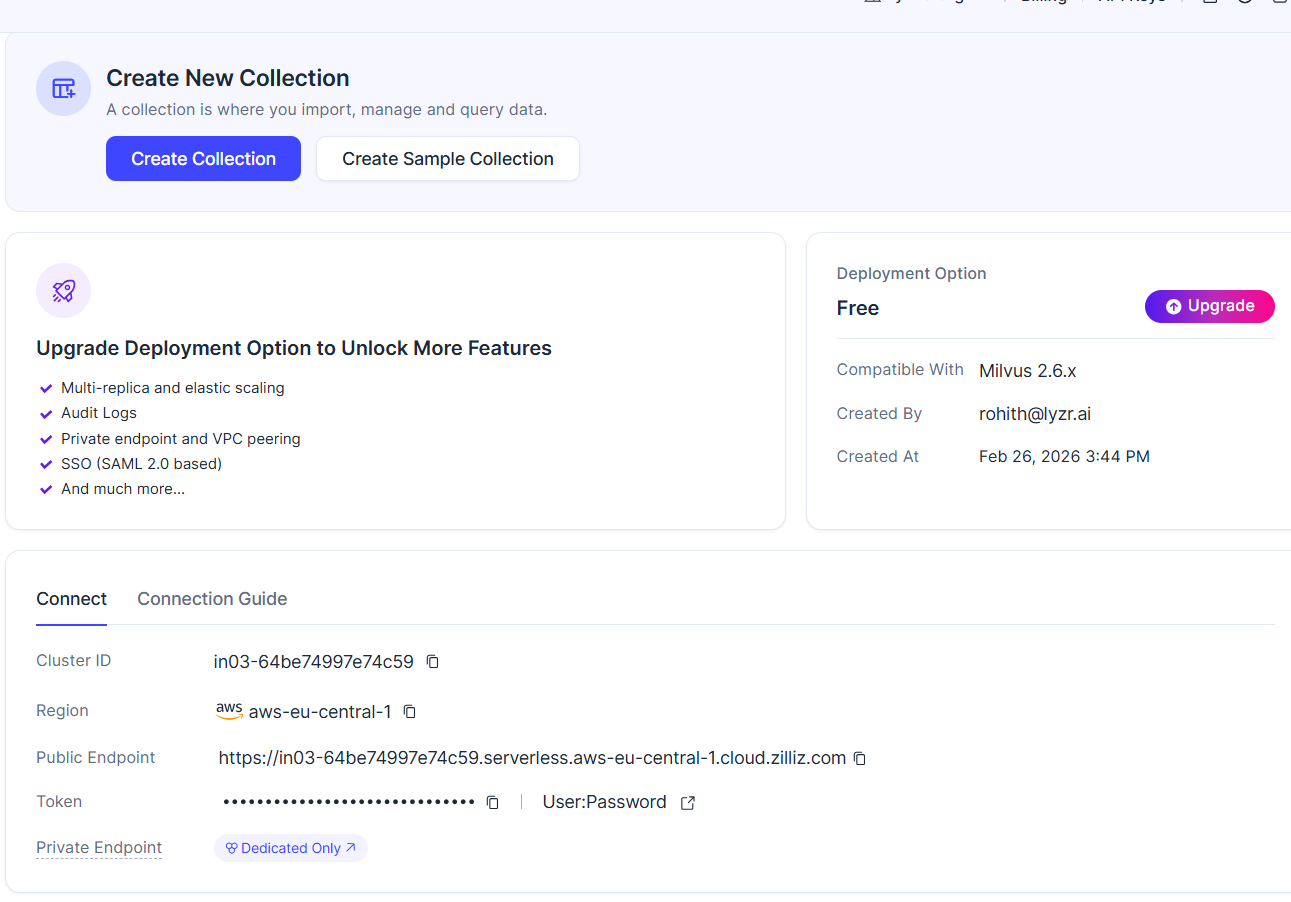 Figure 3: Finding the Public Endpoint and Cluster ID.
4. Generating the API Key (Token)
Navigate to the API Keys section in the sidebar or top navigation. Click Create API Key, assign a name (e.g., “testkey”), and define the access level (e.g., Project Read-Write). Copy the generated token immediately for use as your Vector Store Token.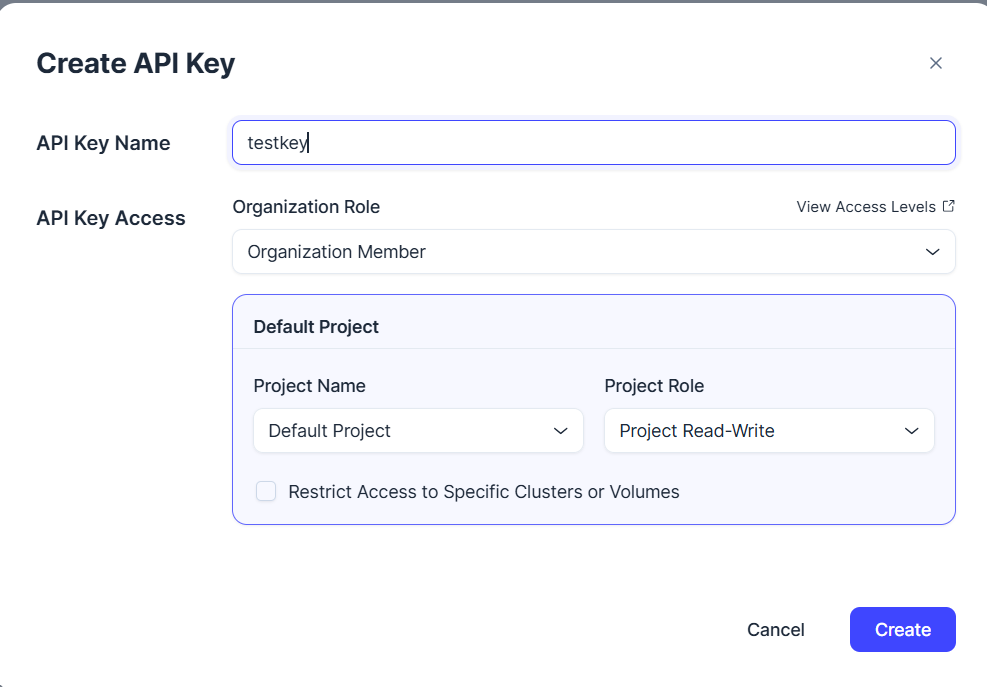 Figure 4: Creating a secure API Key for Lyzr access.
Finalizing the Connection
Return to the Lyzr dashboard and enter the gathered credentials into the Connect Milvus vector_store modal.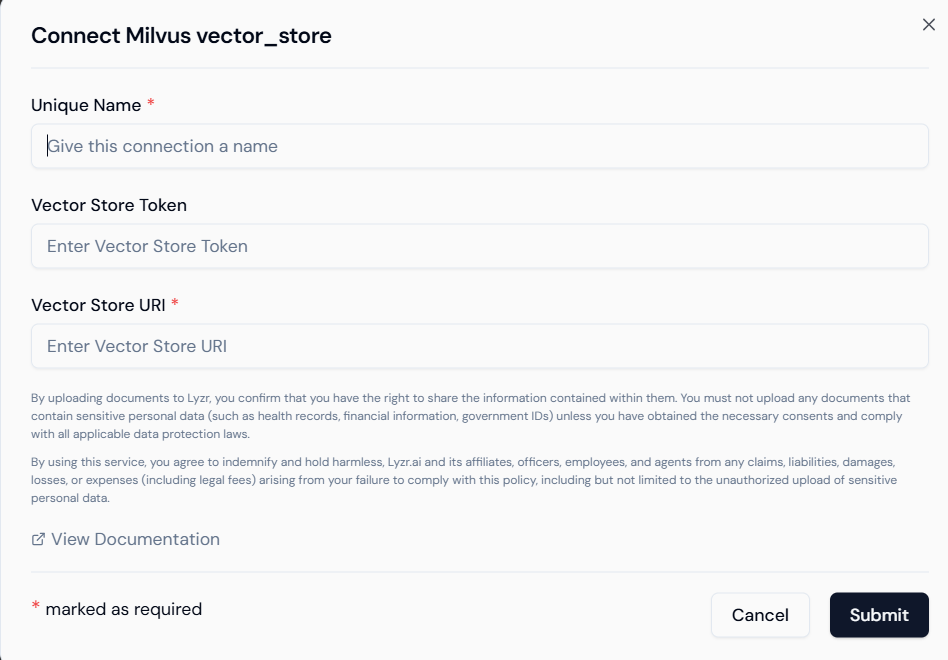 Figure 5: Inputting Milvus credentials into the Lyzr interface.
- Validation: Click Submit to verify the URI and Token.
- Security Note: If you are using a self-hosted Milvus instance, ensure your firewall allows traffic on port
19530for gRPC or the designated REST port.