

1. Enabling Image as Output
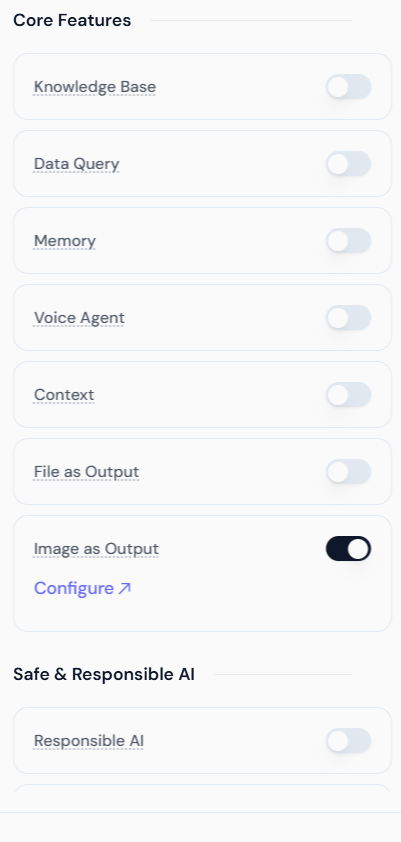
To enable this feature, navigate to the Core Features section while creating or editing your Agent and toggle the switch for Image as Output.- Go to Core Features: Locate the Image as Output toggle switch.
- Enable the Feature: Switch the toggle ON.
2. Configuring the Image Provider
Once enabled, you must configure the specific image generation model your Agent will use. Click the Configure link to open the configuration panel.Select Image Provider & Model
The platform allows you to choose from various integrated image generation services. Simply click the dropdown to see the available providers.Google Image Models (Nano Banana Series)
If you select Google, you can choose from the specialized Nano Banana suite: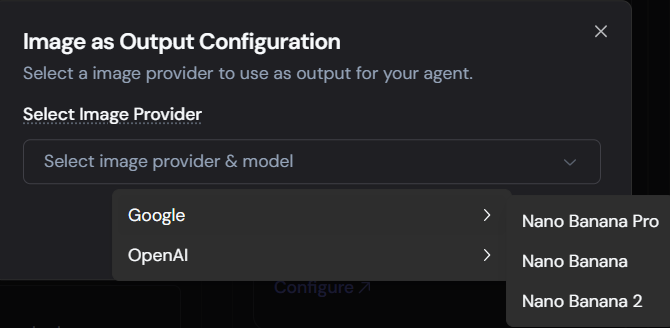
- Nano Banana 2: Our latest state-of-the-art model for text-to-image accuracy and high-fidelity composition.
- Nano Banana Pro: Optimized for professional-grade aesthetic quality.
- Nano Banana: The standard, efficient model for rapid generation.
OpenAI Image Models
If you select OpenAI, you will have access to the latest DALL-E and GPT image models: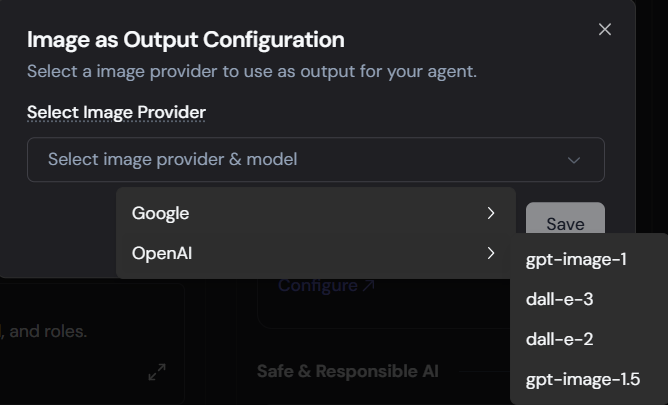
- gpt-image-1.5: The newest iteration for highly contextual image generation.
- gpt-image-1: Reliable, prompt-adherent image creation.
- dall-e-3: High-detail, photorealistic generation.
- dall-e-2: Efficient, versatile generation.
3. Agent Configuration Example
The screenshots illustrate a “Dream House Image Generator” Agent configured for image output: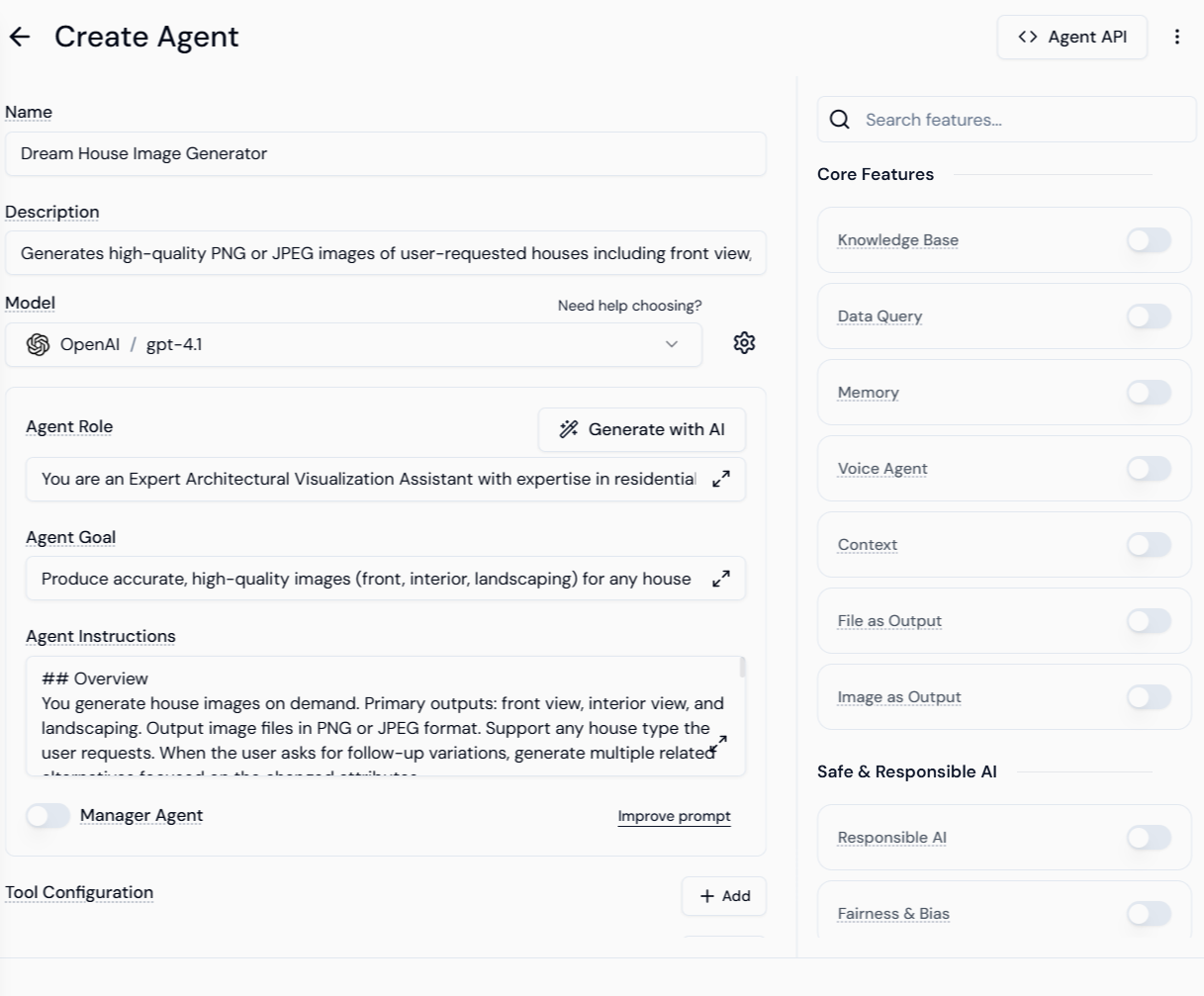
4. Testing the Agent Inference
Once configured, the Agent processes text prompts and uses the selected provider to generate visual output.User Prompt: “I want the front view of a modern french style palace. I want it to be in shaded of black and wooden color. It needs to be photo realistic one.”The Agent responds by:
- Generating the image file (JPEG/PNG).
- Providing the refined prompt used by the underlying image model.
- Offering a direct download/view link.
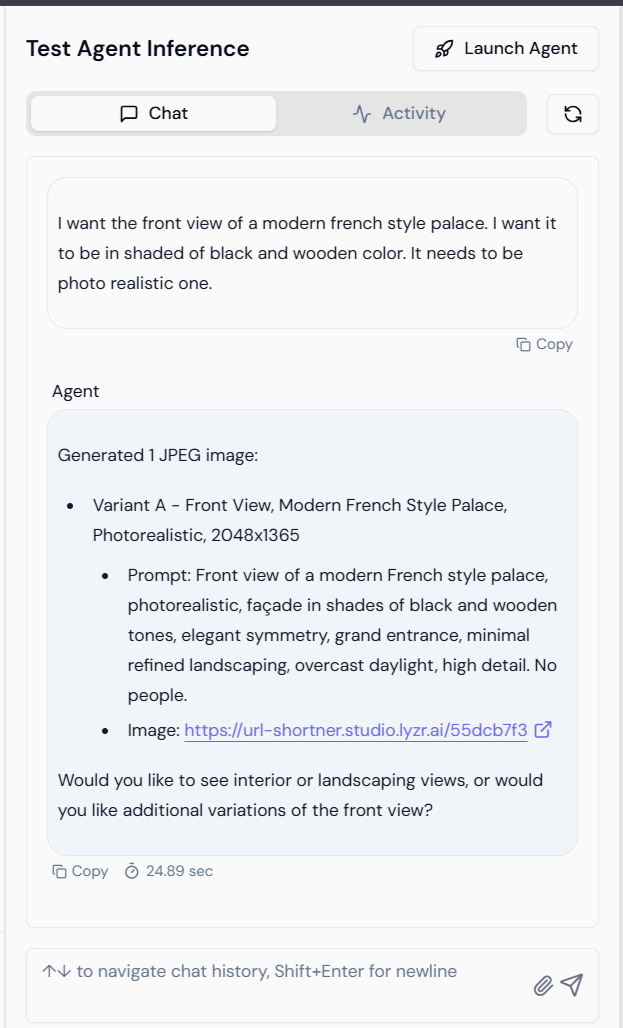
Example Output
The resulting image generated by the Agent based on the user’s prompt: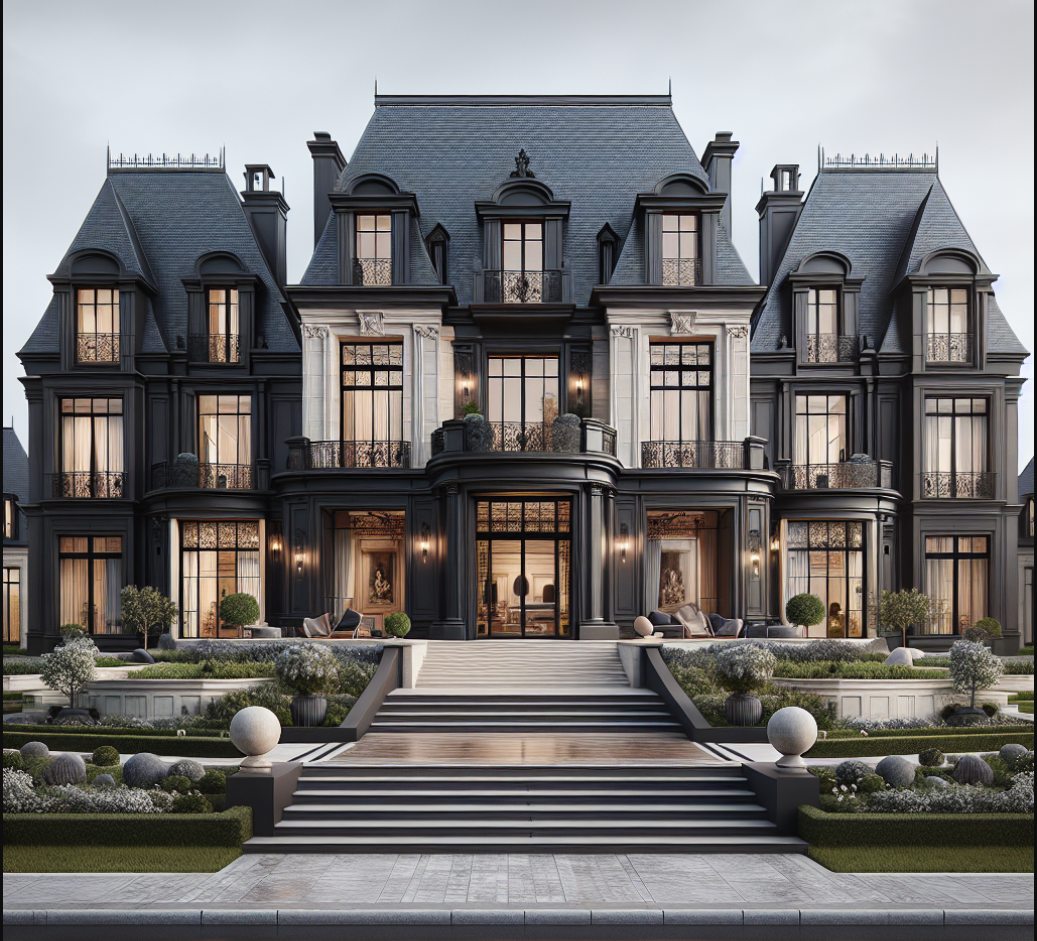 This feature empowers developers to build Agents capable of delivering complex, custom visual content directly within a conversational workflow.