> ## Documentation Index
> Fetch the complete documentation index at: https://docs.lyzr.ai/llms.txt
> Use this file to discover all available pages before exploring further.
# Build a Data Analyst Agent That Connects to Your Database and Provides Insights
## 💡 Real-Life Scenarios for a Text-to-SQL Data Analyst Agent
A Text-to-SQL Data Analyst Agent can democratize data access across various departments:
* **Retail/E-commerce:** A Marketing Manager needs to quickly understand campaign performance.
* *Question:* "Show the top 10 products by revenue in the Northeast region for last month, excluding discounted items."
* **Finance/Accounting:** A Financial Analyst is preparing for a quarterly review.
* *Question:* "What is the total spend in the 'Software Subscriptions' category compared to the same quarter last year, broken down by department?"
* **Customer Support/Operations:** A Team Lead wants to monitor efficiency and customer satisfaction.
* *Question:* "Calculate the average time to resolution for support tickets opened in the past 7 days, and list the agents with an average above 48 hours."
* **Manufacturing/Supply Chain:** An Inventory Planner needs to optimize stock levels.
* *Question:* "Identify all components where the current stock quantity is below the reorder point and the average daily consumption over the last 90 days is greater than 50 units."
***
Most of your company’s valuable data lives inside databases — but extracting insights often requires technical skills. You either need database access and SQL knowledge, or rely on engineers to fetch data for you.
With **Data Query (Text-to-SQL)** in **Lyzr Agent Studio**, connecting to your database and getting insights becomes simple and interactive.
In this example, we’ll build a **Data Analyst Agent** that analyzes **used car sales data**.
***
### **Step 1: Connect to Your Database**
1. Go to **Lyzr Agent Studio** → **Database Connections**.
2. Choose your database type from the available options (e.g., PostgreSQL, MySQL, Snowflake, Databricks, etc.).
3. Add your database credentials and connect.
💡 *If you face any connection issues, contact us at [support@lyzr.ai](mailto:support@lyzr.ai) — we can help with whitelisting your database.*
***
### **Step 2: Create a Semantic Model**
You typically don’t want your agent to access the **entire database** — that can overload its context and cause slow performance or hallucinations.
Instead, pick only the **relevant tables and columns** your agent needs to analyze.
For example, for car sales data, you only need the **car\_sales** table.
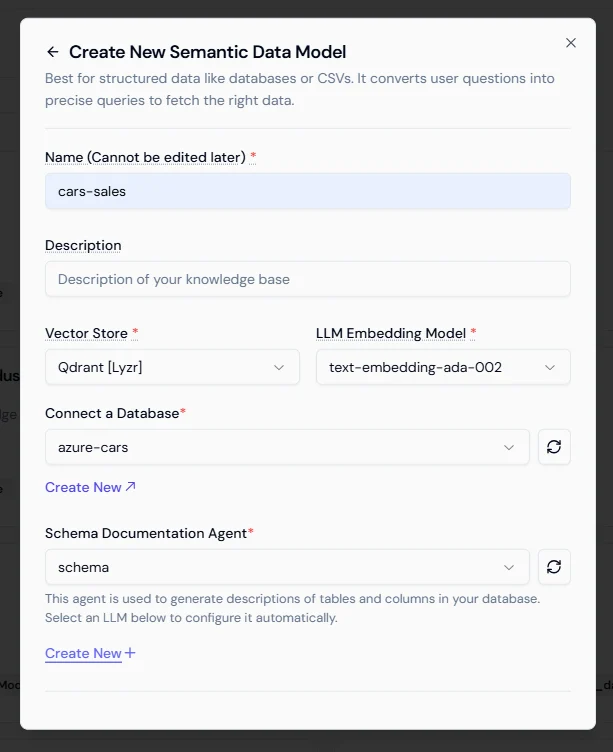
1. Go to **Knowledge Base** → click **Create New**.
2. Choose **Semantic Model** from the pop-up and click **Create**.
3. Give it a **name** and **description**.
4. Select **Vector Store** and **Embedding Model** (defaults are pre-filled if you’re unsure).
5. Finally, select the **database** you just connected.
 ***
### **Step 3: Generate Schema Documentation**
Before finalizing your semantic model, create a **Schema Documentation Agent**.
This agent automatically reads tables and columns to generate helpful descriptions, so your data analyst agent can understand your schema better.
1. Go to **Schema Documentation Agent** → click **Create New**.
2. Enter a **name**, choose your **LLM provider and model**, and click **Submit**.
Once ready, return to your semantic model setup.
***
### **Step 4: Configure Tables and Columns**
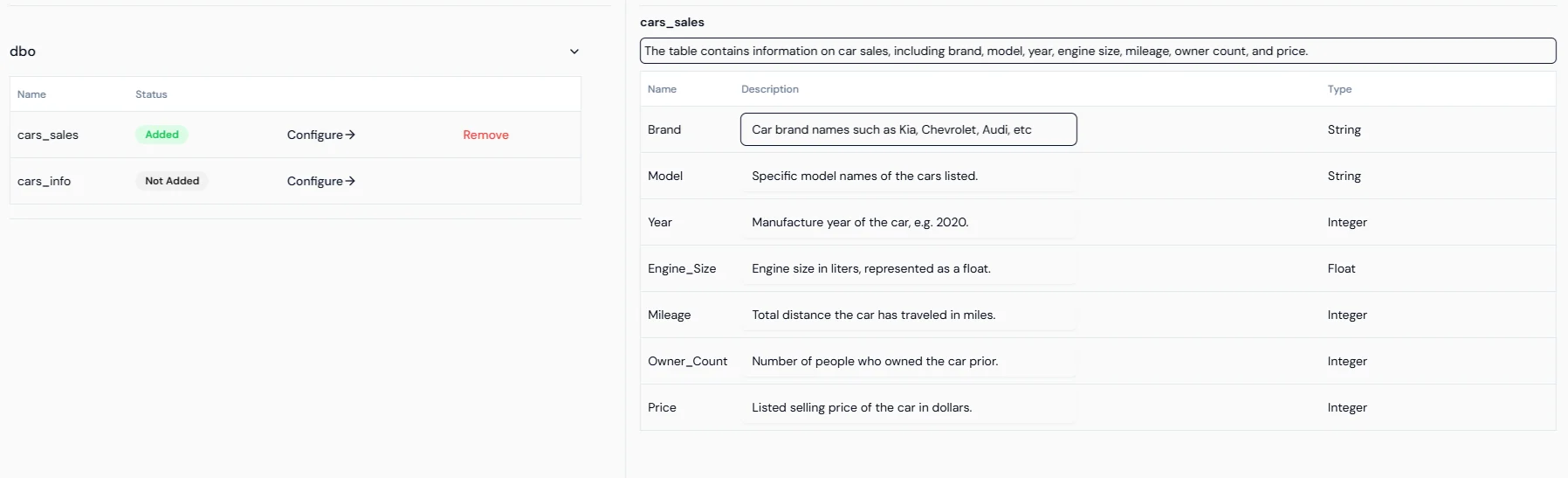
After creating your semantic model, you’ll see a screen divided vertically:
* **Left Panel:** Lists all tables in your connected database.
* **Right Panel:** Shows columns and their auto-generated descriptions when you click **Configure** on a table.
You can edit table or column descriptions to make them more meaningful.
For example:
> Auto-generated: “Listed selling price of the car in dollars.”
>
> Updated: “Listed selling price of the car in Indian Rupees..”
After reviewing and updating descriptions, click **Save and Add to Semantic Model.**
You can repeat this for additional tables, but it’s best to keep your model as lean as possible for efficiency.
***
### **Step 3: Generate Schema Documentation**
Before finalizing your semantic model, create a **Schema Documentation Agent**.
This agent automatically reads tables and columns to generate helpful descriptions, so your data analyst agent can understand your schema better.
1. Go to **Schema Documentation Agent** → click **Create New**.
2. Enter a **name**, choose your **LLM provider and model**, and click **Submit**.
Once ready, return to your semantic model setup.
***
### **Step 4: Configure Tables and Columns**
After creating your semantic model, you’ll see a screen divided vertically:
* **Left Panel:** Lists all tables in your connected database.
* **Right Panel:** Shows columns and their auto-generated descriptions when you click **Configure** on a table.
You can edit table or column descriptions to make them more meaningful.
For example:
> Auto-generated: “Listed selling price of the car in dollars.”
>
> Updated: “Listed selling price of the car in Indian Rupees..”
After reviewing and updating descriptions, click **Save and Add to Semantic Model.**
You can repeat this for additional tables, but it’s best to keep your model as lean as possible for efficiency.
 ***
### **Step 5: Build Your Data Analyst Agent**
1. Go to **Agents** → click **Create New Agent**.
2. Give it a **name**, **description**, and select a suitable **model**.
3. Define the following:
- **Role:** Expert Data Analyst
- **Goal:** Analyze Car Sales Data and Provide Insights
- **Instructions:**
> “You are an expert data analyst. Analyze the provided car sales data and answer user questions quantitatively. Use the connected semantic model to interpret data before responding.”
>
4. You can give accurate role, goal & instructions as per your use case
5. Enable **Memory** in **Core Features** to make the agent conversational.
6. Enable **Data Query**, select the **Semantic Model** you created, and click **Save**.
Your Data Analyst Agent is now ready!
***
### **Step 6: Test Your Agent**
You can now ask your agent natural-language questions like:
* “What is the average selling price of SUVs in 2024?”
* “Which city recorded the highest car sales last quarter?”
* “Show the total number of cars sold by brand.”
***
### **Step 5: Build Your Data Analyst Agent**
1. Go to **Agents** → click **Create New Agent**.
2. Give it a **name**, **description**, and select a suitable **model**.
3. Define the following:
- **Role:** Expert Data Analyst
- **Goal:** Analyze Car Sales Data and Provide Insights
- **Instructions:**
> “You are an expert data analyst. Analyze the provided car sales data and answer user questions quantitatively. Use the connected semantic model to interpret data before responding.”
>
4. You can give accurate role, goal & instructions as per your use case
5. Enable **Memory** in **Core Features** to make the agent conversational.
6. Enable **Data Query**, select the **Semantic Model** you created, and click **Save**.
Your Data Analyst Agent is now ready!
***
### **Step 6: Test Your Agent**
You can now ask your agent natural-language questions like:
* “What is the average selling price of SUVs in 2024?”
* “Which city recorded the highest car sales last quarter?”
* “Show the total number of cars sold by brand.”
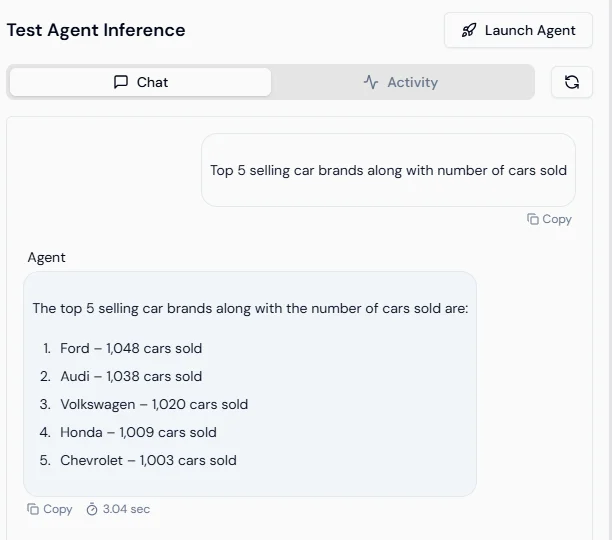
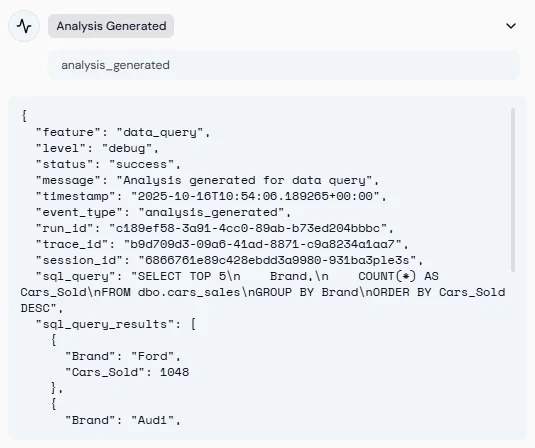 Behind the scenes, the agent automatically converts your question into SQL, runs it against your connected database, and provides an easy-to-understand answer.
You now have a **fully functional Data Analyst Agent** that connects securely to your database, understands schema context via semantic models, and provides data-driven insights — without writing a single line of SQL.
Behind the scenes, the agent automatically converts your question into SQL, runs it against your connected database, and provides an easy-to-understand answer.
You now have a **fully functional Data Analyst Agent** that connects securely to your database, understands schema context via semantic models, and provides data-driven insights — without writing a single line of SQL.