> ## Documentation Index
> Fetch the complete documentation index at: https://docs.lyzr.ai/llms.txt
> Use this file to discover all available pages before exploring further.
# Models
> Configure LLM model providers and manage their API settings.
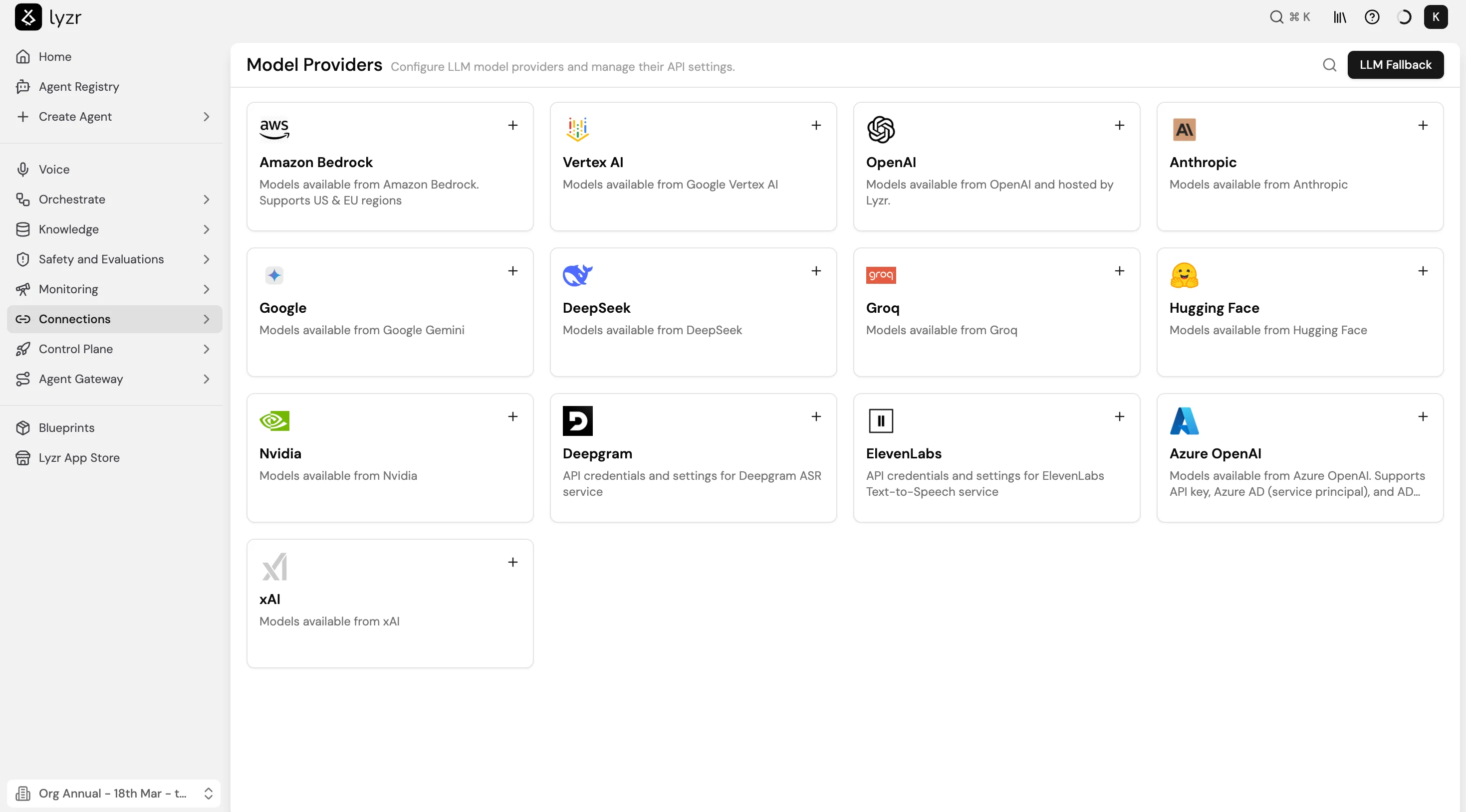
The Models page is where you connect LLM providers to your workspace. Connect your API keys once and every agent in the workspace can select from those providers when choosing a model.
Access it via **Connections > Models** in the sidebar.
## Supported providers
| Provider | Notes |
| -------------- | ----------------------------------------------------------- |
| Amazon Bedrock | Supports US and EU regions |
| Vertex AI | Models from Google Vertex AI |
| OpenAI | Models available from OpenAI and hosted by Lyzr |
| Anthropic | Models available from Anthropic |
| Google | Models from Google Gemini |
| DeepSeek | Models available from DeepSeek |
| Groq | Models available from Groq |
| Hugging Face | Models available from Hugging Face |
| Nvidia | Models available from Nvidia |
| Azure OpenAI | Supports API key, Azure AD (service principal), and AD auth |
| xAI | Models available from xAI |
| Deepgram | API credentials for Deepgram ASR (speech recognition) |
| ElevenLabs | API credentials for ElevenLabs Text-to-Speech |
 ## Connecting a provider
1. Select **Connections > Models** in the sidebar.
2. Find the provider card and select **+**.
3. Enter your API key. Keys are stored encrypted and never logged.
4. Save. The provider is now available in the model selector on all agents in the workspace.
## Per-agent model selection
Each agent selects its model independently in the Agent Builder under **Provider**. You can run different agents on different models within the same workflow, for example GPT-4o for complex reasoning and Gemini Flash for fast retrieval steps.
## Find Your Perfect Model
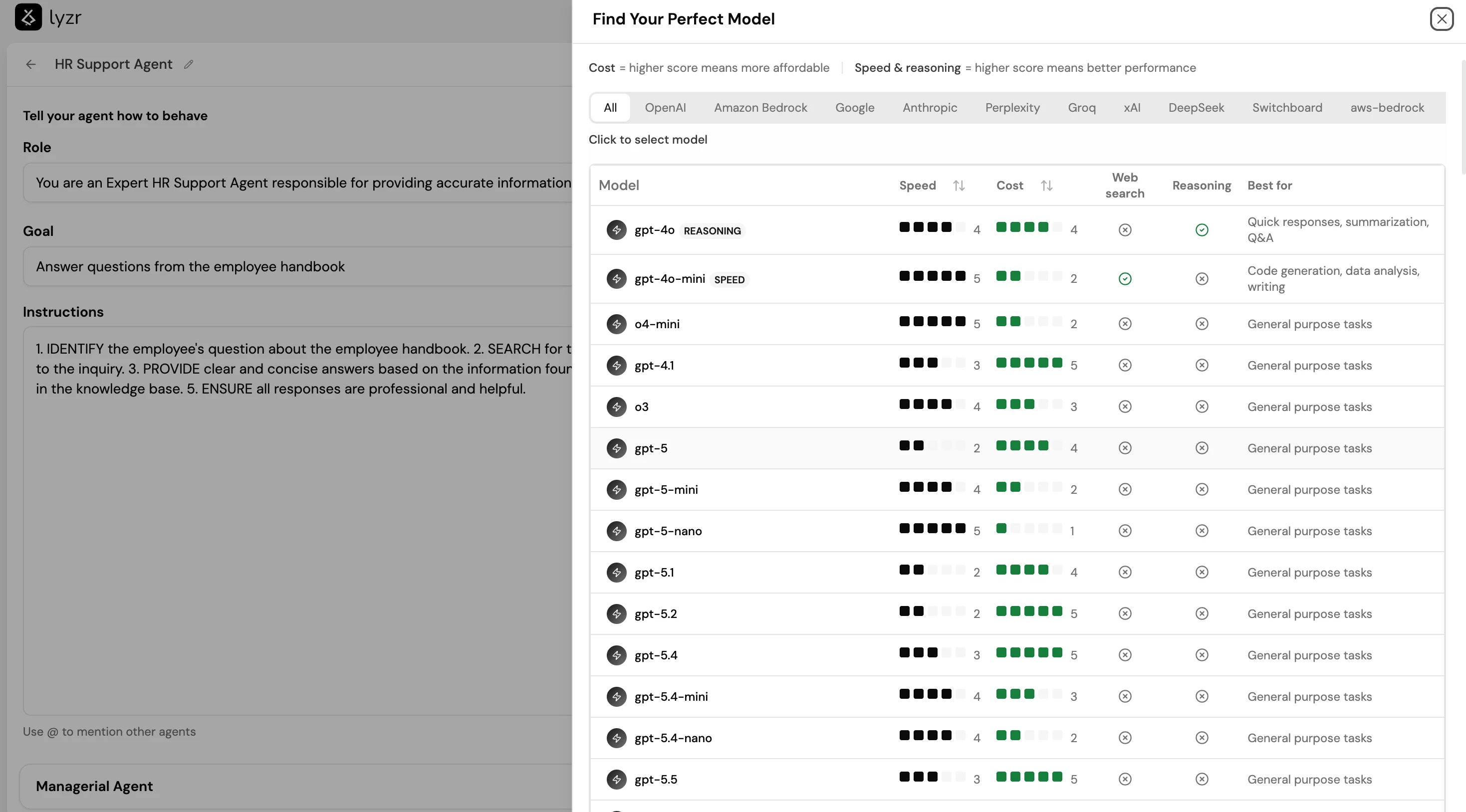
The model selector in Agent Builder includes a **Find Your Perfect Model** panel that lets you compare models across providers before selecting one. Models are scored on:
* **Speed**: higher score means faster responses
* **Cost**: higher score means more affordable
* **Web search**: whether the model supports live web search
* **Reasoning**: whether the model has dedicated reasoning capability
* **Best for**: a short description of the model's strongest use cases
You can filter the list by provider tab (OpenAI, Amazon Bedrock, Google, Anthropic, Groq, xAI, DeepSeek, and others) to narrow the comparison.
## Connecting a provider
1. Select **Connections > Models** in the sidebar.
2. Find the provider card and select **+**.
3. Enter your API key. Keys are stored encrypted and never logged.
4. Save. The provider is now available in the model selector on all agents in the workspace.
## Per-agent model selection
Each agent selects its model independently in the Agent Builder under **Provider**. You can run different agents on different models within the same workflow, for example GPT-4o for complex reasoning and Gemini Flash for fast retrieval steps.
## Find Your Perfect Model
The model selector in Agent Builder includes a **Find Your Perfect Model** panel that lets you compare models across providers before selecting one. Models are scored on:
* **Speed**: higher score means faster responses
* **Cost**: higher score means more affordable
* **Web search**: whether the model supports live web search
* **Reasoning**: whether the model has dedicated reasoning capability
* **Best for**: a short description of the model's strongest use cases
You can filter the list by provider tab (OpenAI, Amazon Bedrock, Google, Anthropic, Groq, xAI, DeepSeek, and others) to narrow the comparison.
 ## LLM Fallback
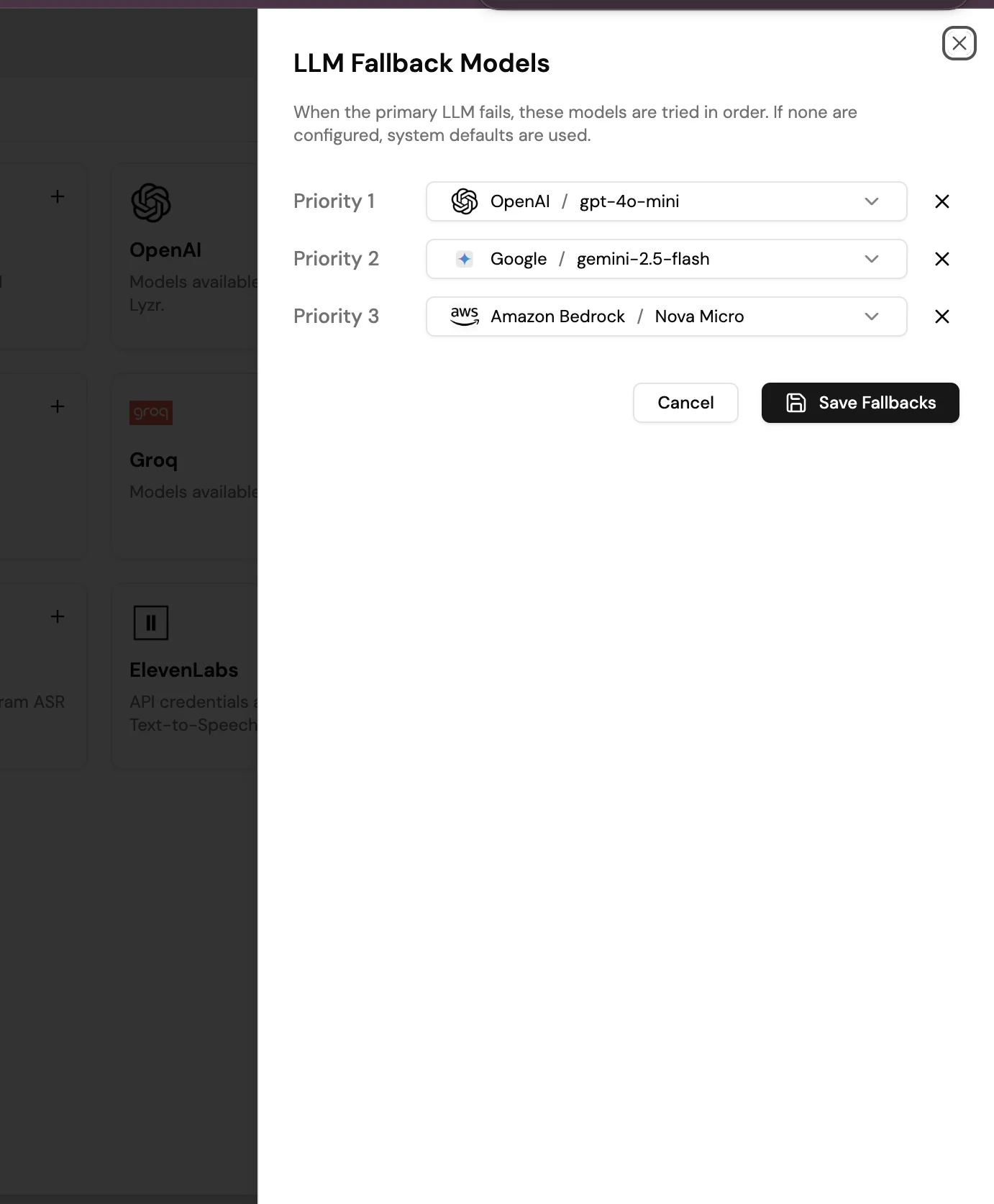
LLM Fallback lets you configure a prioritized list of backup models that Lyzr tries automatically if the primary model fails or is unavailable. When the primary LLM fails, Lyzr tries each fallback in order. If none are configured, system defaults are used.
To configure fallbacks, select **LLM Fallback** in the top right of the Model Providers page. Add up to three fallback models, each assigned a priority. Select a provider and model for each slot, then select **Save Fallbacks**.
## LLM Fallback
LLM Fallback lets you configure a prioritized list of backup models that Lyzr tries automatically if the primary model fails or is unavailable. When the primary LLM fails, Lyzr tries each fallback in order. If none are configured, system defaults are used.
To configure fallbacks, select **LLM Fallback** in the top right of the Model Providers page. Add up to three fallback models, each assigned a priority. Select a provider and model for each slot, then select **Save Fallbacks**.
 ## Next steps
* [Tools](tools)
* [Data Connectors](data-connectors)
## Next steps
* [Tools](tools)
* [Data Connectors](data-connectors)