> ## Documentation Index
> Fetch the complete documentation index at: https://docs.lyzr.ai/llms.txt
> Use this file to discover all available pages before exploring further.
# Guardrails
> Apply safety policies to agents and optionally connect your own guardrail provider.
Guardrails are safety and compliance policies that run on every agent interaction, checking inputs and outputs before they reach the user. By default, Lyzr's built-in policy engine handles this. You can also bring your own guardrail instance from AWS or Google if your organization already manages safety infrastructure externally.
## Enable Responsible AI on an agent
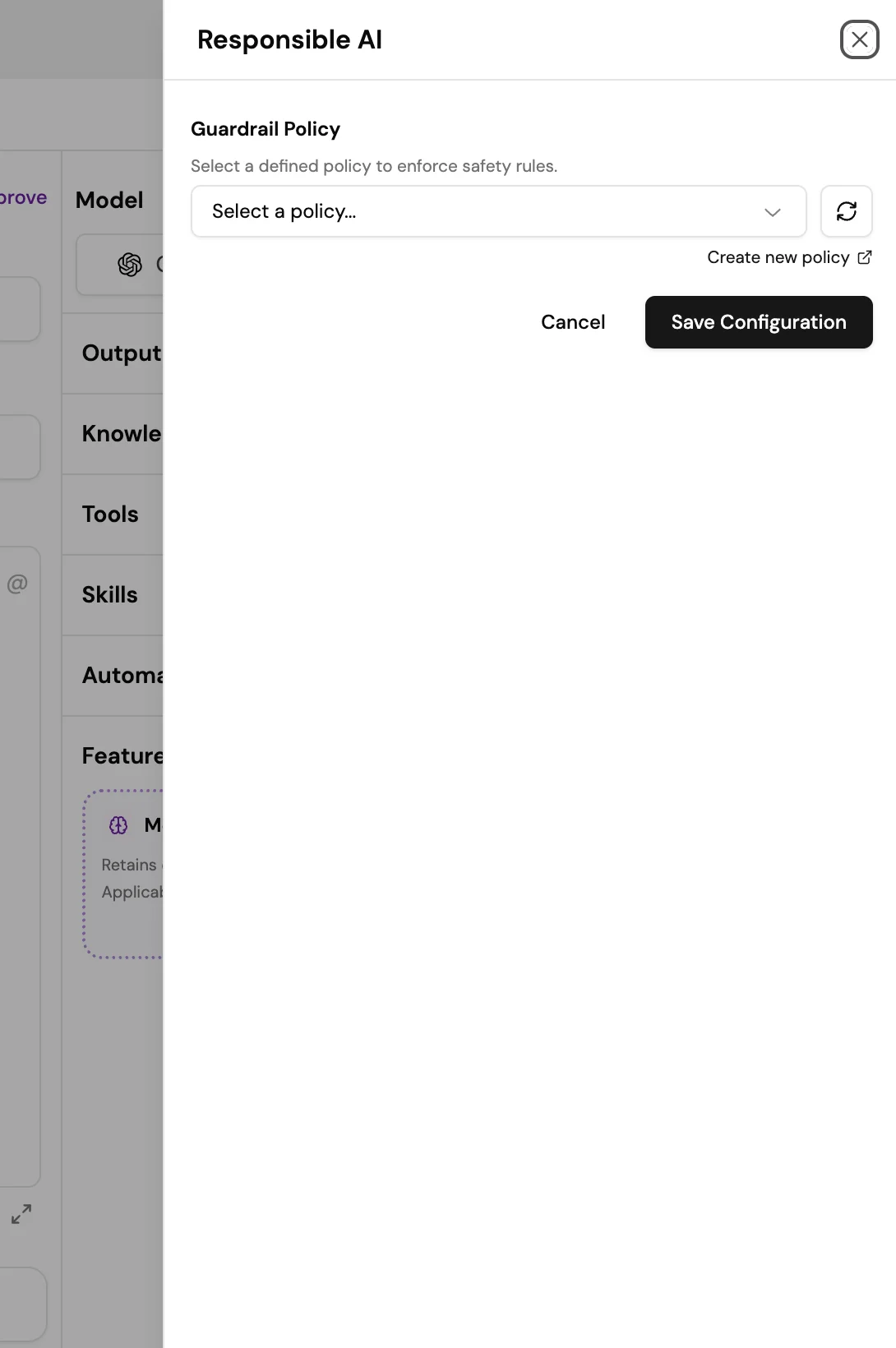
Guardrail policies are applied per-agent through the **Responsible AI** feature card in the Agent Builder.
1. Open the agent in the Agent Builder.
2. Scroll to the **Features** section and select the **Responsible AI** card.
3. In the **Responsible AI** panel that opens, select a guardrail policy from the **Guardrail Policy** dropdown. This list shows all policies you have configured in Safety and Evaluations.
4. If you need to create a new policy first, select **Create new policy** to open the policy editor in Safety and Evaluations.
5. Select **Save Configuration**.
 ## Creating a policy
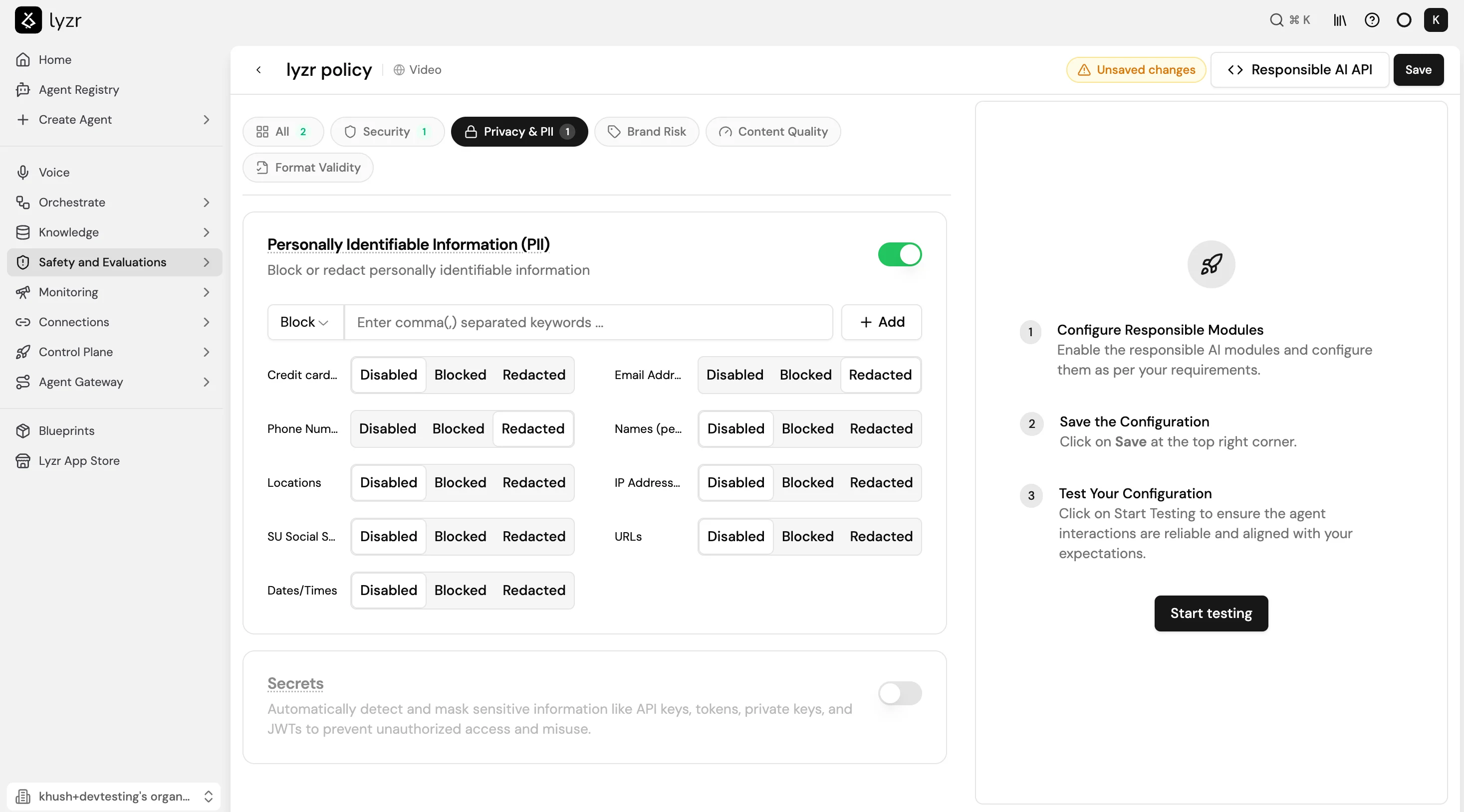
Policies are created in **Safety and Evaluations > Responsible AI**. Each policy groups a set of checks by category: Security, Privacy and PII, Brand Risk, Content Quality, and Format Validity.
To create a policy:
1. Go to **Safety and Evaluations > Responsible AI** in the sidebar.
2. Select **Create New Policy** and give it a name.
3. Enable the checks you need across the available categories. For each check, configure its enforcement mode and any additional settings, for example which PII fields to block or redact.
4. Select **Save** in the top right corner.
5. Select **Start Testing** on the right panel to validate the policy against sample interactions before assigning it to an agent.
## Creating a policy
Policies are created in **Safety and Evaluations > Responsible AI**. Each policy groups a set of checks by category: Security, Privacy and PII, Brand Risk, Content Quality, and Format Validity.
To create a policy:
1. Go to **Safety and Evaluations > Responsible AI** in the sidebar.
2. Select **Create New Policy** and give it a name.
3. Enable the checks you need across the available categories. For each check, configure its enforcement mode and any additional settings, for example which PII fields to block or redact.
4. Select **Save** in the top right corner.
5. Select **Start Testing** on the right panel to validate the policy against sample interactions before assigning it to an agent.
 ## Full Responsible AI reference
See [Responsible AI](../responsible-safe-ai/Responsible) for the full policy configuration guide, including available check types, custom policy syntax, and the Responsible AI API.
## Bring your own guardrail provider (optional)
If your organization manages guardrail infrastructure in AWS or Google Cloud, you can connect it to Lyzr instead of using the built-in policy engine. Go to **Connections > Guardrails** and select **+** on the relevant provider card:
* **AWS Bedrock Guardrails**: enforces content filtering, PII detection, and other policies managed in your AWS account.
* **Google Model Armor**: enforces prompt injection protection, sensitive data filtering, and other policies managed in your Google Cloud project.
Once connected, the external provider appears as an option in the Guardrail Policy dropdown when configuring Responsible AI on an agent.
## Full Responsible AI reference
See [Responsible AI](../responsible-safe-ai/Responsible) for the full policy configuration guide, including available check types, custom policy syntax, and the Responsible AI API.
## Bring your own guardrail provider (optional)
If your organization manages guardrail infrastructure in AWS or Google Cloud, you can connect it to Lyzr instead of using the built-in policy engine. Go to **Connections > Guardrails** and select **+** on the relevant provider card:
* **AWS Bedrock Guardrails**: enforces content filtering, PII detection, and other policies managed in your AWS account.
* **Google Model Armor**: enforces prompt injection protection, sensitive data filtering, and other policies managed in your Google Cloud project.
Once connected, the external provider appears as an option in the Guardrail Policy dropdown when configuring Responsible AI on an agent.