> ## Documentation Index
> Fetch the complete documentation index at: https://docs.lyzr.ai/llms.txt
> Use this file to discover all available pages before exploring further.
# Scheduler
> Run an agent automatically on a recurring schedule, with retries and an execution history.
The Scheduler runs an agent on its own at set times, without anyone sending it a message. Each time the schedule fires, the agent receives the **Scheduler Input** you configured and runs as if a user had sent it. Failed runs are retried automatically, and every run is recorded in the **Executions** history.
Use it for recurring work such as daily summaries, periodic data checks, or weekly reports.
## Creating a schedule
Open the agent in Agent Builder and open its scheduler settings. The **Scheduler Configuration** panel opens.
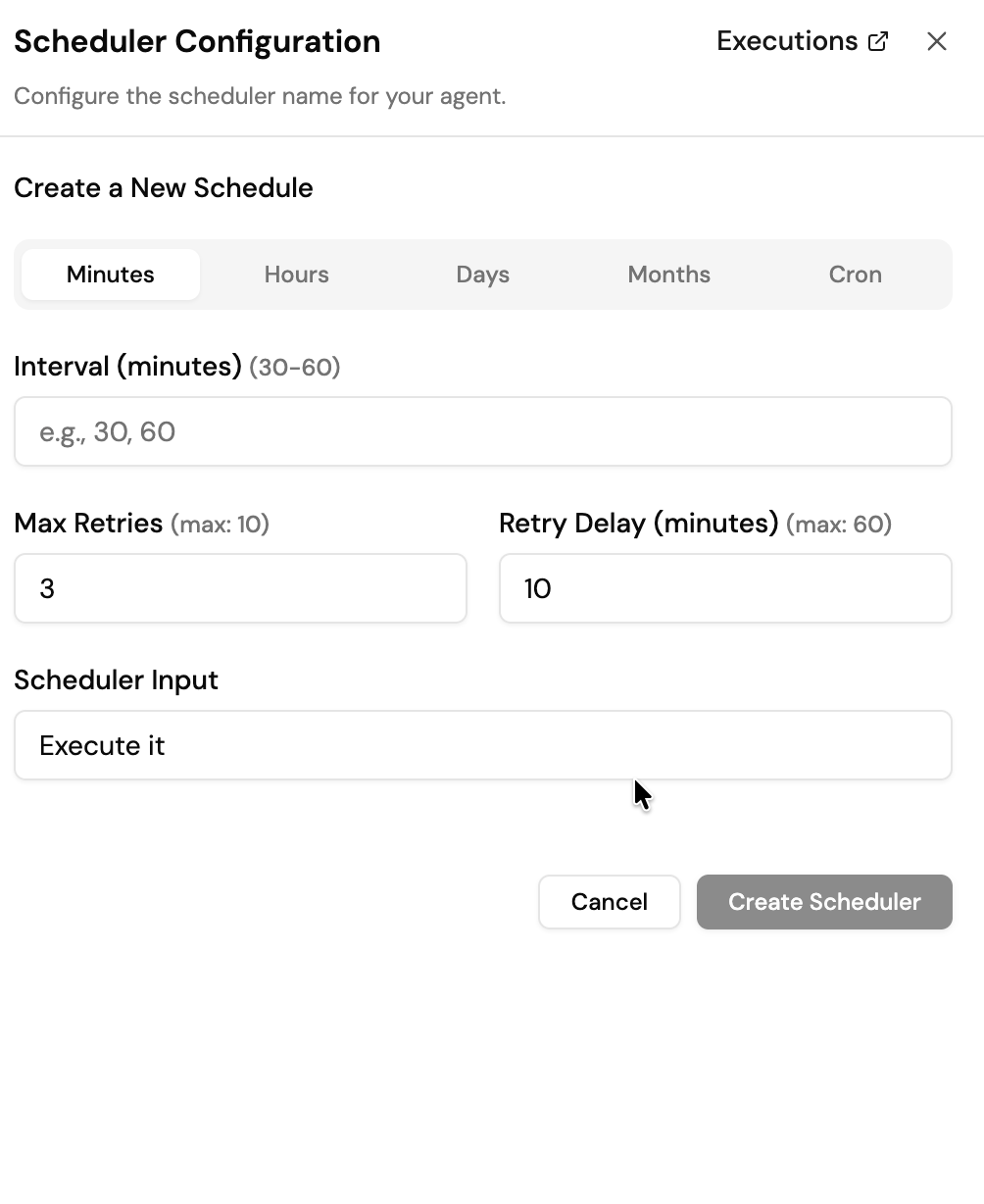 1. Pick how often the agent runs using one of the timing tabs described below.
2. Set **Max Retries** and **Retry Delay** to control what happens when a run fails.
3. Enter the **Scheduler Input**: the message the agent receives on every run, for example `Summarize yesterday's support tickets and flag anything urgent.`
4. Select **Create Scheduler**.
The schedule is active as soon as it is created.
## Timing options
| Tab | What you set | Example |
| - | - | - |
| **Minutes** | An interval between 30 and 60 minutes. | Every 30 minutes |
| **Hours** | An hourly interval (1-24) and the minute past the hour to run at. | Every 4 hours at minute 15 |
| **Days** | The days of the week and the time to run. | Monday to Friday at 09:00 |
| **Months** | A monthly interval (1-12), the day of the month, and the time. | The 1st of every month at 08:00 |
| **Cron** | A standard five-field cron expression, for anything the other tabs can't express. | `0 9 * * 1-5` (weekdays at 09:00) |
A cron expression has five fields: `minute hour day-of-month month day-of-week`. Day of week runs from 0 (Sunday) to 6 (Saturday).
## Retries
| Field | What it does |
| - | - |
| **Max Retries** | How many times a failed run is retried before it is marked as failed (up to 10). |
| **Retry Delay (minutes)** | How long to wait between retries (up to 60 minutes). A longer delay gives temporary problems, such as a rate limit or an unavailable tool, time to clear. |
## Monitoring runs
Select **Executions** in the panel header to open the run history for the agent's schedules. Each entry shows:
* **Status**: whether the run succeeded or failed.
* **Error**: the reason a run failed, for example a request timeout.
* **Time**: when the run happened, so you can confirm the schedule is firing on its intended cadence.
## Managing schedules with the API
Everything in this panel is also available over REST, including pausing, resuming, and running a schedule immediately for testing. See the [Schedules API](/enterprise/api/scheduler/schedules/create). If you need to call an arbitrary URL on a schedule rather than an agent, use [HTTP Schedules](/enterprise/api/scheduler/http-schedules/create).
The API measures `retry_delay` in seconds and allows 0-5 retries, which differs from the limits shown in the Studio panel.
## Related
* [Webhook Trigger](/enterprise/agent-studio/automation/webhook-trigger): run an agent when an external system sends it an event, instead of on a timer.
1. Pick how often the agent runs using one of the timing tabs described below.
2. Set **Max Retries** and **Retry Delay** to control what happens when a run fails.
3. Enter the **Scheduler Input**: the message the agent receives on every run, for example `Summarize yesterday's support tickets and flag anything urgent.`
4. Select **Create Scheduler**.
The schedule is active as soon as it is created.
## Timing options
| Tab | What you set | Example |
| - | - | - |
| **Minutes** | An interval between 30 and 60 minutes. | Every 30 minutes |
| **Hours** | An hourly interval (1-24) and the minute past the hour to run at. | Every 4 hours at minute 15 |
| **Days** | The days of the week and the time to run. | Monday to Friday at 09:00 |
| **Months** | A monthly interval (1-12), the day of the month, and the time. | The 1st of every month at 08:00 |
| **Cron** | A standard five-field cron expression, for anything the other tabs can't express. | `0 9 * * 1-5` (weekdays at 09:00) |
A cron expression has five fields: `minute hour day-of-month month day-of-week`. Day of week runs from 0 (Sunday) to 6 (Saturday).
## Retries
| Field | What it does |
| - | - |
| **Max Retries** | How many times a failed run is retried before it is marked as failed (up to 10). |
| **Retry Delay (minutes)** | How long to wait between retries (up to 60 minutes). A longer delay gives temporary problems, such as a rate limit or an unavailable tool, time to clear. |
## Monitoring runs
Select **Executions** in the panel header to open the run history for the agent's schedules. Each entry shows:
* **Status**: whether the run succeeded or failed.
* **Error**: the reason a run failed, for example a request timeout.
* **Time**: when the run happened, so you can confirm the schedule is firing on its intended cadence.
## Managing schedules with the API
Everything in this panel is also available over REST, including pausing, resuming, and running a schedule immediately for testing. See the [Schedules API](/enterprise/api/scheduler/schedules/create). If you need to call an arbitrary URL on a schedule rather than an agent, use [HTTP Schedules](/enterprise/api/scheduler/http-schedules/create).
The API measures `retry_delay` in seconds and allows 0-5 retries, which differs from the limits shown in the Studio panel.
## Related
* [Webhook Trigger](/enterprise/agent-studio/automation/webhook-trigger): run an agent when an external system sends it an event, instead of on a timer.