> ## Documentation Index
> Fetch the complete documentation index at: https://docs.lyzr.ai/llms.txt
> Use this file to discover all available pages before exploring further.
# Ms teams channel
# Connecting Lyzr Agents to Microsoft Teams: A Cookbook
This guide walks you through deploying a Lyzr AI agent as a Microsoft Teams bot — from Azure setup to chatting with your agent inside Teams.
***
## How It Works
```
User DM → Microsoft Teams
↓
Azure Bot Service (routes the message)
↓
Lyzr Webhook receives it (JWT-authenticated)
↓
Agent runs inference
↓
Reply posted back via Bot Connector API
↓
User sees the response in Teams
```
**NOTE**: The bot is scoped to **personal (1:1 DM) conversations only**.
***
## Prerequisites
* A [Lyzr Studio](https://studio.lyzr.ai/) account with at least one agent created
* A Microsoft account with access to [portal.azure.com](https://portal.azure.com) — the free tier is sufficient
***
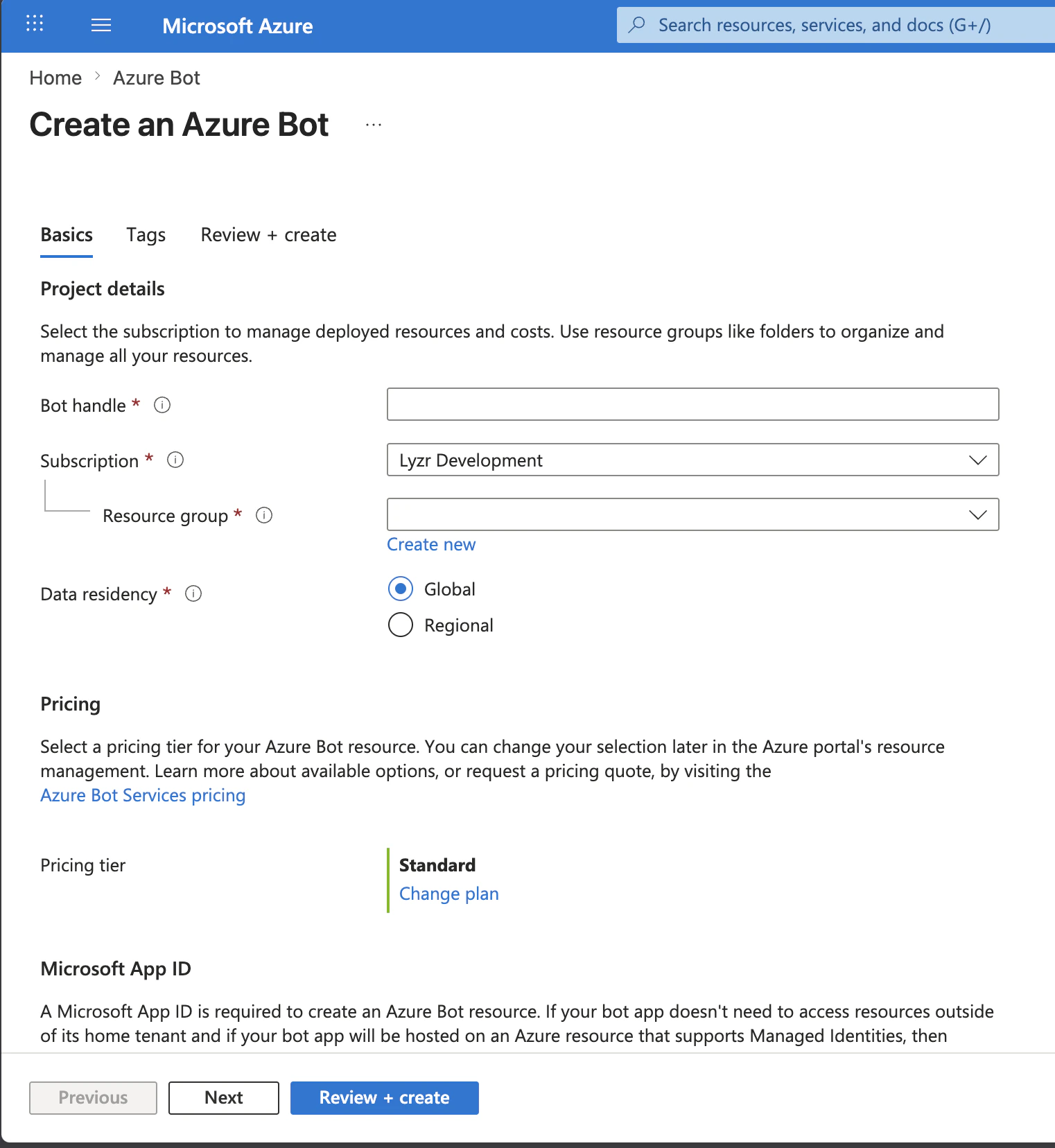
## Step 1: Create an Azure Bot Resource
1. Go to [portal.azure.com](https://portal.azure.com) and click **"Create a resource"**
2. Search for **"Azure Bot"** and select it
3. Click **Create** and fill in the following:
| Field | Value |
| ---------------- | ---------------------------------------- |
| Bot handle | A unique name, e.g. `my-lyzr-bot` |
| Subscription | Your Azure subscription |
| Resource group | Create new or use an existing one |
| Pricing tier | `F0` (free) is fine for testing |
| Microsoft App ID | Select **"Create new Microsoft App ID"** |
4. Click **Review + Create**, then **Create**
 Wait for the deployment to complete before continuing.
***
## Step 2: Get Your Microsoft App ID
1. Once deployment completes, open your **Azure Bot resource**
2. Click **Configuration** in the left sidebar
3. Copy the value in the **Microsoft App ID** field
> 💡 Save this as your `app_id`.
***
## Step 3: Create an App Password (Client Secret)
1. On the same **Configuration** page, click the **"Manage Password"** link
* This opens the app registration in Microsoft Entra ID
* Alternatively: go to **Microsoft Entra ID → App registrations** and find your bot by name
2. Click **Certificates & secrets** in the left sidebar
3. Under **Client secrets**, click **"New client secret"**
4. Enter a description (e.g. `lyzr-bot-secret`), choose an expiry, and click **Add**
5. **Copy the secret Value immediately** — it is not shown again
> 💡 Save this as your `app_password`. If you lose it, you must create a new secret and update Lyzr's channel configuration.
Wait for the deployment to complete before continuing.
***
## Step 2: Get Your Microsoft App ID
1. Once deployment completes, open your **Azure Bot resource**
2. Click **Configuration** in the left sidebar
3. Copy the value in the **Microsoft App ID** field
> 💡 Save this as your `app_id`.
***
## Step 3: Create an App Password (Client Secret)
1. On the same **Configuration** page, click the **"Manage Password"** link
* This opens the app registration in Microsoft Entra ID
* Alternatively: go to **Microsoft Entra ID → App registrations** and find your bot by name
2. Click **Certificates & secrets** in the left sidebar
3. Under **Client secrets**, click **"New client secret"**
4. Enter a description (e.g. `lyzr-bot-secret`), choose an expiry, and click **Add**
5. **Copy the secret Value immediately** — it is not shown again
> 💡 Save this as your `app_password`. If you lose it, you must create a new secret and update Lyzr's channel configuration.
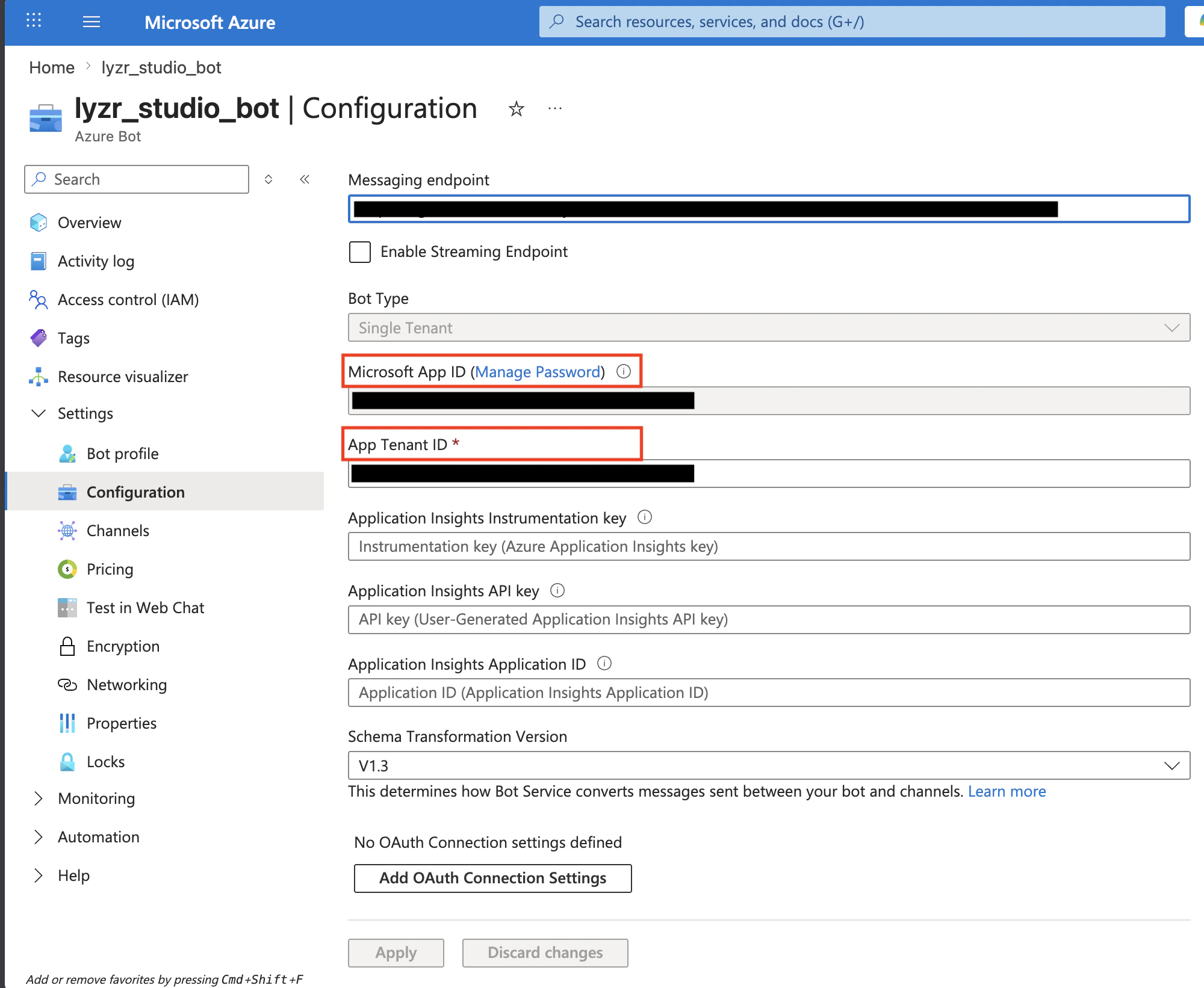 ***
## Step 4: Find Your Tenant ID
The Tenant ID identifies which Azure AD tenant your bot belongs to. This is required because Azure Bot Service now creates **Single Tenant** apps by default, and the token endpoint differs from older multi-tenant bots.
**Option A — Via Azure Bot Configuration (easiest):**
1. Go to your Azure Bot resource → **Configuration**
2. Copy the value in the **App Tenant ID** field
**Option B — Via Microsoft Entra ID:**
1. In the Azure Portal, search for **"Microsoft Entra ID"**
2. On the **Overview** page, copy the **Tenant ID**
> 💡 Save this as your `tenant_id`. It is a UUID that looks like `xxxxxxxx-xxxx-xxxx-xxxx-xxxxxxxxxxxx`.
***
## Step 5: Enable the Teams Channel
1. In your **Azure Bot resource**, click **Channels** in the left sidebar
2. Click **Microsoft Teams**
3. Accept the terms and click **Agree**
4. Click **Save**
***
## Step 6: Configure the Channel in Lyzr
1. Open the **Agent Builder** page in the Lyzr UI
2. Click the **Channels** button (top-right toolbar, left of Executions)
3. Click **Configure** next to **Microsoft Teams**
4. Fill in the form:
| Field | Value |
| ---------------- | ----------------------------------- |
| Microsoft App ID | Your `app_id` from Step 2 |
| App Password | Your `app_password` from Step 3 |
| Tenant ID | Your `tenant_id` from Step 4 |
| Default Agent | Select the agent to handle messages |
5. Click **Create Channel**
6. A **Webhook URL** will be displayed — copy it. It looks like:
```
https://your-server.com/v3/channels/webhook/xxxxxxxx-xxxx-xxxx-xxxx-xxxxxxxxxxxx
```
***
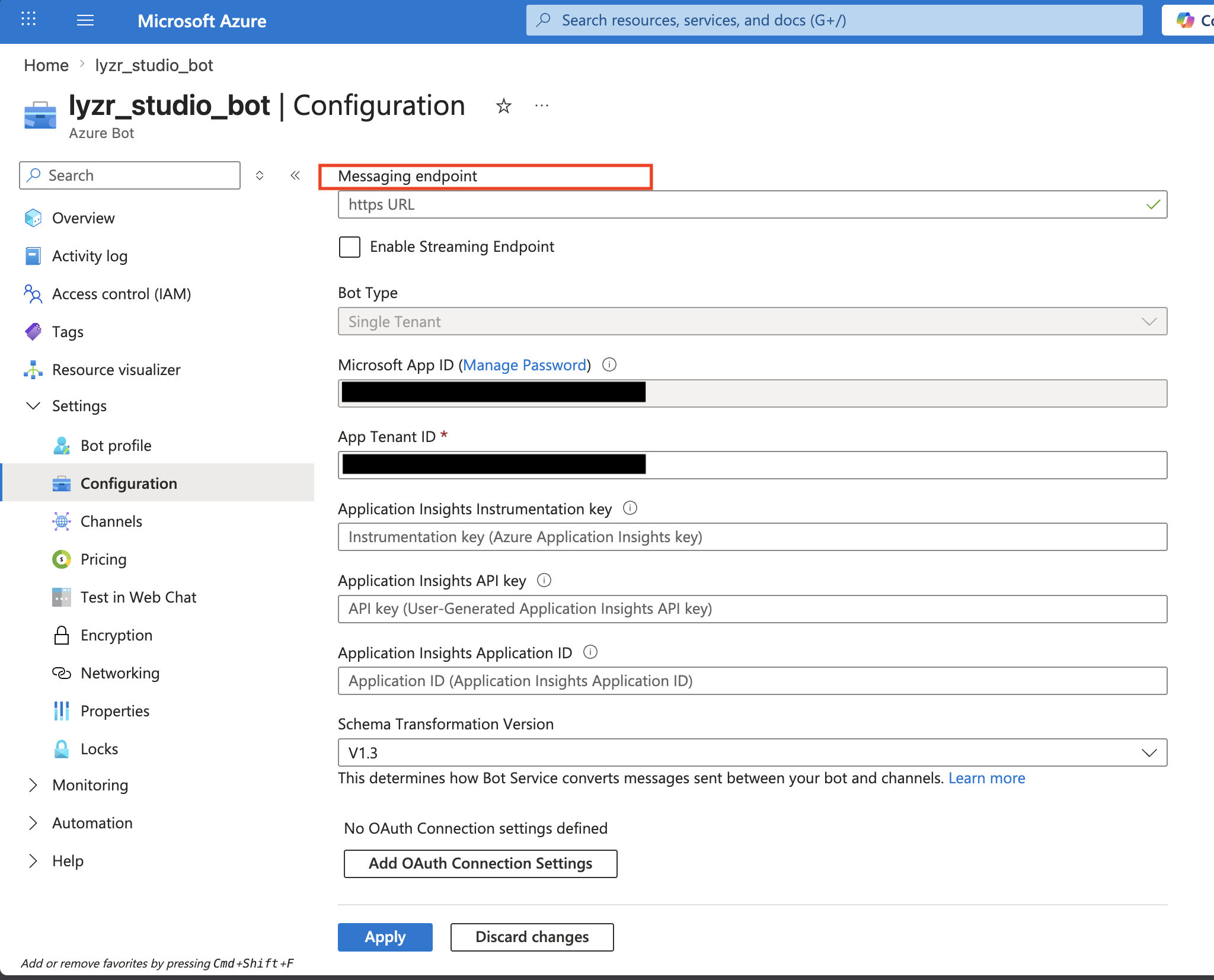
## Step 7: Set the Messaging Endpoint in Azure
1. Go back to your **Azure Bot resource** in the Azure Portal
2. Click **Configuration** in the left sidebar
3. Paste the Webhook URL from Step 6 into the **Messaging Endpoint** field
4. Click **Apply**
Azure Bot Service will now forward every Teams message to Lyzr.
##
***
## Step 4: Find Your Tenant ID
The Tenant ID identifies which Azure AD tenant your bot belongs to. This is required because Azure Bot Service now creates **Single Tenant** apps by default, and the token endpoint differs from older multi-tenant bots.
**Option A — Via Azure Bot Configuration (easiest):**
1. Go to your Azure Bot resource → **Configuration**
2. Copy the value in the **App Tenant ID** field
**Option B — Via Microsoft Entra ID:**
1. In the Azure Portal, search for **"Microsoft Entra ID"**
2. On the **Overview** page, copy the **Tenant ID**
> 💡 Save this as your `tenant_id`. It is a UUID that looks like `xxxxxxxx-xxxx-xxxx-xxxx-xxxxxxxxxxxx`.
***
## Step 5: Enable the Teams Channel
1. In your **Azure Bot resource**, click **Channels** in the left sidebar
2. Click **Microsoft Teams**
3. Accept the terms and click **Agree**
4. Click **Save**
***
## Step 6: Configure the Channel in Lyzr
1. Open the **Agent Builder** page in the Lyzr UI
2. Click the **Channels** button (top-right toolbar, left of Executions)
3. Click **Configure** next to **Microsoft Teams**
4. Fill in the form:
| Field | Value |
| ---------------- | ----------------------------------- |
| Microsoft App ID | Your `app_id` from Step 2 |
| App Password | Your `app_password` from Step 3 |
| Tenant ID | Your `tenant_id` from Step 4 |
| Default Agent | Select the agent to handle messages |
5. Click **Create Channel**
6. A **Webhook URL** will be displayed — copy it. It looks like:
```
https://your-server.com/v3/channels/webhook/xxxxxxxx-xxxx-xxxx-xxxx-xxxxxxxxxxxx
```
***
## Step 7: Set the Messaging Endpoint in Azure
1. Go back to your **Azure Bot resource** in the Azure Portal
2. Click **Configuration** in the left sidebar
3. Paste the Webhook URL from Step 6 into the **Messaging Endpoint** field
4. Click **Apply**
Azure Bot Service will now forward every Teams message to Lyzr.
##  ## Step 8: Add the Bot to Teams
Choose the method that fits your situation. **Option A** (sideloading) is the fastest for testing.
### Option A: Sideload via Developer Portal (Recommended for Testing)
No App Store publishing required.
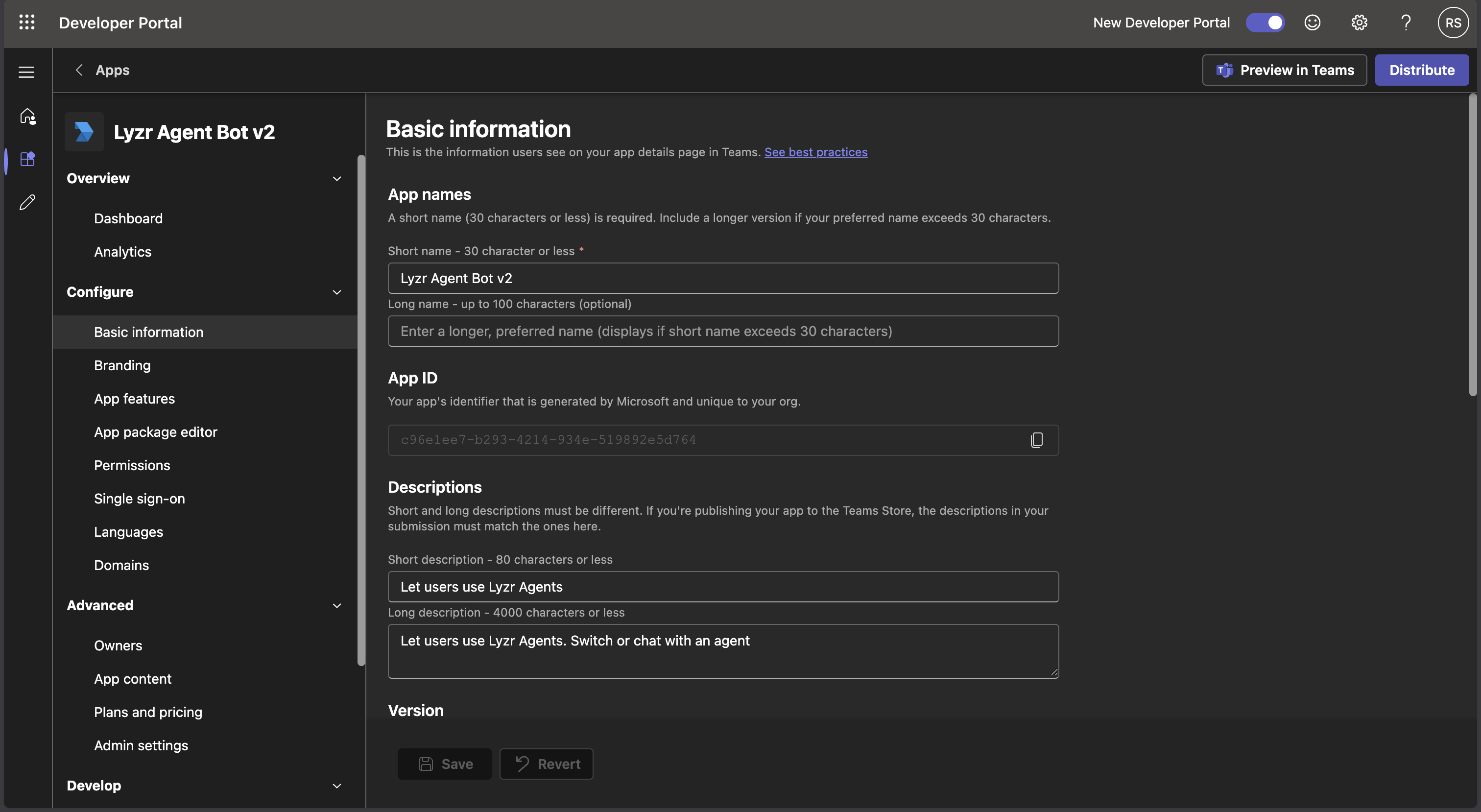
1. Go to [dev.teams.microsoft.com](https://dev.teams.microsoft.com) → **Apps** → **New app**
2. Fill in all required fields under **Configure → Basic information**:
| Field | Example Value |
| ----------------------- | ------------------------------------- |
| Short name | `My Lyzr Bot` |
| Short description | `AI agent bot` |
| Full description | `An AI agent powered by Lyzr` |
| Developer name | Your name or company |
| Website | `https://lyzr.ai` |
| Privacy policy | `https://www.lyzr.ai/privacy-policy/` |
| Terms of use | `https://www.lyzr.ai/legal/` |
| Application (client) ID | Your `app_id` from Step 2 |
## Step 8: Add the Bot to Teams
Choose the method that fits your situation. **Option A** (sideloading) is the fastest for testing.
### Option A: Sideload via Developer Portal (Recommended for Testing)
No App Store publishing required.
1. Go to [dev.teams.microsoft.com](https://dev.teams.microsoft.com) → **Apps** → **New app**
2. Fill in all required fields under **Configure → Basic information**:
| Field | Example Value |
| ----------------------- | ------------------------------------- |
| Short name | `My Lyzr Bot` |
| Short description | `AI agent bot` |
| Full description | `An AI agent powered by Lyzr` |
| Developer name | Your name or company |
| Website | `https://lyzr.ai` |
| Privacy policy | `https://www.lyzr.ai/privacy-policy/` |
| Terms of use | `https://www.lyzr.ai/legal/` |
| Application (client) ID | Your `app_id` from Step 2 |
 3. Under **Branding**, upload a **192×192 px** color icon and a **32×32 px** outline icon (any PNG works for testing)
4. Go to **App features → Bot**
5. Select **"Enter a bot ID"** and paste your `app_id`
6. Under **Scopes**, check **Personal** (for 1:1 DM conversations)
7. Click **Save**
8. Click **Publish → Preview in Teams**
9. When prompted in Teams, click **Add**
10. The bot will appear in your Teams sidebar under **Chat** — click it and start messaging
### Option B: Install from the Org App Store
If an admin has published the app to your organization:
1. In Teams, click **Apps** in the left sidebar
2. Search for your bot's name
3. Click the result → **Add**
### Option C: Direct Search in Chat
If the bot is already installed in your tenant:
1. In Teams, click the **Chat** icon in the left sidebar
2. Click the **pencil / compose** icon (New Chat)
3. In the **To:** field, type your bot's name
4. If it appears in suggestions, click it and start typing
***
## Linking Multiple Agents to a Channel
After initial setup, you can link multiple agents to a single Teams bot. Users can then switch between agents using commands.
### Via the Lyzr UI
1. Open **Channels** in the Agent Builder
2. Click **Manage agents** on the configured Teams channel
3. Toggle agents on/off to link or unlink them
4. Each agent gets a **name** used with the `/switch` command
### Via the API
**Add an agent:**
```bash theme={null}
curl -X POST "https://your-server.com/v3/channels/{channel_id}/agents" \
-H "x-api-key: your-api-key" \
-H "Content-Type: application/json" \
-d '{
"agent_id": "67e4d6983e456a9f92912044",
"name": "Support Agent"
}'
```
**Remove an agent:**
```bash theme={null}
curl -X DELETE "https://your-server.com/v3/channels/{channel_id}/agents/{agent_id}" \
-H "x-api-key: your-api-key"
```
> The default agent cannot be removed. To change it, delete the channel and recreate it with a different default agent.
***
## Bot Commands
Once multiple agents are linked, users can interact using these built-in commands:
| Command | Description |
| ------------- | -------------------------------------- |
| `/agents` | List all agents linked to this channel |
| `/list` | Same as `/agents` |
| `/switch ` | Switch to a different agent by name |
**Example:**
```
/agents
→ Available agents (use /switch to select one):
• Support Agent — 67e4d6983e456a9f92912044
• Sales Agent — 67e4d6673e456a9f9291203d
/switch Sales Agent
→ Switched to agent 'Sales Agent'. How can I help you?
```
The switch is **per-user and persistent** — each person's active agent is remembered across messages until they switch again.
***
## Troubleshooting
### Bot receives the message but doesn't reply
**Cause:** The OAuth2 token request is going to the wrong tenant endpoint. Azure now creates **Single Tenant** apps by default, which requires your actual Tenant ID — not the generic `botframework.com` endpoint used by older multi-tenant bots.
**Fix:** Make sure the **Tenant ID** field in Lyzr's Teams channel configuration is set to your Azure AD Tenant ID (the UUID from Step 4), not left blank.
***
### "Upload failed due to an invalid BotId in your manifest"
**Symptom:** When clicking **Add** in Teams after sideloading, you see this error.
**Cause:** The Bot ID in the Teams Developer Portal does not match the Microsoft App ID registered in Azure Bot Service.
**Fix:**
1. Go to [dev.teams.microsoft.com](https://dev.teams.microsoft.com) → your app → **App features → Bot**
2. Verify the Bot ID matches your `app_id` from Azure Bot → Configuration exactly
3. Re-save and click **Preview in Teams** again
***
### Validation error when clicking "Preview in Teams"
**Symptom:** `Schema validation failed... Required properties are missing`
**Cause:** Required fields in the app manifest are empty.
**Fix:** Go to Developer Portal → your app → **Configure → Basic information** and fill in all fields — especially short name, full description, developer name, website URL, privacy policy URL, and terms of use URL. Placeholder URLs like `https://example.com` are acceptable for testing.
***
### Bot is installed but shows no reply
* Confirm the **Messaging Endpoint** in Azure Bot → Configuration points to your Lyzr Webhook URL and is publicly reachable
* For local development, use [ngrok](https://ngrok.com): start the tunnel first, then update both Lyzr (channel config) and Azure (Messaging Endpoint) with the ngrok URL
* Verify the **Microsoft Teams channel** is enabled in Azure Bot → Channels
* Check your server logs for error details
***
### Client secret has expired
Client secrets have an expiry date set at creation. If your bot suddenly stops replying:
1. Go to **Microsoft Entra ID → App registrations → your bot app → Certificates & secrets**
2. Create a new client secret and copy the Value immediately
3. Delete the Teams channel in Lyzr and recreate it with the new `app_password`
***
### Teams messages not reaching Azure Bot (Web Chat works but Teams doesn't)
**Cause:** A mismatch between the App ID in the Teams app manifest, the Azure Bot resource, and the Entra app registration.
**Fix:**
1. In Azure Bot → Channels → Microsoft Teams — remove the Teams channel, save, then re-add and save
2. Confirm all three places show the same `app_id`:
* Azure Bot → Configuration → Microsoft App ID
* Entra App Registration → Overview → Application (client) ID
* Teams Developer Portal → App features → Bot ID
***
## Credentials Reference
| Credential | Where to Find It | Notes |
| -------------- | ----------------------------------------------------------------- | --------------------------------------------------------- |
| `app_id` | Azure Bot → Configuration → Microsoft App ID | Also called Application (client) ID |
| `app_password` | Entra App Registration → Certificates & secrets | Copy immediately — not shown again |
| `tenant_id` | Azure Bot → Configuration → App Tenant ID, or Entra ID → Overview | Required for Single Tenant bots (Azure default) |
| Webhook URL | Lyzr Channels UI after creating the Teams channel | Paste into Azure Bot → Configuration → Messaging Endpoint |
3. Under **Branding**, upload a **192×192 px** color icon and a **32×32 px** outline icon (any PNG works for testing)
4. Go to **App features → Bot**
5. Select **"Enter a bot ID"** and paste your `app_id`
6. Under **Scopes**, check **Personal** (for 1:1 DM conversations)
7. Click **Save**
8. Click **Publish → Preview in Teams**
9. When prompted in Teams, click **Add**
10. The bot will appear in your Teams sidebar under **Chat** — click it and start messaging
### Option B: Install from the Org App Store
If an admin has published the app to your organization:
1. In Teams, click **Apps** in the left sidebar
2. Search for your bot's name
3. Click the result → **Add**
### Option C: Direct Search in Chat
If the bot is already installed in your tenant:
1. In Teams, click the **Chat** icon in the left sidebar
2. Click the **pencil / compose** icon (New Chat)
3. In the **To:** field, type your bot's name
4. If it appears in suggestions, click it and start typing
***
## Linking Multiple Agents to a Channel
After initial setup, you can link multiple agents to a single Teams bot. Users can then switch between agents using commands.
### Via the Lyzr UI
1. Open **Channels** in the Agent Builder
2. Click **Manage agents** on the configured Teams channel
3. Toggle agents on/off to link or unlink them
4. Each agent gets a **name** used with the `/switch` command
### Via the API
**Add an agent:**
```bash theme={null}
curl -X POST "https://your-server.com/v3/channels/{channel_id}/agents" \
-H "x-api-key: your-api-key" \
-H "Content-Type: application/json" \
-d '{
"agent_id": "67e4d6983e456a9f92912044",
"name": "Support Agent"
}'
```
**Remove an agent:**
```bash theme={null}
curl -X DELETE "https://your-server.com/v3/channels/{channel_id}/agents/{agent_id}" \
-H "x-api-key: your-api-key"
```
> The default agent cannot be removed. To change it, delete the channel and recreate it with a different default agent.
***
## Bot Commands
Once multiple agents are linked, users can interact using these built-in commands:
| Command | Description |
| ------------- | -------------------------------------- |
| `/agents` | List all agents linked to this channel |
| `/list` | Same as `/agents` |
| `/switch ` | Switch to a different agent by name |
**Example:**
```
/agents
→ Available agents (use /switch to select one):
• Support Agent — 67e4d6983e456a9f92912044
• Sales Agent — 67e4d6673e456a9f9291203d
/switch Sales Agent
→ Switched to agent 'Sales Agent'. How can I help you?
```
The switch is **per-user and persistent** — each person's active agent is remembered across messages until they switch again.
***
## Troubleshooting
### Bot receives the message but doesn't reply
**Cause:** The OAuth2 token request is going to the wrong tenant endpoint. Azure now creates **Single Tenant** apps by default, which requires your actual Tenant ID — not the generic `botframework.com` endpoint used by older multi-tenant bots.
**Fix:** Make sure the **Tenant ID** field in Lyzr's Teams channel configuration is set to your Azure AD Tenant ID (the UUID from Step 4), not left blank.
***
### "Upload failed due to an invalid BotId in your manifest"
**Symptom:** When clicking **Add** in Teams after sideloading, you see this error.
**Cause:** The Bot ID in the Teams Developer Portal does not match the Microsoft App ID registered in Azure Bot Service.
**Fix:**
1. Go to [dev.teams.microsoft.com](https://dev.teams.microsoft.com) → your app → **App features → Bot**
2. Verify the Bot ID matches your `app_id` from Azure Bot → Configuration exactly
3. Re-save and click **Preview in Teams** again
***
### Validation error when clicking "Preview in Teams"
**Symptom:** `Schema validation failed... Required properties are missing`
**Cause:** Required fields in the app manifest are empty.
**Fix:** Go to Developer Portal → your app → **Configure → Basic information** and fill in all fields — especially short name, full description, developer name, website URL, privacy policy URL, and terms of use URL. Placeholder URLs like `https://example.com` are acceptable for testing.
***
### Bot is installed but shows no reply
* Confirm the **Messaging Endpoint** in Azure Bot → Configuration points to your Lyzr Webhook URL and is publicly reachable
* For local development, use [ngrok](https://ngrok.com): start the tunnel first, then update both Lyzr (channel config) and Azure (Messaging Endpoint) with the ngrok URL
* Verify the **Microsoft Teams channel** is enabled in Azure Bot → Channels
* Check your server logs for error details
***
### Client secret has expired
Client secrets have an expiry date set at creation. If your bot suddenly stops replying:
1. Go to **Microsoft Entra ID → App registrations → your bot app → Certificates & secrets**
2. Create a new client secret and copy the Value immediately
3. Delete the Teams channel in Lyzr and recreate it with the new `app_password`
***
### Teams messages not reaching Azure Bot (Web Chat works but Teams doesn't)
**Cause:** A mismatch between the App ID in the Teams app manifest, the Azure Bot resource, and the Entra app registration.
**Fix:**
1. In Azure Bot → Channels → Microsoft Teams — remove the Teams channel, save, then re-add and save
2. Confirm all three places show the same `app_id`:
* Azure Bot → Configuration → Microsoft App ID
* Entra App Registration → Overview → Application (client) ID
* Teams Developer Portal → App features → Bot ID
***
## Credentials Reference
| Credential | Where to Find It | Notes |
| -------------- | ----------------------------------------------------------------- | --------------------------------------------------------- |
| `app_id` | Azure Bot → Configuration → Microsoft App ID | Also called Application (client) ID |
| `app_password` | Entra App Registration → Certificates & secrets | Copy immediately — not shown again |
| `tenant_id` | Azure Bot → Configuration → App Tenant ID, or Entra ID → Overview | Required for Single Tenant bots (Azure default) |
| Webhook URL | Lyzr Channels UI after creating the Teams channel | Paste into Azure Bot → Configuration → Messaging Endpoint |