> ## Documentation Index
> Fetch the complete documentation index at: https://docs.lyzr.ai/llms.txt
> Use this file to discover all available pages before exploring further.
# Tools
> Using Tools within Lyzr
Tools are functions that extend the agent’s capabilities by allowing it to perform specific actions, like sending an email. Adding tools to your agent makes it more actionable and useful.
Lyzr Agent Studio offers multiple tools that are easy to add and configure as part of your agent. Additionally, you have the flexibility to integrate custom APIs, which function as custom tools.
## Connecting Tools
Lyzr Agent Studio provides two options to connect with tools:
Steps to connect:
1. Click on tools options from the side menu bar
2. Search for the tool that you want to add, and click on Add
3. Depending on the tool, you may need to sign-in, and provide access to Lyzr Agent Studio
Steps to add a custom tool:
1. Click on Tools from the sidebar menu.
2. Select Add Custom Tool.
3. Enter a Tool Set Name.
4. Upload or provide the OpenAPI/Swagger specification that defines your API endpoints.
5. Configure the following default parameters as needed:
1. Headers
2. Query Parameters
3. Body Parameters
4. Endpoint Defaults
6. Enable Enhanced Description to allow AI-powered enhancement of endpoint descriptions (optional).
7. Click Add Tool
## Adding a tool to your agent
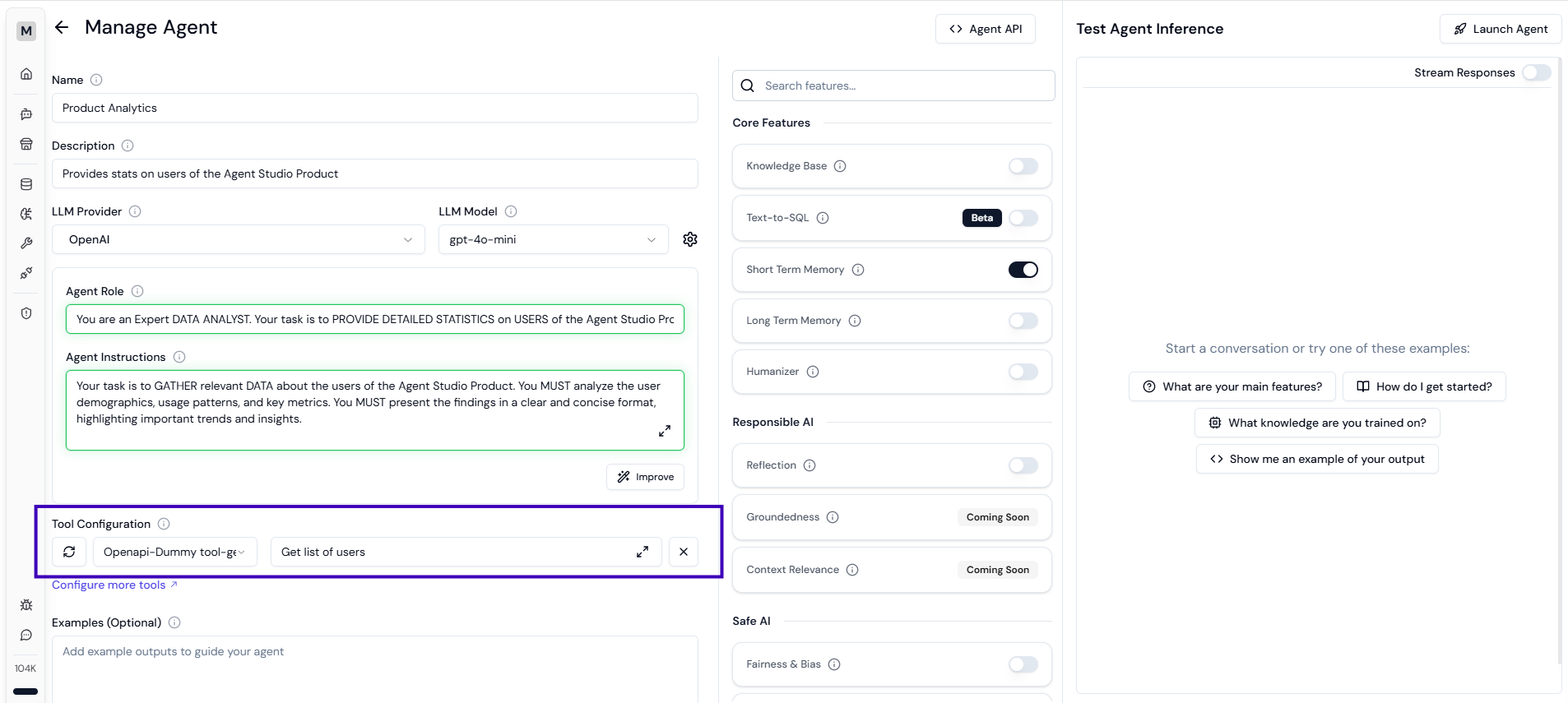
1. Create an agent and navigate to the Tools section to select from the list of already configured tools.
2. If the desired tool is not configured, go to the Tools page from the sidebar, select the preferred tool, and connect it. Return to your agent, go to the Tools section, and add the newly connected tool.
3. After selecting a tool, save the agent and assign the tool by providing clear instructions on its intended function. Finally, test the agent’s functionality from the Inference section.
 ## Examples
1. Analyze pull requests for best practices and security issues by connecting to Github
2. Send emails to users about the product, when they ask details about your product by connecting with gmail tool
3. Using custom tools, you can get a list of products after filtering the category as Shoes
## Examples
1. Analyze pull requests for best practices and security issues by connecting to Github
2. Send emails to users about the product, when they ask details about your product by connecting with gmail tool
3. Using custom tools, you can get a list of products after filtering the category as Shoes