> ## Documentation Index
> Fetch the complete documentation index at: https://docs.lyzr.ai/llms.txt
> Use this file to discover all available pages before exploring further.
# Monitoring & Telephony Configuration
Once your Voice Agent is built, the next steps are deploying it to a real-world phone line and monitoring its performance. Lyzr Studio provides a professional-grade infrastructure for managing multi-provider telephony integrations and reviewing high-fidelity call transcripts.
## Telephony Configuration
The **Telephony** tab is where you bridge your AI agents to the global phone network. Lyzr Studio supports top-tier providers to ensure high call quality and global reach.
 ### 1. Adding an Integration
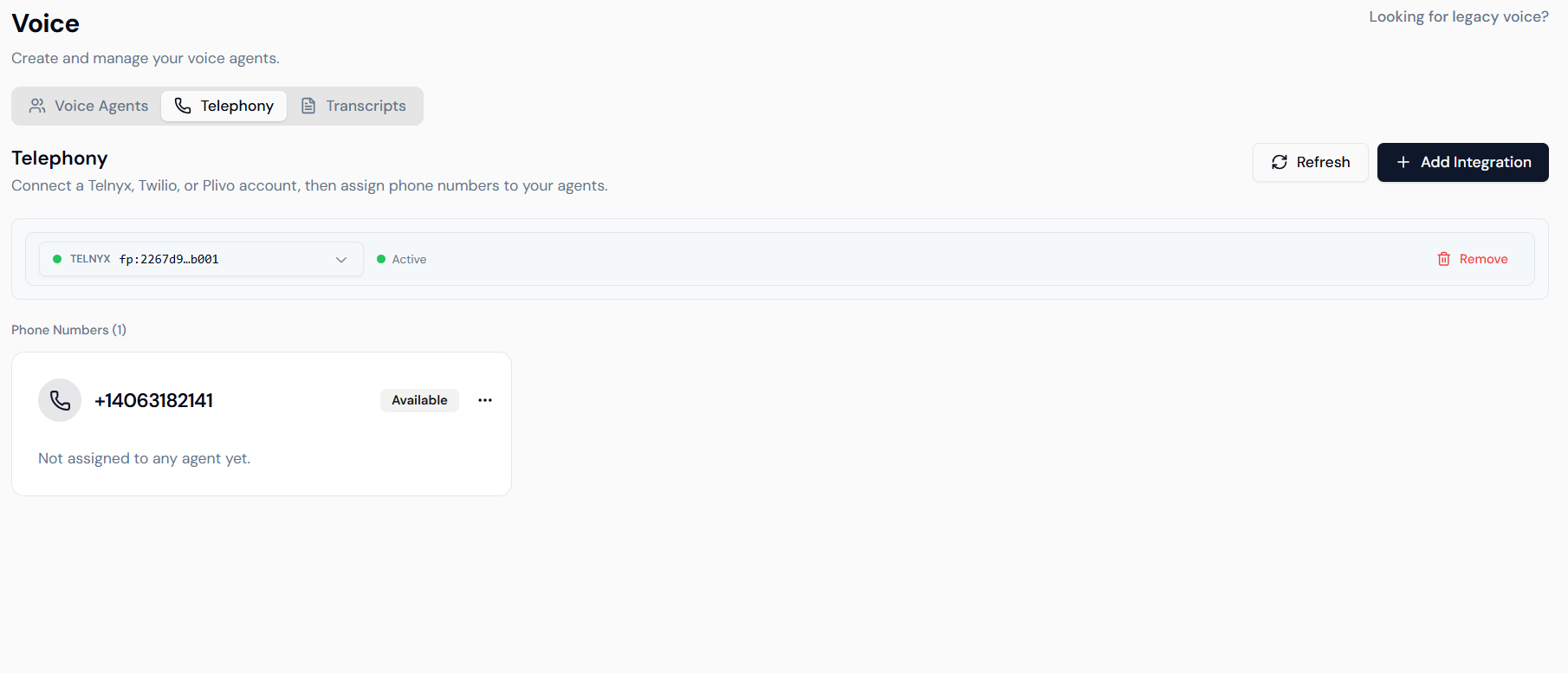
Lyzr Studio is provider-agnostic, allowing you to connect your existing accounts. Click **+ Add Integration** to get started.
### 1. Adding an Integration
Lyzr Studio is provider-agnostic, allowing you to connect your existing accounts. Click **+ Add Integration** to get started.
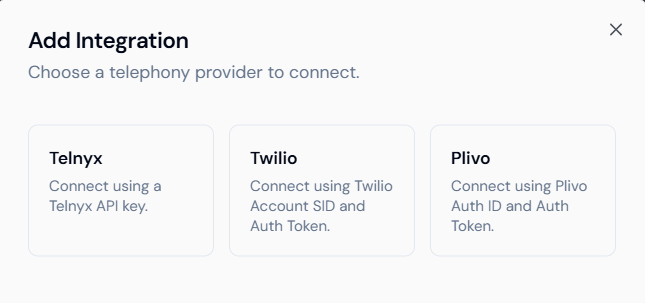 * **Telnyx:** Connect using a Telnyx API Key.
* **Twilio:** Connect using your Account SID and Auth Token.
* **Plivo:** Connect using your Plivo Auth ID and Auth Token.
### 2. Managing Phone Numbers
Once an integration is active, Lyzr automatically fetches the available numbers from your provider.
* **Active Status:** Visual indicators show if your integration is currently `Active` and connected.
* **Availability:** Numbers not yet linked to an agent will be marked as `Available`.
* **Assignment:** You can assign a specific agent to a number via the options menu (`...`). Once assigned, any incoming call to that number will be handled by your AI agent's logic.
***
## Transcripts & Analytics
The **Transcripts** tab serves as your command center for quality assurance and conversation intelligence. It provides a macro view of system performance and a micro view of every interaction.
* **Telnyx:** Connect using a Telnyx API Key.
* **Twilio:** Connect using your Account SID and Auth Token.
* **Plivo:** Connect using your Plivo Auth ID and Auth Token.
### 2. Managing Phone Numbers
Once an integration is active, Lyzr automatically fetches the available numbers from your provider.
* **Active Status:** Visual indicators show if your integration is currently `Active` and connected.
* **Availability:** Numbers not yet linked to an agent will be marked as `Available`.
* **Assignment:** You can assign a specific agent to a number via the options menu (`...`). Once assigned, any incoming call to that number will be handled by your AI agent's logic.
***
## Transcripts & Analytics
The **Transcripts** tab serves as your command center for quality assurance and conversation intelligence. It provides a macro view of system performance and a micro view of every interaction.
 ### Global Metrics
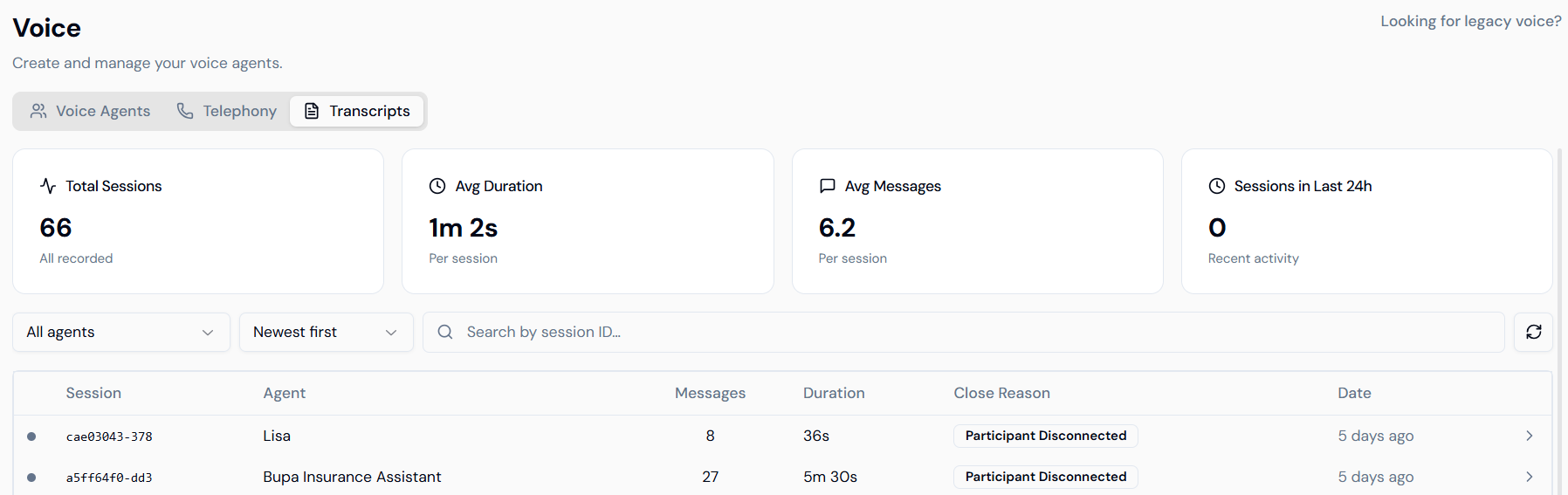
Monitor the health of your voice operations with real-time KPIs:
* **Total Sessions:** Aggregate count of all processed calls.
* **Avg Duration:** The mean length of your conversations, useful for identifying efficiency.
* **Avg Messages:** Tracks the "depth" of the conversation (number of back-and-forth turns).
* **Sessions in Last 24h:** Monitor recent traffic spikes or dips.
### Session Logs
The logs provide a detailed audit trail including the **Session ID**, the specific **Agent** used, **Message count**, **Duration**, and the **Close Reason** (e.g., "Participant Disconnected").
***
## Detailed Conversation Review
Clicking on any session ID opens the **Full Transcript View**. This interface is essential for debugging agent behavior and understanding user intent.
### Global Metrics
Monitor the health of your voice operations with real-time KPIs:
* **Total Sessions:** Aggregate count of all processed calls.
* **Avg Duration:** The mean length of your conversations, useful for identifying efficiency.
* **Avg Messages:** Tracks the "depth" of the conversation (number of back-and-forth turns).
* **Sessions in Last 24h:** Monitor recent traffic spikes or dips.
### Session Logs
The logs provide a detailed audit trail including the **Session ID**, the specific **Agent** used, **Message count**, **Duration**, and the **Close Reason** (e.g., "Participant Disconnected").
***
## Detailed Conversation Review
Clicking on any session ID opens the **Full Transcript View**. This interface is essential for debugging agent behavior and understanding user intent.
 ### Conversation Timeline
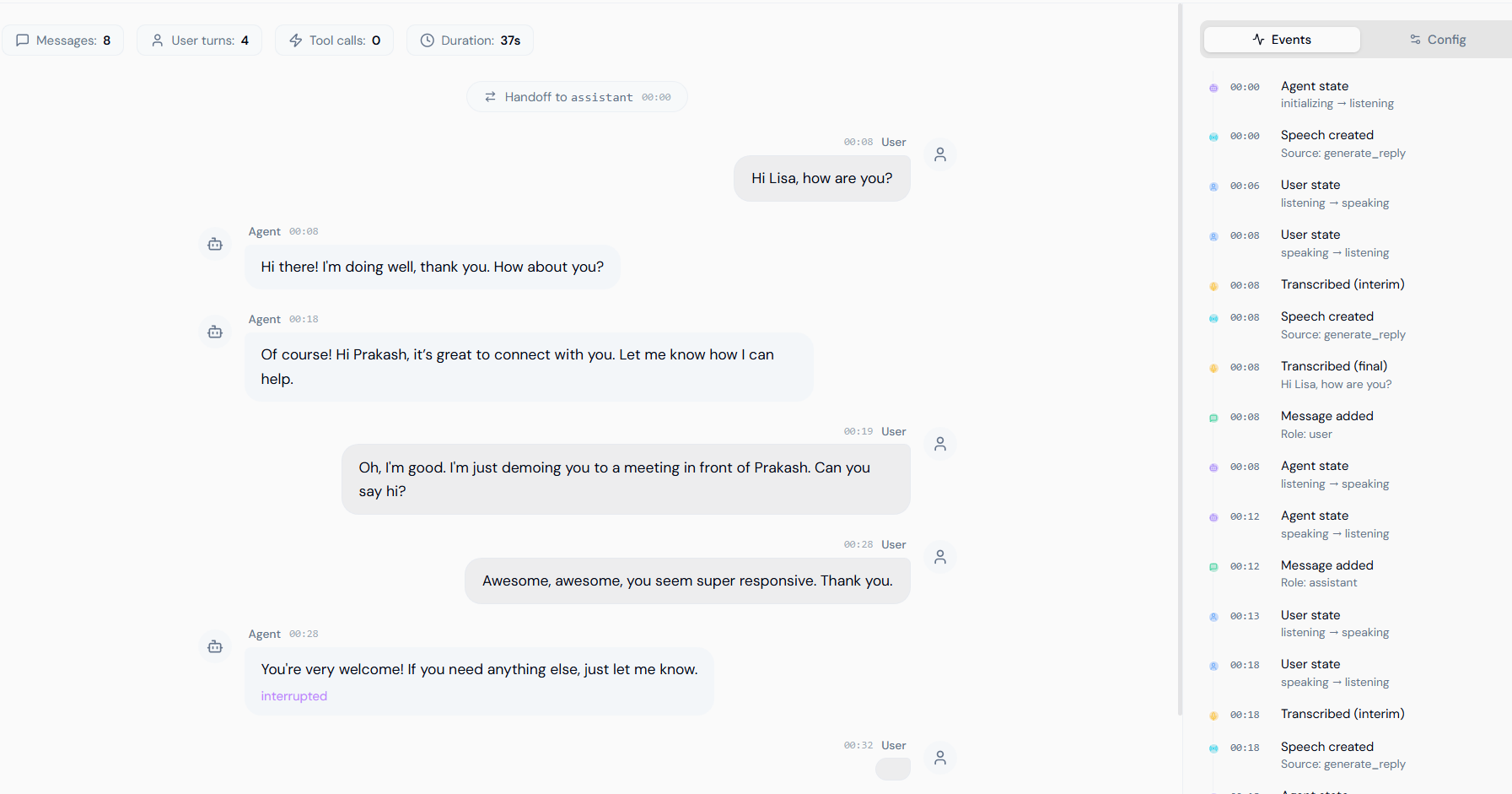
* **User Turns vs. Agent Turns:** Clearly distinguishes who said what and at what timestamp.
* **Interruption Tracking:** The UI highlights where the agent was **interrupted**, helping you tune the "Realtime" sensitivity settings.
* **Handoffs:** Tracks if and when a session was handed off to a human assistant or sub-agent.
### Event Log (Technical Sidebar)
The **Events** sidebar provides a raw, technical sequence of the call's execution. This is a powerful tool for developers to see the underlying "states" of the agent:
* **Agent State:** (e.g., `initializing` $\rightarrow$ `listening`).
* **Speech Creation:** Tracks when the `generate_reply` source was triggered.
* **Transcribed (Interim vs. Final):** See the STT (Speech-to-Text) processing in real-time, showing how the agent finalized the user's intent.
* **Message Added:** Confirms when a turn was successfully committed to the conversation history.
***
### Best Practices for Monitoring
1. **Review "Participant Disconnected" logs:** If calls are ending too abruptly, you may need to adjust your **Agent Instructions** to be more engaging or ask follow-up questions.
2. **Audit Interruptions:** If the transcript shows the agent is being interrupted constantly, consider lowering the **Ambience Volume** or checking for background noise on the caller's end using the **Krisp Noise Cancellation** feature.
3. **Check Transcription Accuracy:** Use the detailed transcript to see if the STT is struggling with specific terms. If so, add those terms to the **Pronunciation Correction** module.
### Conversation Timeline
* **User Turns vs. Agent Turns:** Clearly distinguishes who said what and at what timestamp.
* **Interruption Tracking:** The UI highlights where the agent was **interrupted**, helping you tune the "Realtime" sensitivity settings.
* **Handoffs:** Tracks if and when a session was handed off to a human assistant or sub-agent.
### Event Log (Technical Sidebar)
The **Events** sidebar provides a raw, technical sequence of the call's execution. This is a powerful tool for developers to see the underlying "states" of the agent:
* **Agent State:** (e.g., `initializing` $\rightarrow$ `listening`).
* **Speech Creation:** Tracks when the `generate_reply` source was triggered.
* **Transcribed (Interim vs. Final):** See the STT (Speech-to-Text) processing in real-time, showing how the agent finalized the user's intent.
* **Message Added:** Confirms when a turn was successfully committed to the conversation history.
***
### Best Practices for Monitoring
1. **Review "Participant Disconnected" logs:** If calls are ending too abruptly, you may need to adjust your **Agent Instructions** to be more engaging or ask follow-up questions.
2. **Audit Interruptions:** If the transcript shows the agent is being interrupted constantly, consider lowering the **Ambience Volume** or checking for background noise on the caller's end using the **Krisp Noise Cancellation** feature.
3. **Check Transcription Accuracy:** Use the detailed transcript to see if the STT is struggling with specific terms. If so, add those terms to the **Pronunciation Correction** module.