> ## Documentation Index
> Fetch the complete documentation index at: https://docs.lyzr.ai/llms.txt
> Use this file to discover all available pages before exploring further.
# Hallucination Manager
LyZR Studio lets you enforce safety, transparency, and accountability by configuring Responsible AI settings directly in the UI. Below are the key controls and how to set them up.
## 1. Add Responsible AI Facts
Use this section to supply domain-specific facts or policies. These facts act as guardrails, informing the model about critical rules it must follow.
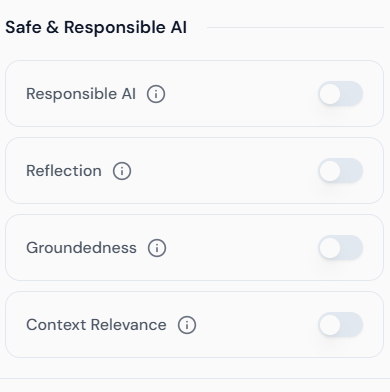 * **Policy Name**: A descriptive title for your fact or rule.
* **Content**: The actual policy text, such as legal guidelines or brand voice constraints.
## 2. Enable Reflection
Reflection allows the model to self-evaluate its outputs against your Responsible AI facts before returning responses.
* **Policy Name**: A descriptive title for your fact or rule.
* **Content**: The actual policy text, such as legal guidelines or brand voice constraints.
## 2. Enable Reflection
Reflection allows the model to self-evaluate its outputs against your Responsible AI facts before returning responses.
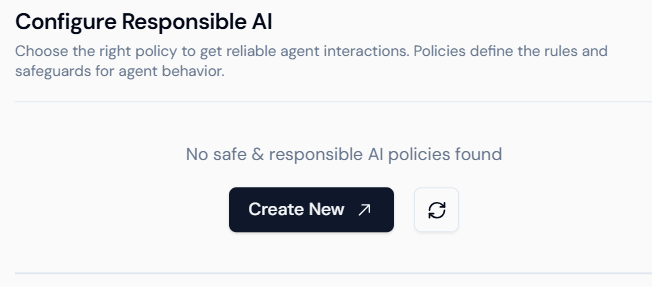 * Toggle **Reflection** on or off.
## 3. Configure Groundedness Value
Groundedness controls how strictly the model must base its answers on provided sources or facts.
* Toggle **Reflection** on or off.
## 3. Configure Groundedness Value
Groundedness controls how strictly the model must base its answers on provided sources or facts.
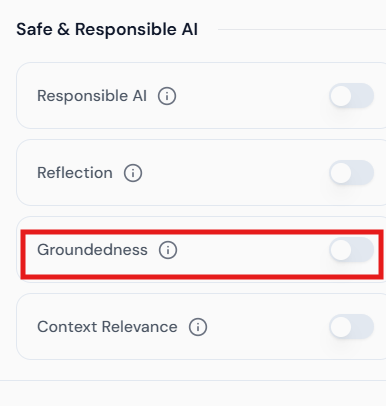 * **Groundedness Slider**: Drag between 0 (freeform) to 1 (fully grounded).
## 4. Set Context Relevance
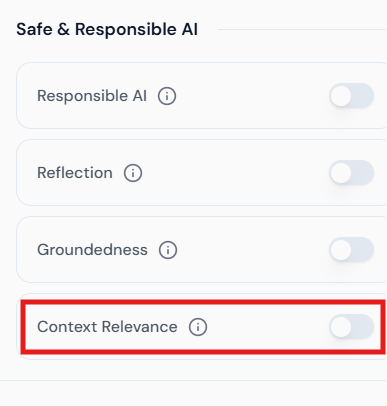
Ensure the AI considers only pertinent context windows when generating responses, reducing off-topic or outdated content.
* **Groundedness Slider**: Drag between 0 (freeform) to 1 (fully grounded).
## 4. Set Context Relevance
Ensure the AI considers only pertinent context windows when generating responses, reducing off-topic or outdated content.
 ***
***