> ## Documentation Index
> Fetch the complete documentation index at: https://docs.lyzr.ai/llms.txt
> Use this file to discover all available pages before exploring further.
# Neo4j GraphDB
### **Connecting Neo4j GraphDB**
Lyzr integrates with Neo4j, the leading graph database, to enable advanced knowledge graph capabilities. By connecting your Neo4j instance, your agents can traverse complex relationships and perform sophisticated graph-based retrieval to provide deeper context in AI workflows.
***
### **Configuration & Connection**
To establish a connection, you will need to provide the following details from your Neo4j Aura console:
* **Unique Name:** A label for this connection (e.g., "Knowledge\_Graph\_Prod").
* **Neo4j URI:** The connection endpoint for your instance (starts with `neo4j+s://`).
* **Neo4j User:** The database-level username (default is usually `neo4j`).
* **Neo4j Password:** The secret generated during instance creation.
* **Neo4j Database:** The name of the specific database (default is `neo4j`).
***
### **Retrieving Your Credentials**
Follow these steps within the **Neo4j Aura** console to find your connection details:
#### **1. Accessing the Console**
Log in to your [Neo4j Aura](https://console.neo4j.io/) account. You can continue using Google, GitHub, or your email credentials.
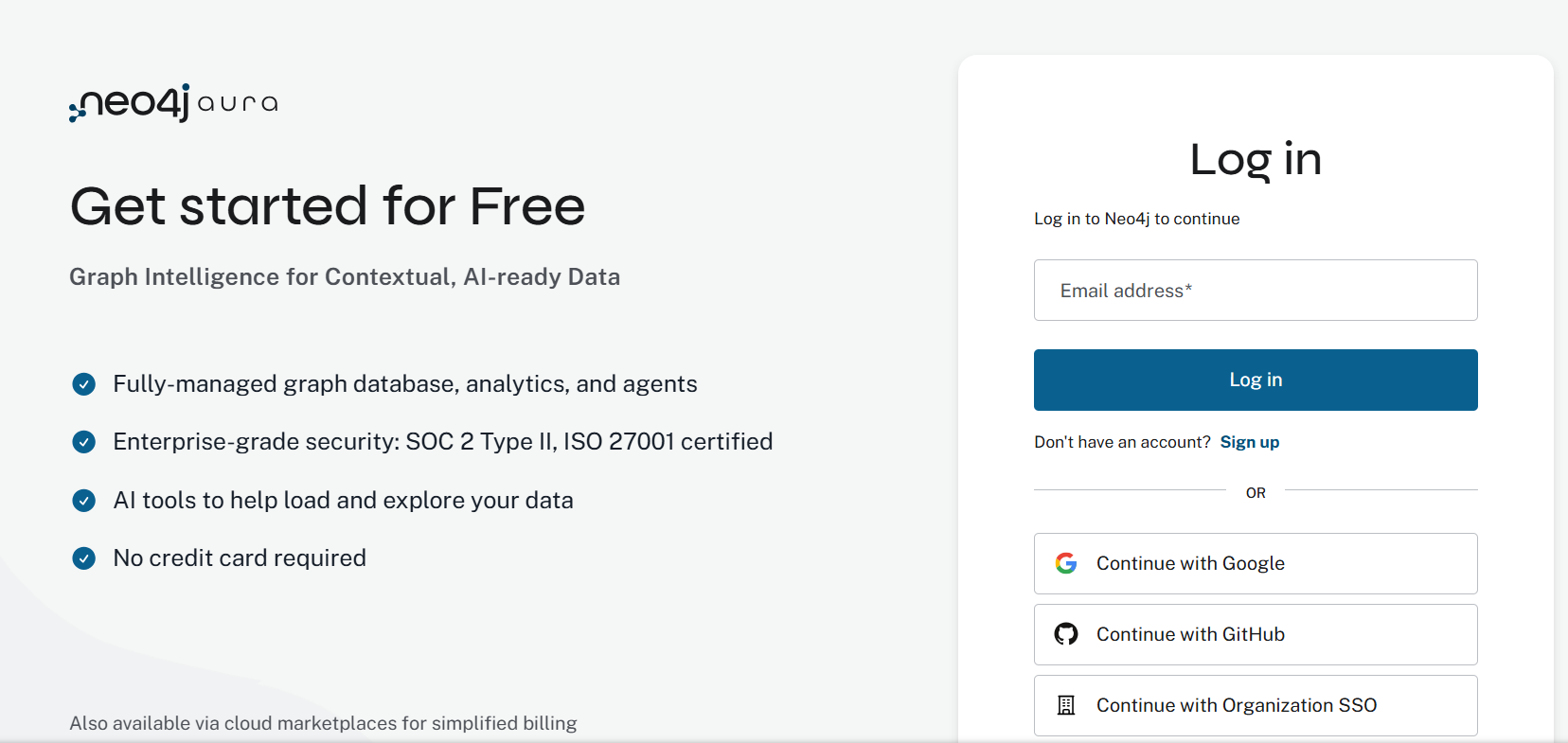 *Figure 1: Neo4j Aura login interface.*
#### **2. Creating an Instance**
If you don't have an active instance, click **Create Instance**. You can select the **Free** tier for exploration or a **Professional/Business Critical** tier for production needs. Give your instance a name like "Instance01".
*Figure 1: Neo4j Aura login interface.*
#### **2. Creating an Instance**
If you don't have an active instance, click **Create Instance**. You can select the **Free** tier for exploration or a **Professional/Business Critical** tier for production needs. Give your instance a name like "Instance01".
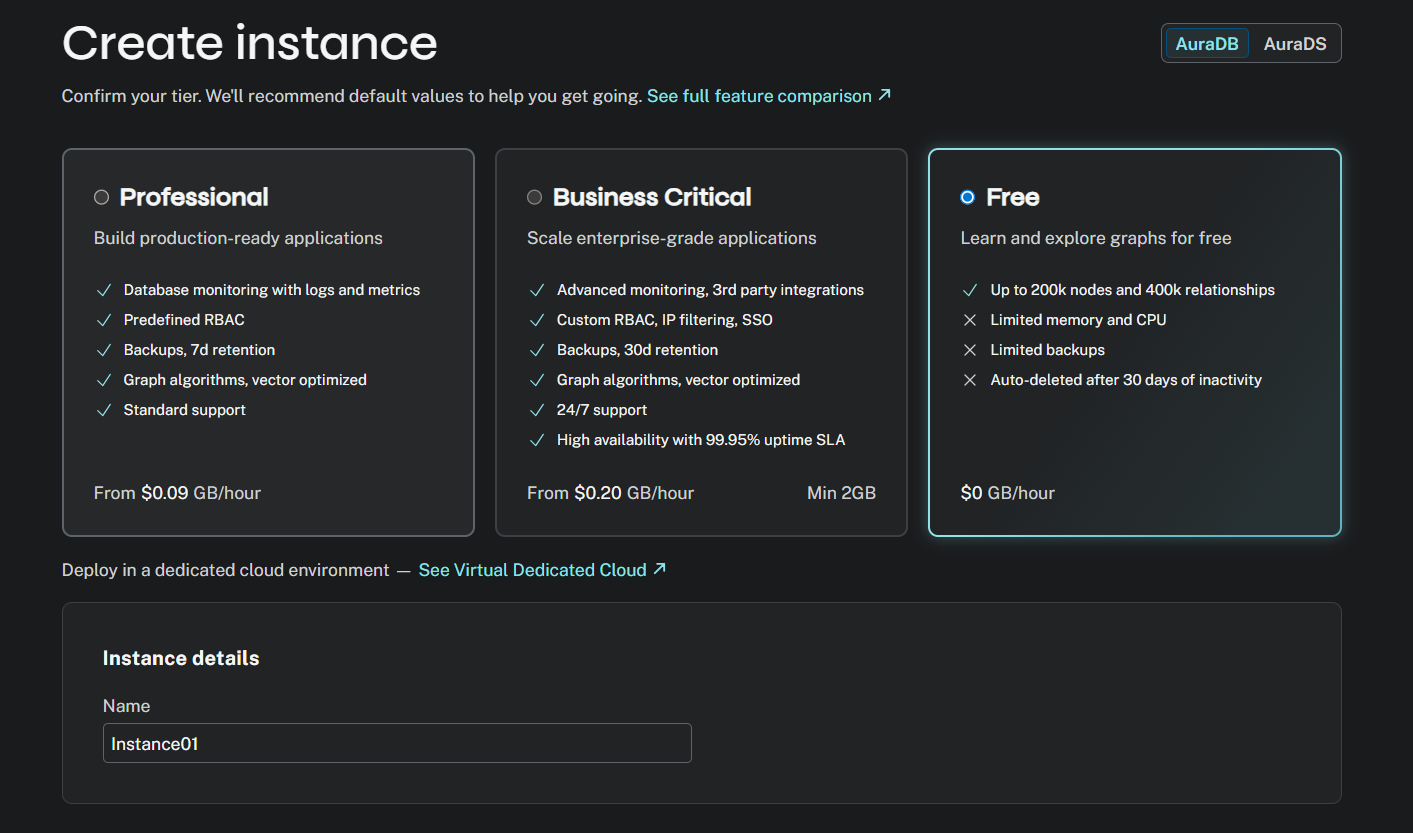 *Figure 2: Selecting an instance tier and naming the database.*
#### **3. Saving Credentials**
Upon creation, Neo4j will generate a **Username** and **Password**.
> **Important:** This is the only time the password is shown. You must click **Download and continue** to save these credentials locally.
*Figure 2: Selecting an instance tier and naming the database.*
#### **3. Saving Credentials**
Upon creation, Neo4j will generate a **Username** and **Password**.
> **Important:** This is the only time the password is shown. You must click **Download and continue** to save these credentials locally.
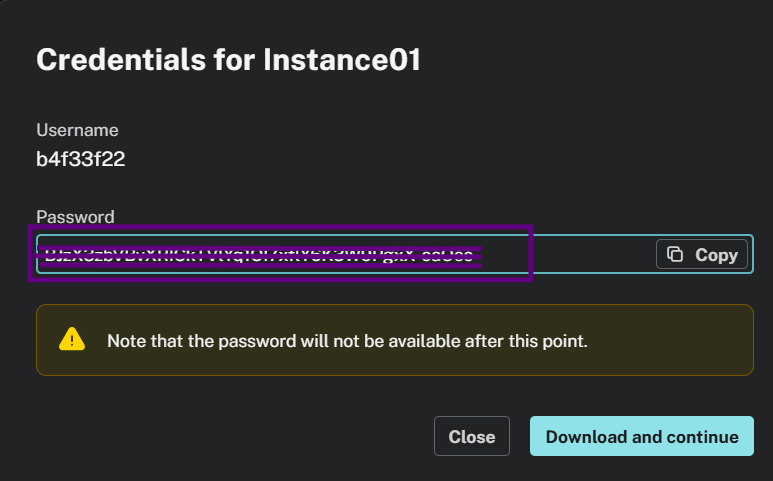 *Figure 3: Capturing the generated database credentials.*
#### **4. Finding the URI**
Once the instance is running, look at the instance tile on your dashboard. The **Connection URI** (e.g., `neo4j+s://8b4f33f2.databases.neo4j.io`) is listed clearly. This is what you will use as the **Neo4j URI** in Lyzr.
***
### **Finalizing the Connection**
Input the gathered credentials into the Lyzr connection modal.
*Figure 3: Capturing the generated database credentials.*
#### **4. Finding the URI**
Once the instance is running, look at the instance tile on your dashboard. The **Connection URI** (e.g., `neo4j+s://8b4f33f2.databases.neo4j.io`) is listed clearly. This is what you will use as the **Neo4j URI** in Lyzr.
***
### **Finalizing the Connection**
Input the gathered credentials into the Lyzr connection modal.
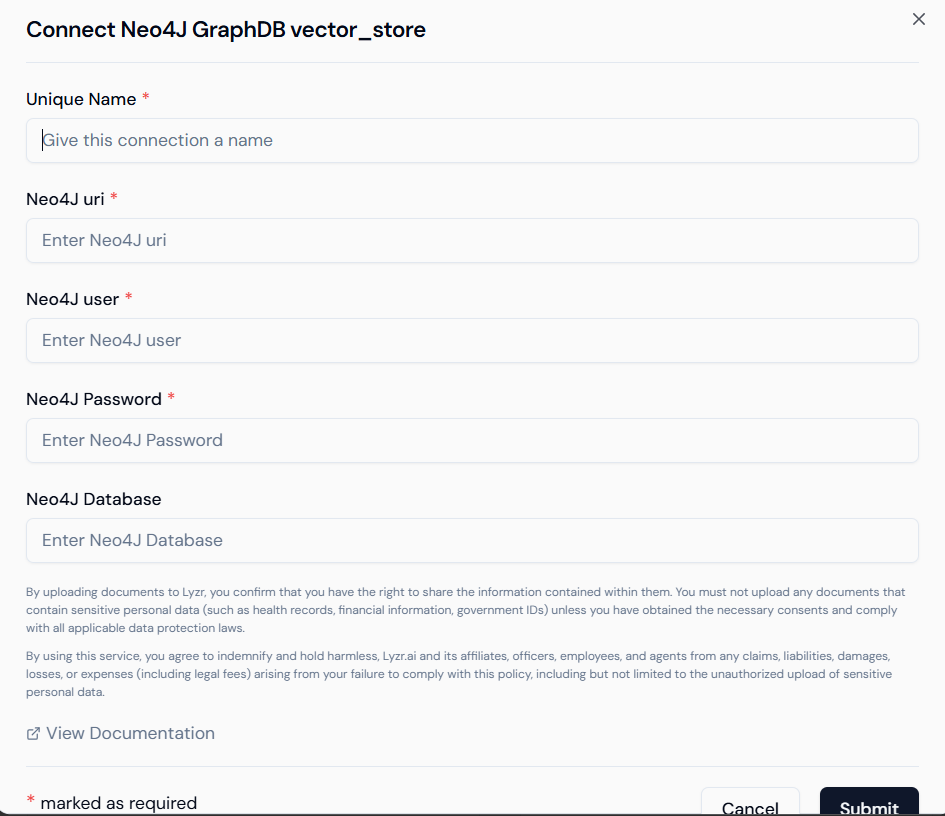 *Figure 4: Entering Neo4j credentials into the Lyzr interface.*
* **Database Name:** For almost all Aura instances, the default database name is `neo4j`.
* **Verification:** Click **Submit**. Lyzr will verify the bolt connection and the provided credentials.
*Figure 4: Entering Neo4j credentials into the Lyzr interface.*
* **Database Name:** For almost all Aura instances, the default database name is `neo4j`.
* **Verification:** Click **Submit**. Lyzr will verify the bolt connection and the provided credentials.