> ## Documentation Index
> Fetch the complete documentation index at: https://docs.lyzr.ai/llms.txt
> Use this file to discover all available pages before exploring further.
# Milvus Vector Store
### **Introducing Milvus Integration**
Lyzr supports integration with Milvus through Zilliz Cloud, providing a highly scalable and performant vector database environment. By connecting your Milvus cluster, you enable your agents to handle massive vector datasets with sub-millisecond latency and high concurrency.
***
### **Configuration & Connection**
To connect Lyzr to your Milvus instance, you will need the following credentials from your Zilliz Cloud console:
* **Unique Name:** A descriptive name for this connection (e.g., "Milvus\_Production\_Cluster").
* **Vector Store Token:** The API Key or token used for cluster authentication.
* **Vector Store URI:** The Public Endpoint address of your Milvus cluster.
***
### **Retrieving Your Credentials**
Follow these steps within the **Zilliz Cloud** console to obtain your connection details:
#### **1. Accessing the Dashboard**
Log in to your [Zilliz Cloud](https://cloud.zilliz.com/) account. You can authenticate using your work email or via SSO with GitHub and Google.
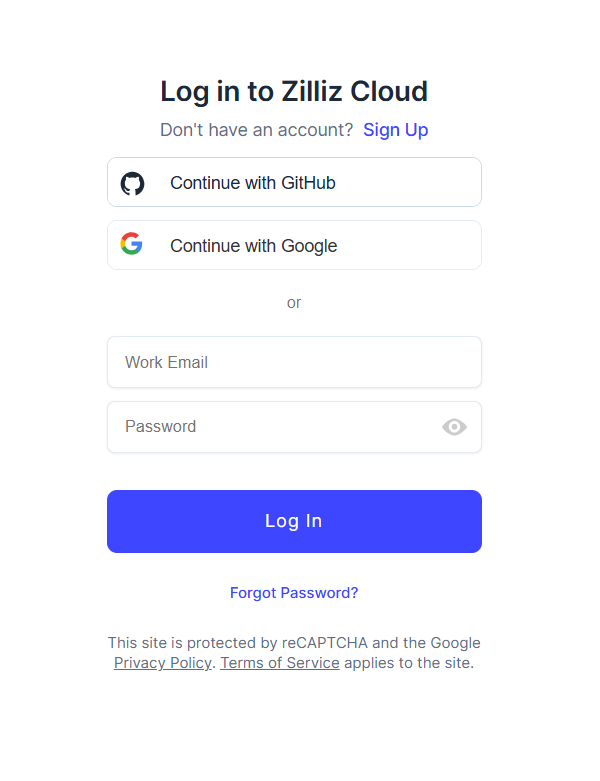 *Figure 1: The Zilliz Cloud login interface.*
#### **2. Creating a Cluster**
If you do not have an active cluster, navigate to the **Clusters** tab and click **Create Cluster**. For testing and development, you can select the **Free** deployment option, which provides 5 GB of storage and up to 5 collections.
*Figure 1: The Zilliz Cloud login interface.*
#### **2. Creating a Cluster**
If you do not have an active cluster, navigate to the **Clusters** tab and click **Create Cluster**. For testing and development, you can select the **Free** deployment option, which provides 5 GB of storage and up to 5 collections.
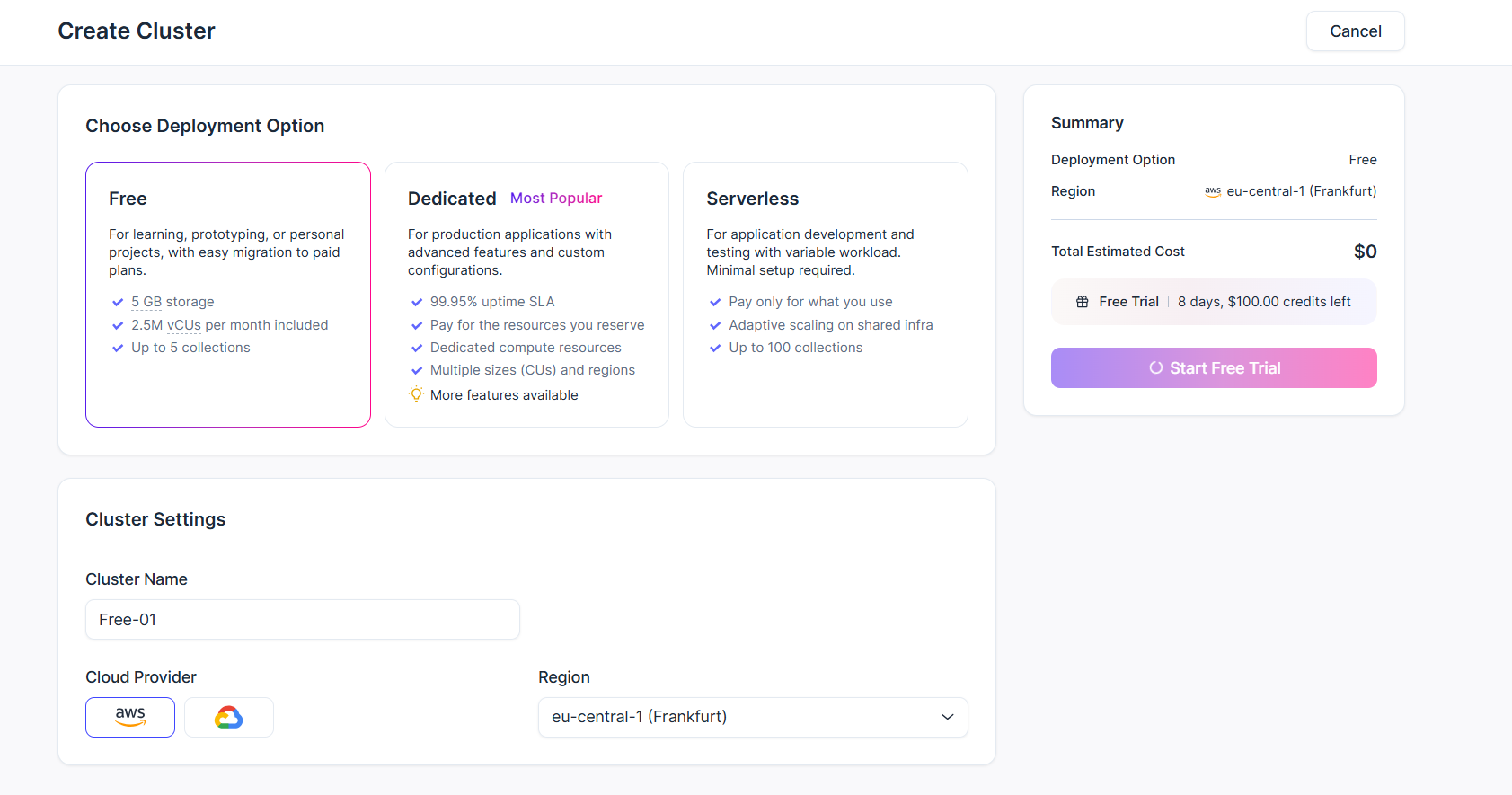 *Figure 2: Configuring a new Milvus cluster in Zilliz Cloud.*
#### **3. Locating the Public Endpoint**
Once your cluster is active, navigate to the cluster's **Connect** tab. Under the connection details, copy the **Public Endpoint**. This address serves as your **Vector Store URI**.
*Figure 2: Configuring a new Milvus cluster in Zilliz Cloud.*
#### **3. Locating the Public Endpoint**
Once your cluster is active, navigate to the cluster's **Connect** tab. Under the connection details, copy the **Public Endpoint**. This address serves as your **Vector Store URI**.
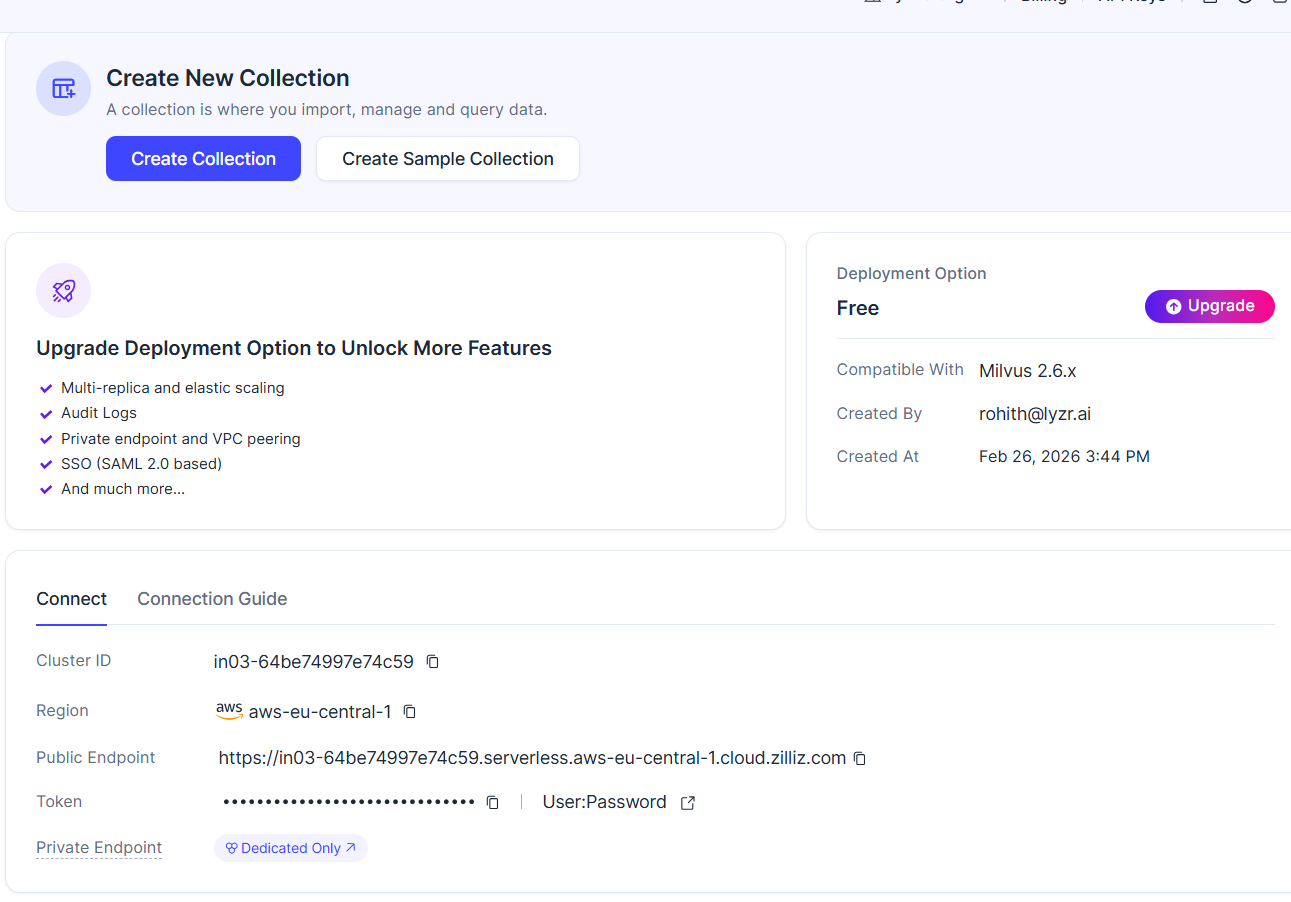 *Figure 3: Finding the Public Endpoint and Cluster ID.*
#### **4. Generating the API Key (Token)**
Navigate to the **API Keys** section in the sidebar or top navigation. Click **Create API Key**, assign a name (e.g., "testkey"), and define the access level (e.g., Project Read-Write). Copy the generated token immediately for use as your **Vector Store Token**.
*Figure 3: Finding the Public Endpoint and Cluster ID.*
#### **4. Generating the API Key (Token)**
Navigate to the **API Keys** section in the sidebar or top navigation. Click **Create API Key**, assign a name (e.g., "testkey"), and define the access level (e.g., Project Read-Write). Copy the generated token immediately for use as your **Vector Store Token**.
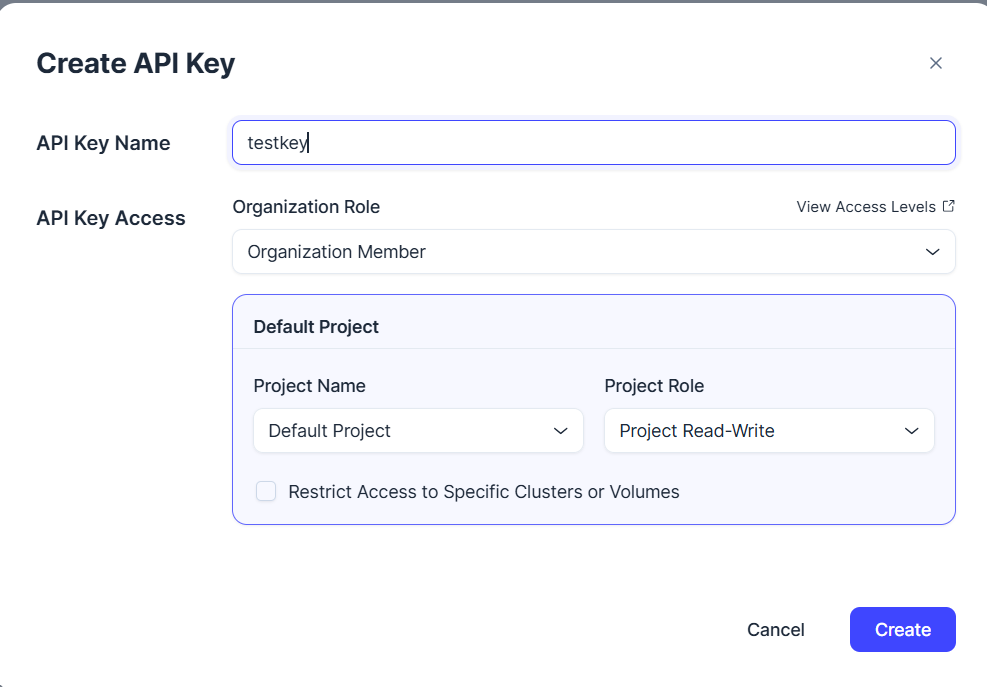 *Figure 4: Creating a secure API Key for Lyzr access.*
***
### **Finalizing the Connection**
Return to the Lyzr dashboard and enter the gathered credentials into the **Connect Milvus vector\_store** modal.
*Figure 4: Creating a secure API Key for Lyzr access.*
***
### **Finalizing the Connection**
Return to the Lyzr dashboard and enter the gathered credentials into the **Connect Milvus vector\_store** modal.
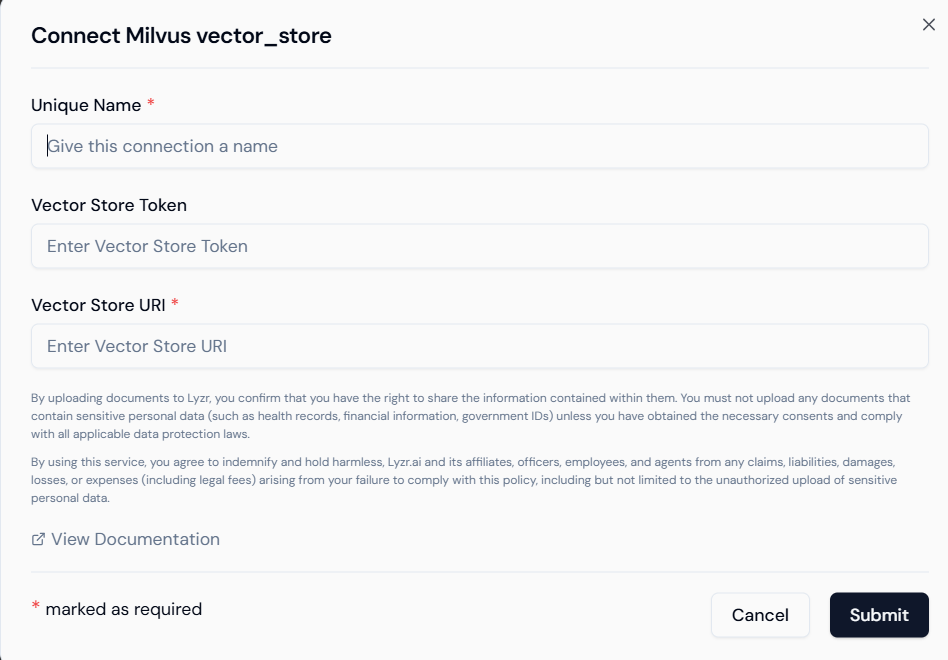 *Figure 5: Inputting Milvus credentials into the Lyzr interface.*
* **Validation:** Click **Submit** to verify the URI and Token.
* **Security Note:** If you are using a self-hosted Milvus instance, ensure your firewall allows traffic on port `19530` for gRPC or the designated REST port.
*Figure 5: Inputting Milvus credentials into the Lyzr interface.*
* **Validation:** Click **Submit** to verify the URI and Token.
* **Security Note:** If you are using a self-hosted Milvus instance, ensure your firewall allows traffic on port `19530` for gRPC or the designated REST port.